41
StarSight System
Using the StarSight Features
Selecting and De-selecting Channels
StarSight allows you to remove channels that you rarely or never watch. When a
channel is removed, it will no longer appear in StarSight Guides, nor will it appear
when you flip through channels. To increase the amount of information for
individual programs, you should delete channels that you seldom or never watch.
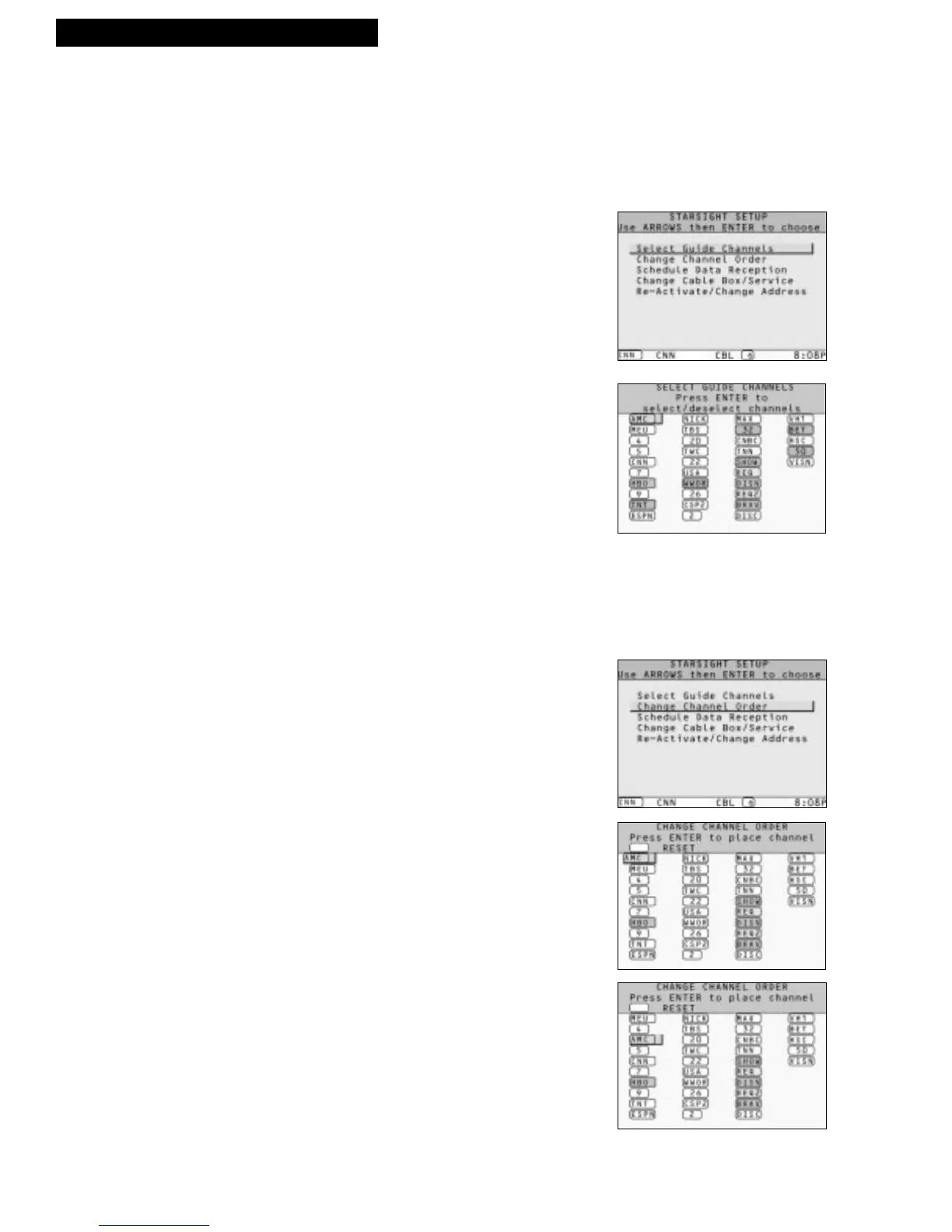
1. Press MENU. Use UP or DOWN ARROW to
highlight “StarSight setup” and press ENTER.
“Select Guide Channels” will be highlighted.
2. Press ENTER to display your channel lineup.
3. Press UP, DOWN, LEFT, or RIGHT ARROW to
highlight the channel you want to remove and
press ENTER.
The background color changes to gray, indicating
that the channel is de-selected. If you want to add
the channel back at a later time, you must wait for
the scheduled data reception time to collect
program information for that channel.
If you change your mind, just highlight the channel
again and press ENTER. The background returns
to its original color, and the channel is selected.
4. Press EXIT to resume watching TV.
Changing the Channel Order
You can list your channels on the Grid Guide in any order you want. Your channels
will also be in this order as you change channels.
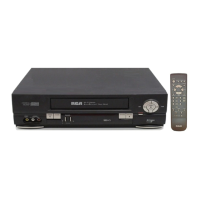
1. Press MENU. Use UP or DOWN ARROW to
highlight “StarSight setup” and press ENTER.
2. Press DOWN ARROW to highlight “Change
Channel Order,” and press ENTER to display your
list of channels.
3. Press UP, DOWN, LEFT, or RIGHT ARROW to
highlight the channel you want to move and press
ENTER (channel moves slightly to the left.)
4. Press UP, DOWN, LEFT, or RIGHT ARROW to
move the highlighted channel to the new location
and press ENTER to insert the channel into its new
position.
5. Press EXIT to resume watching TV.
You should also know...
• To reset your channels to the original order, use the UP
ARROW to highlight the RESET box at the top of the
Change Channel Order screen and press ENTER.
• To maximize show descriptions, place your most frequently
watched channels at the beginning of your list.



 To Next Page