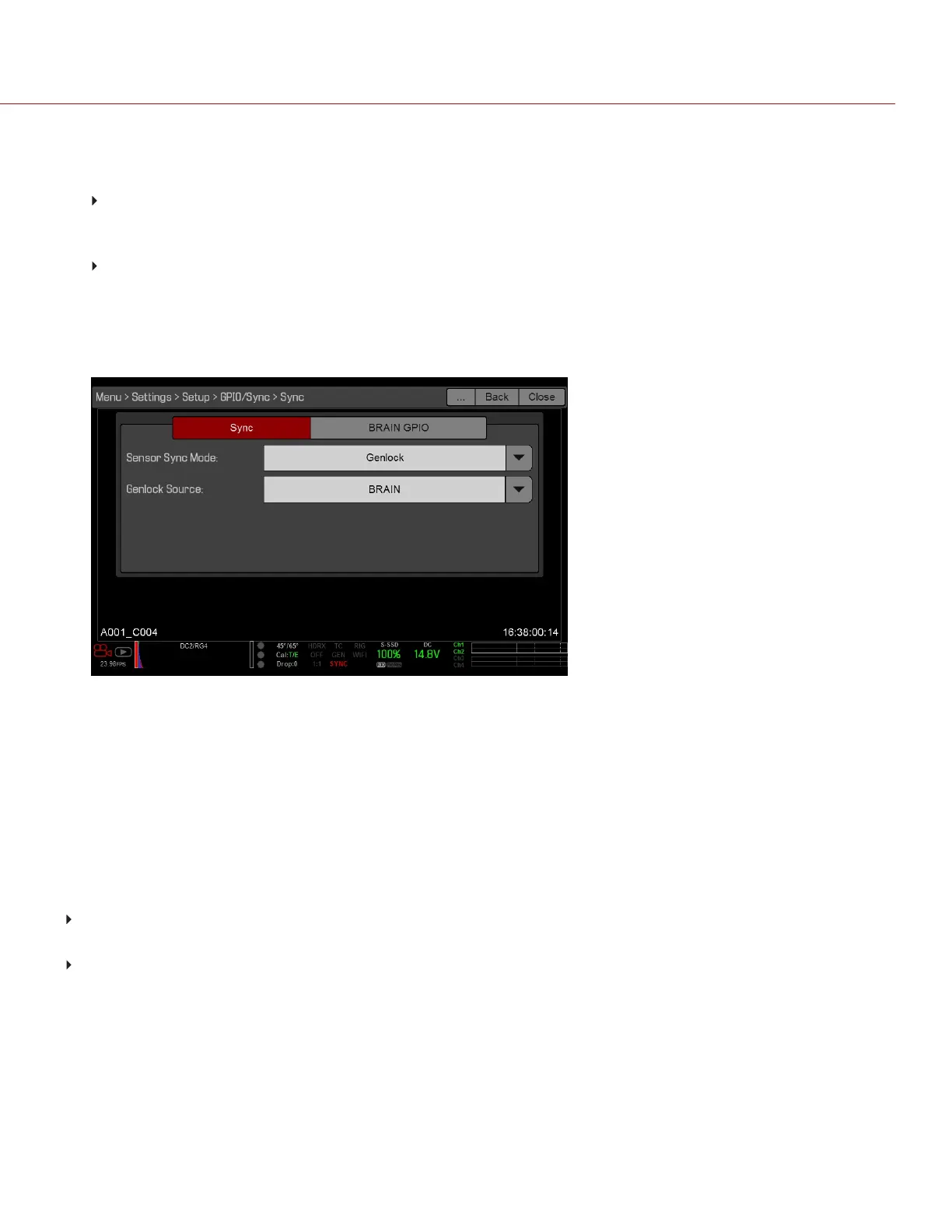
To set up and enable Sensor Sync Mode, follow the instructions below:
1. Connect the genlock device to the camera:
DSMC2 Base Expander, DSMC2 V-Lock I/O Expander, DSMC2 Jetpack Expander, or DSMC2 Jetpack-
SDI Expander: Connect the SYNC port (00B) on the expander to the device (green BNC) using a 3BNC-to-00
LEMO Sync Cable.
DSMC2 REDVOLT Expander: Connect the GENLOCK port on the expander to the device using a 75 ohm
BNC cable.
2.
Go to Menu > Settings > Setup > GPIO/Sync > Sync.
3.
Select Genlock from the Sensor Sync Mode drop-down menu.
4.
Select BRAIN from the Genlock Source drop-down menu.
Figure: Sync Settings
5.
Go to Menu > Settings > Display > Monitor Control.
6.
Select HDSDI from the drop-down menu.
7.
Select the desired monitor output frequency from the Frequency drop-down menu. Select Auto to automatically
match the HD-SDI output to the current project time base.
The GEN indicator in the Lower Status Row turns green when a compatible genlock signal is present and genlock
is enabled. The SYNC indicator in the Lower Status Row turns green when Sensor Sync is achieved.
REQUIRED CABLE
DSMC2 Base Expander, DSMC2 V-Lock I/O Expander, DSMC2 Jetpack Expander, or DSMC2 Jetpack-SDI
Expander: 790-0154, 3BNC-to-00 LEMO
DSMC2 REDVOLT Expander: 75 ohm BNC cable (such as the RED HD-SDI Cable, P/N 790-0341)
C OPYRI GHT © 2017 R ED.C O M , I NC 955- 01 38 _V6.3, REV-D | 170
WEAPON/EPIC-W OPERATION GUIDE


 To Next Page