5.Troubleshooting
169
If a print job is affected, select the particular job from the Printed or Held list.
If the affected print job cannot be found in the list (because an error occurred during
processing, etc), select another job in the list. Creating the Job Error Report by selecting
another job will also store the latest logs in the zip file, except for Fiery Archived Job (folder).
2. If using a Windows computer, press Ctrl and right-click the job. If using a Mac computer, press
Command and right-click the job.
3. In the shortcut menu, click Create Error Report.
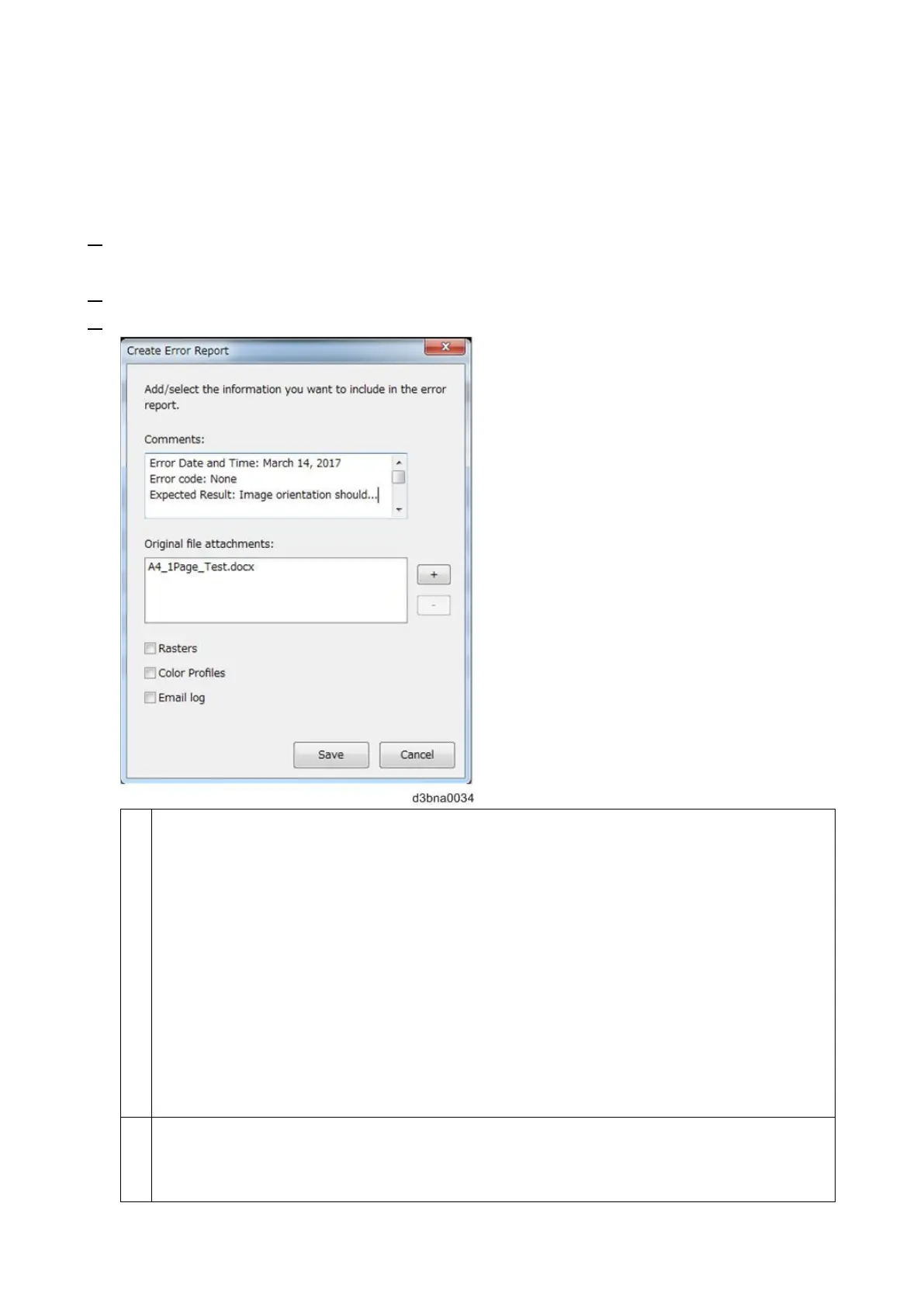
4. Enter information about the job error.
Enter any comments and additional details in the “Comments” field.
If possible, write in English.
It is recommended to include the following information:
Date and time error occurred
Observed error codes, if any
Description of expected result
Description of incorrect result
Steps for how error occurred
Frequency of error (Such as single event, rarely, sometimes, frequently, always)
Whether the error has occurred with more than one file
Whether the file selected for the report is the same file that had the error.
Optional: To include the raster data of the processed file in the report, select Rasters.
Normally when creating the Job Error Report without selecting the Raster option,
regardless of whether the selected job on the Command WorkStation is RIPped data or


 To Next Page