1.Installation
20
Configuration Page
requires…
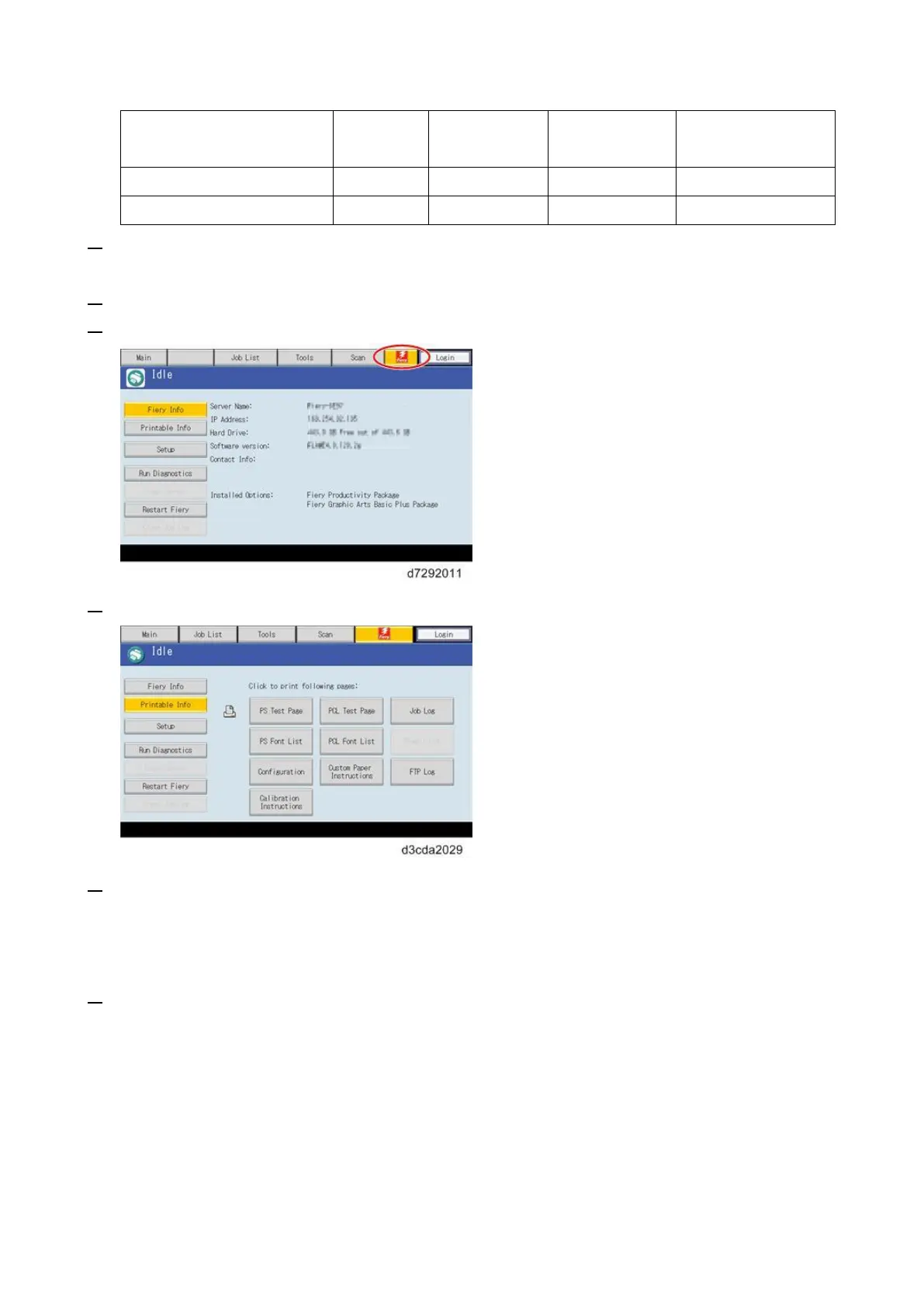
3. Press the Home button on the operation panel of the copier and wait for a few minutes until the
Fiery icon appears on the Home screen.
4. Touch the Fiery icon to access to the Fiery menu screen.
5. Move to the "Fiery" tab.
6. Touch the "Printable Info" button.
7. Print the following pages:
Configuration Page
PS Test Page
PCL Test Page
8. Examine the quality of the test pages.
All patches should be visible, but it is acceptable if they are very faint in the 5% and 2%
ranges.
Each patch set should show uniform gradation from patch to patch as the shade lightens from
100% to 0%.
Poor image quality may indicate that the copier needs service. For more information, see the
documentation provided with the copier.


 To Next Page