4:3 N
Note -------------------------------------------------------------------------------------
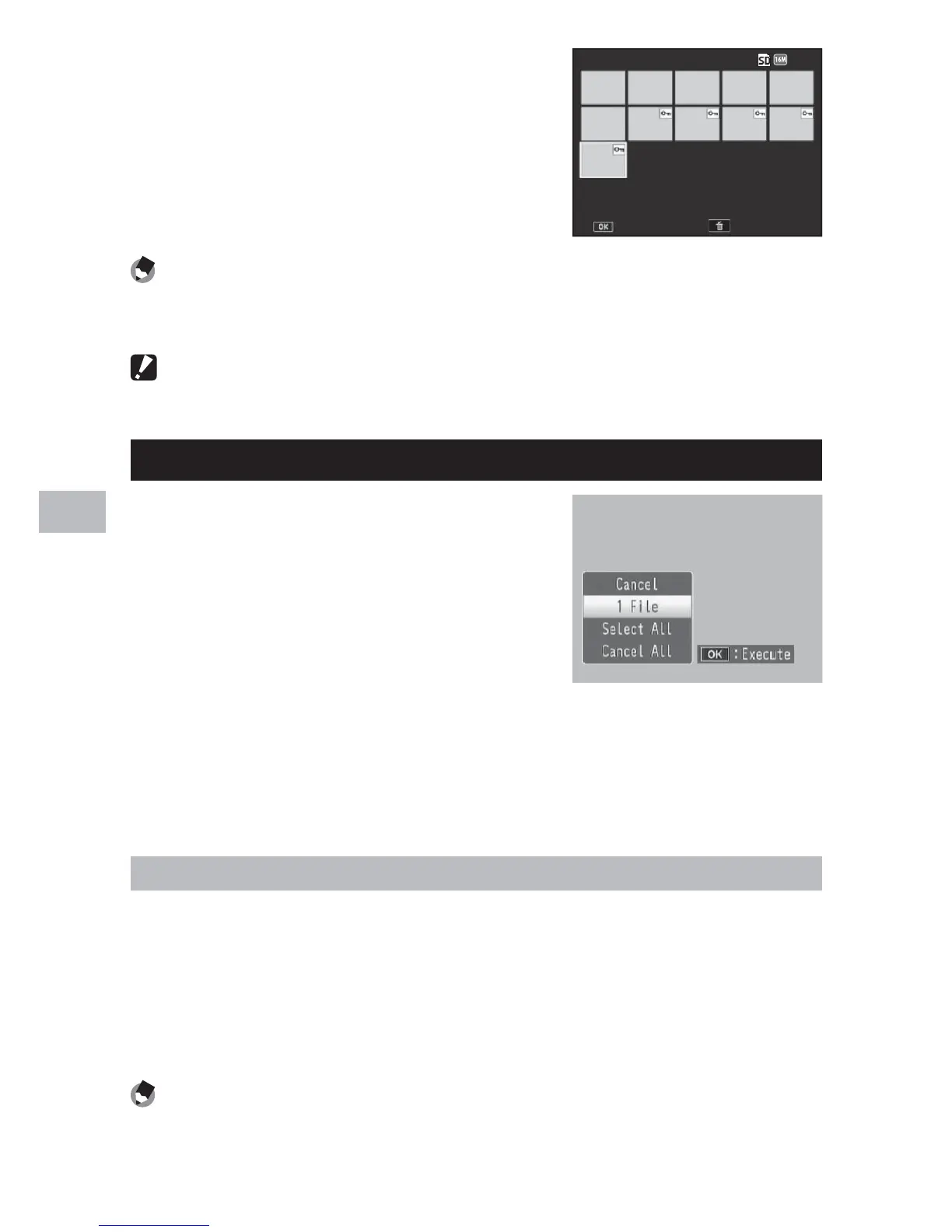
[Sel. Indiv.] and [Sel. Range] can be selected directly if [Protect] is chosen in multi-
frame view..
Caution ---------------------------------------------------------------------------------
Note that formatting deletes all files, including protected files.
DPOF
To request professional prints of the
photographs on a memory card, first use
this option to create a digital “print order”
listing the photos you wish to print and
the number of prints, and then take the
memory card to a digital print service
center that supports the DPOF standard.
To add a photo to or remove it from the print order, select [1 File] and
press the #$ buttons to display the desired file.
Select [Select All] to add all photos to the print order, or [Cancel All] to
remove all files from the print order.
Selecting Multiple Files
To change the print status of multiple individual files, select [DPOF] in
multi-frame view.
Select photos and use the !" buttons to choose the number of
prints: press ! to increase or " to decrease the number of copies.
Press the MENU/OK button to exit when settings are complete.
Note -------------------------------------------------------------------------------------
To remove the DPOF settings for multiple still images, follow the same steps
described above to set the number of copies to print to [0] for each image, and
then press the MENU/OK button.

 To Next Page
 Loading...