EasyManua.ls Logo

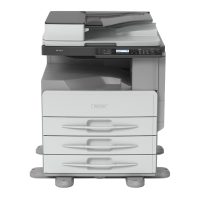
Ricoh MP 2001 - User Manual

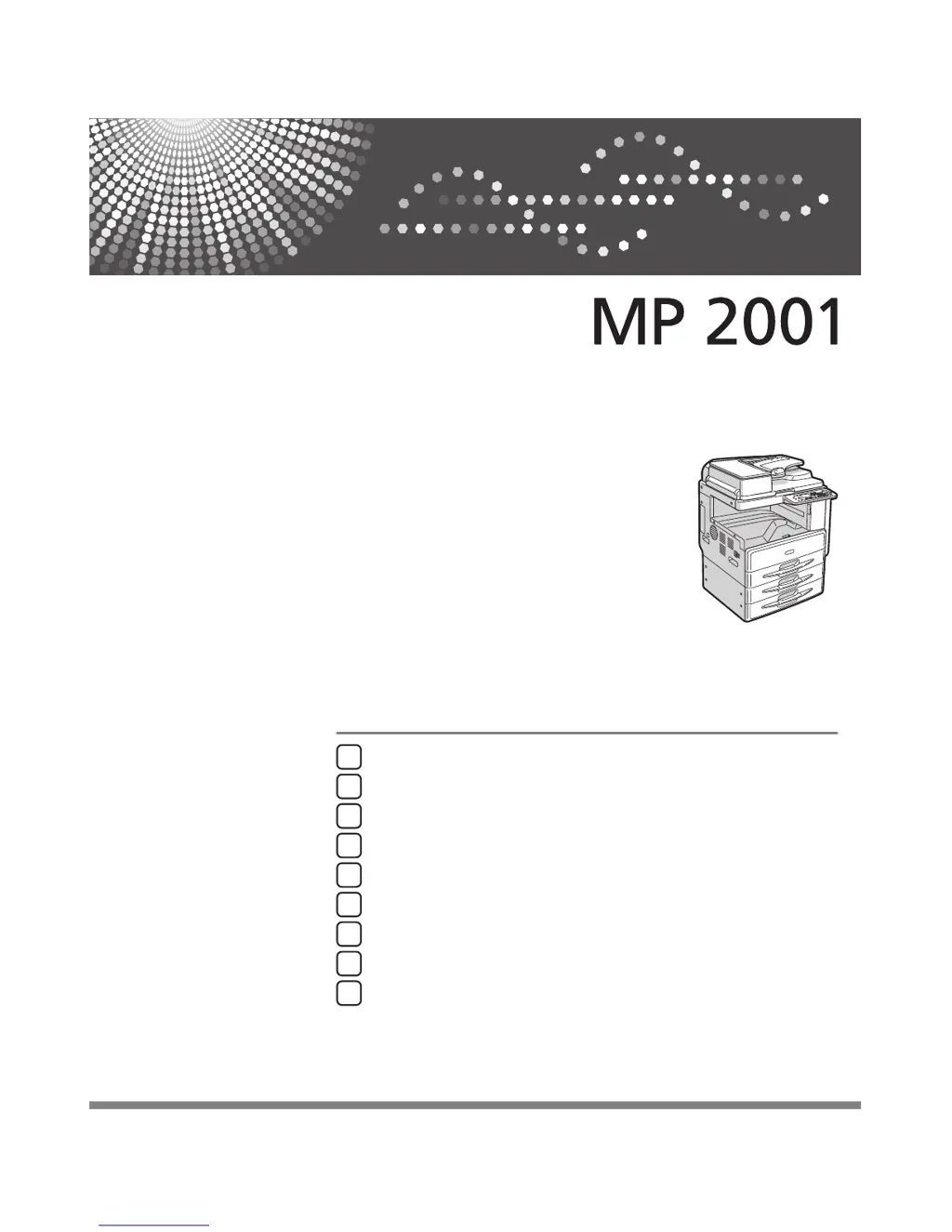
Ricoh MP 2001
156 pages
Print Icon
To Next Page IconTo Next Page
Loading...
Getting Started
Placing Originals
Copying
User Tools
Troubleshooting
Other Functions
1
2
3
4
5
6
Remarks
7
Security
8
Specifications
9
Read this manual carefully before you use this machine. For safe and correct use, be sure to read the Safety Information in this manual before using
the machine.
Operating Instructions

Table of Contents

Questions and Answers

  • M
    Mary WadeSep 8, 2025
    What to do if the user code entry display appears on Ricoh All in One Printer?
    • D
      Deborah QuinnSep 8, 2025
      If the user code entry display appears on your Ricoh All in One Printer, it indicates that user management is enabled and access is restricted. Enter the user code (up to eight digits), and then press the [OK] or [ ] key.
  • K
    Kimberly BeckerSep 7, 2025
    How to remove shadow from copies with pasted originals on Ricoh All in One Printer?
    • J
      Jennifer AdamsSep 7, 2025
      If a shadow appears on copies when using pasted originals with your Ricoh All in One Printer, the image density might be too dark. Adjust the image density. Also, change the orientation of the original and put mending tape over the pasted areas.
  • K
    Kathleen JohnsonAug 22, 2025
    Why are my Ricoh All in One Printer copies too light?
    • C
      Christopher BakerAug 22, 2025
      If your Ricoh All in One Printer is producing copies that are too light, the image density may be set too low. You can adjust the image density to darken the copies. Another cause might be the use of damp or rough grain paper. Try using the recommended paper stored in the recommended temperature and humidity conditions. Finally, the toner bottle might be almost empty. In this case, add toner to the printer.
  • S
    Sierra KerrSep 4, 2025
    What to do if nothing happens when I turn on Ricoh MP 2001?
    • K
      kellerdonaldSep 4, 2025
      If nothing happens when you turn on the operation switch on your Ricoh All in One Printer, the main power switch might be turned off. Turn on the main power switch.
  • A
    Aaron Campbell MDSep 3, 2025
    Why is the display off on my Ricoh All in One Printer?
    • T
      Timothy LambertSep 3, 2025
      If the display of your Ricoh All in One Printer is off, it could be due to the Energy Saver feature activating. Turn on the operation switch. Alternatively, the operation switch might be turned off.
  • A
    Ashley YoungSep 1, 2025
    What does "Please wait" mean on my Ricoh All in One Printer?
    • M
      Michelle EvansSep 2, 2025
      If your Ricoh All in One Printer shows the message "Please wait.", it typically means the printer is in the process of getting ready. This message appears when you turn on the operation switch or change the toner bottle. Allow the machine to complete its preparation process.
  • C
    Cheyenne KellyAug 31, 2025
    Why are my Ricoh MP 2001 copies blank?
    • M
      Mrs. Jacqueline EdwardsAug 31, 2025
      If your Ricoh All in One Printer is producing blank copies, the original may not be placed correctly. When using the exposure glass, place originals face down. When using the ADF, place them face up.
  • K
    Kelly CarterAug 30, 2025
    Why does my Ricoh MP 2001 print on the reverse side?
    • K
      Katherine LopezAug 30, 2025
      If your Ricoh All in One Printer is printing original images on the reverse side of the paper, it is likely that the paper was loaded incorrectly. Load paper into Tray 1–3 with the print side up, and bypass tray with the print side down.
  • M
    Melissa RobertsAug 28, 2025
    Why are parts of the paper not copied on my Ricoh All in One Printer?
    • K
      Kevin MyersAug 28, 2025
      If your Ricoh All in One Printer is not copying parts of the paper, the original might not be placed correctly. Ensure you place the originals correctly. Also, an improper paper size might be selected. Select the correct paper size.
  • J
    Justin MitchellAug 27, 2025
    What does "Cannot detect original size" mean on Ricoh All in One Printer?
    • R
      richard20Aug 27, 2025
      If your Ricoh All in One Printer displays the message "Cannot detect original size", it could be due to an improperly placed original. In this case, select the paper size manually instead of using the Auto Paper Select function, and avoid using the Auto Reduce/Enlarge function. It is also possible that no original was placed on the printer. Place your originals.

Summary

General Information

Safety Information

Crucial safety precautions for machine operation, environment, and handling.

Getting Started

Turning On the Power

Step-by-step instructions for powering the machine on and off correctly.

Placing Originals

Copying

Basic Procedure

Step-by-step guide for performing a standard copy job.

User Tools

Accessing User Tools

Guide for administrators to access and modify machine settings.

Registering a New User Code

Procedure for setting up user codes to restrict functions.

Troubleshooting

If Your Machine Does Not Operate As You Want

Common problems and their solutions for machine operation issues.

Loading Paper

Detailed instructions and precautions for loading paper into trays.

Clearing Misfeeds

Steps to remove jammed paper from various machine locations.

Remarks

Where to Put Your Machine

Recommendations for optimal machine placement and environment.

Power Connection

Instructions and safety precautions for connecting the machine to a power source.

Security

Specifications

Ricoh MP 2001 Specifications

General IconGeneral
Print Resolution600 x 600 dpi
Copy Resolution600 x 600 dpi
Scan Resolution600 x 600 dpi
Paper Capacity250 sheets
Supported Paper SizesA3, A4, A5, B4, B5
Warm-up Time30 seconds
FunctionsPrint, Copy, Scan
Print Speed20 ppm
Copy Speed20 cpm
Zoom50% to 200% in 1% steps
Fax Transmission Speed33.6 kbps
InterfaceUSB 2.0

Related product manuals