EasyManua.ls Logo

Ricoh MP 501SPF - User Manual

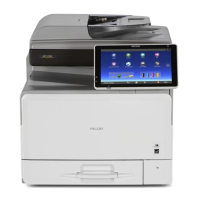
Ricoh MP 501SPF
236 pages
Print Icon
To Next Page IconTo Next Page
Loading...
For safe and correct use, be sure to read the Safety Information in
Read This FIrst before using the machine.
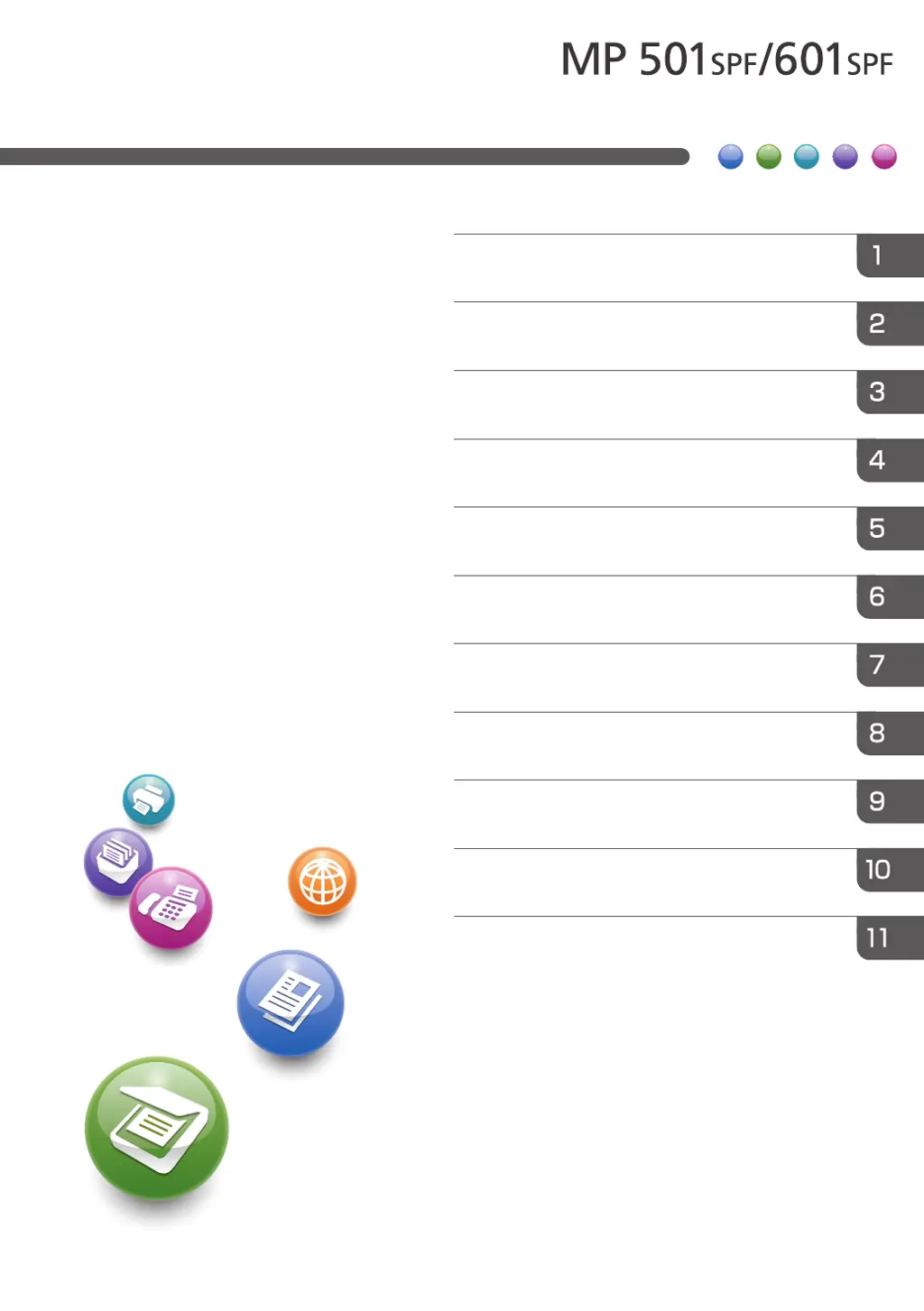
Information for This Machine
Troubleshooting
Adding Paper and Toner
Web Image Monitor
Document Server
Scan
Print
Fax
Copy
Getting Started
What You Can Do with This Machine
User Guide

Table of Contents

Other manuals for Ricoh MP 501SPF

Questions and Answers

  • R
    Ronald ArcherAug 16, 2025
    What to do if error message is still displayed on Ricoh All in One Printer after removing misfed paper?
    • J
      juliamcconnellAug 16, 2025
      If an error message persists on your Ricoh All in One Printer even after removing misfed paper, it's likely that paper is still jammed in the tray. Remove the jammed paper by following the procedures displayed on the control panel.
  • V
    Vincent BoydAug 19, 2025
    Why does my Ricoh MP 501SPF All in One Printer frequently misfeed?
    • H
      Heather CampbellAug 19, 2025
      Frequent misfeeds in your Ricoh All in One Printer can be caused by using curled paper, which can also lead to soiled paper edges or slipped positions during stack printing. Here are some possible solutions: * Flatten the paper to straighten out the curl. * Load the paper upside down, so the curled edges face downward. * Place the cut paper on a flat surface to prevent curling, and do not lean it against the wall.
  • I
    ibarraveronicaAug 21, 2025
    What to do if Ricoh MP 501SPF All in One Printer shows that an error has occurred?
    • D
      Danielle LopezAug 22, 2025
      If your Ricoh All in One Printer displays an error, it means a function in the [Check Status] screen has the status "Error Occurred" and is defective. Press [Check] in the function where the error occurred, read the displayed message, and take the appropriate action. You can use other functions normally.
  • A
    Amy MitchellAug 25, 2025
    What to do if error message is still displayed on Ricoh All in One Printer even if the indicated cover is closed?
    • O
      orrrobertAug 25, 2025
      If an error message is still displayed on your Ricoh All in One Printer even after closing the indicated cover, it means that one or more of the covers that are not indicated are still open. Make sure to close all the covers of the machine.
  • T
    Timothy SheaAug 28, 2025
    How to fix Ricoh MP 501SPF when it is unable to connect to the network?
    • C
      Casey SimmonsAug 28, 2025
      If your Ricoh All in One Printer is unable to connect to the network, it may be due to a network error. Ensure the printer is correctly connected to the network and properly configured. If the issue persists, contact your administrator. If the indicator lamp remains lit after troubleshooting, contact your service representative.
  • A
    Angela DavisAug 31, 2025
    Why are images printing on the reverse side of the paper on my Ricoh MP 501SPF All in One Printer?
    • G
      Gina PierceAug 31, 2025
      If images are being printed on the reverse side of the paper with your Ricoh All in One Printer, you may have loaded the paper incorrectly. Ensure you load the paper correctly.
  • C
    Caleb MaxwellSep 3, 2025
    Why does only the [Copy] icon appear on the home screen of my Ricoh All in One Printer when turned on?
    • B
      Brandon ScottSep 3, 2025
      If, when your Ricoh All in One Printer is turned on, the only icon that appears on the home screen is the [Copy] icon, it means that functions other than the copier function are not yet ready. Wait a little longer.
  • B
    Brandy WilliamsSep 6, 2025
    Why won't my Ricoh All in One Printer enter Sleep mode when I press [Energy Saver]?
    • M
      Mary BrownSep 6, 2025
      In some cases, the Ricoh All in One Printer does not enter Sleep mode when [Energy Saver] is pressed. Before you press [Energy Saver], check that Sleep mode can be enabled.
  • M
    Mr. Charles SotoSep 8, 2025
    How to enable duplex printing on Ricoh MP 501SPF All in One Printer?
    • D
      Dr. William SmithSep 8, 2025
      If you cannot print in duplex mode on your Ricoh All in One Printer, it's because you have selected a paper tray that is not set for duplex printing. Change the setting for "Apply Duplex" in "Tray Paper Settings" to enable duplex printing for the paper tray.
  • K
    Krista SmithSep 12, 2025
    Why cannot I use Web Image Monitor to print documents stored in Document Server on my Ricoh MP 501SPF All in One Printer?
    • L
      Lori JuarezSep 12, 2025
      If you cannot use Web Image Monitor to print documents stored in Document Server on your Ricoh All in One Printer, it may be because print volume limits are specified, and users cannot print beyond their print volume limit. Print jobs selected by users who have reached their print volume limits will be canceled.

Summary

What You Can Do with This Machine

Operating the Machine More Effectively

Tips and methods for optimizing machine usage and settings.

Making Copies Using Various Functions

Details on advanced copying features like stamps, duplex, and combining.

Preventing Information Leakage (Security Functions)

Implementing security measures to protect documents and machine settings.

Preventing Unauthorized Copying

Using features to prevent unauthorized duplication of documents.

Getting Started

Installing Options

Explains how to install optional hardware to enhance machine performance.

Turning On;Off the Power

Instructions for powering the machine on and off safely.

Copy

Fax

Print

Quick Install

Easy installation process for printer drivers from the CD-ROM.

Scan

Adding Paper and Toner

Adding Toner

Precautions and steps for adding toner to the machine.

Troubleshooting

When the Indicator Lamp for [Check Status] Is Lit or Flashing

Troubleshooting steps when the check status indicator is active.

When You Have Problems Operating the Machine

Solutions for common issues encountered during machine operation.

Messages Displayed When You Use the Copy;Document Server Function

Lists error messages related to the Copy and Document Server functions.

Messages Displayed When You Use the Facsimile Function

Lists error messages specific to the facsimile (fax) function.

Messages Displayed When You Use the Printer Function

Lists error messages related to printer functions.

Ricoh MP 501SPF Specifications

General IconGeneral
Print technologyLaser
Maximum resolution1200 x 1200 DPI
Economical printingYes
Time to first page (black, normal)6 s
Print speed (black, normal quality, A4/US Letter)50 ppm
Copier resize25 - 400 %
Maximum copy resolution600 x 600 DPI
Maximum number of copies999 copies
Scan toE-mail, FTP, SMB
Scanner type-
Scan speed (color)60 ppm
FaxingMono faxing
Fax memory4 MB
Modem speed33.6 Kbit/s
Fax resolution (black)200 x 200 DPI
Fax transmission speed2 sec/page
Printing colorsBlack
Maximum duty cycle- pages per month
Number of print cartridges1
Page description languagesPCL 5e, PCL 6, PDF 1.2, PDF 1.3, PDF 1.4, PDF 1.5, PDF 1.6, PDF 1.7, PDF 1.7+
Internal memory2048 MB
Processor frequency1460 MHz
Compatible memory cardsSD
Internal storage capacity320 GB
DisplayLCD
Product colorBlack, White
Display diagonal10.1 \
Market positioningBusiness
Cabling technology10/100/1000Base-T(X)
Ethernet LAN data rates10, 100, 1000 Mbit/s
Mobile printing technologiesApple AirPrint
Supported network protocols (IPv4)TCP/IP
Standard interfacesBluetooth, Ethernet
AC input voltage220 - 240 V
AC input frequency50 - 60 Hz
Power consumption (max)1500 W
Power consumption (average operating)- W
Total input capacity600 sheets
Total output capacity500 sheets
Maximum input capacity2600 sheets
Paper tray media weight60 - 220 g/m²
ISO A-series sizes (A0...A9)A4, A5, A6
ISO B-series sizes (B0...B9)B4, B5, B6
Maximum ISO A-series paper sizeA4
Weight and Dimensions IconWeight and Dimensions
Depth504 mm
Width475 mm
Height645 mm
Weight28000 g

Related product manuals