Operating Progeny Analyzers 33
1006232_RevD
1. The configuration shown has the default setting, Auto Collect, selected which automatically
cycles through a high, medium and low Power setting while scanning the material. From these
settings, the user can then optimize the focal point and/or change the parameters in the
Configuration.
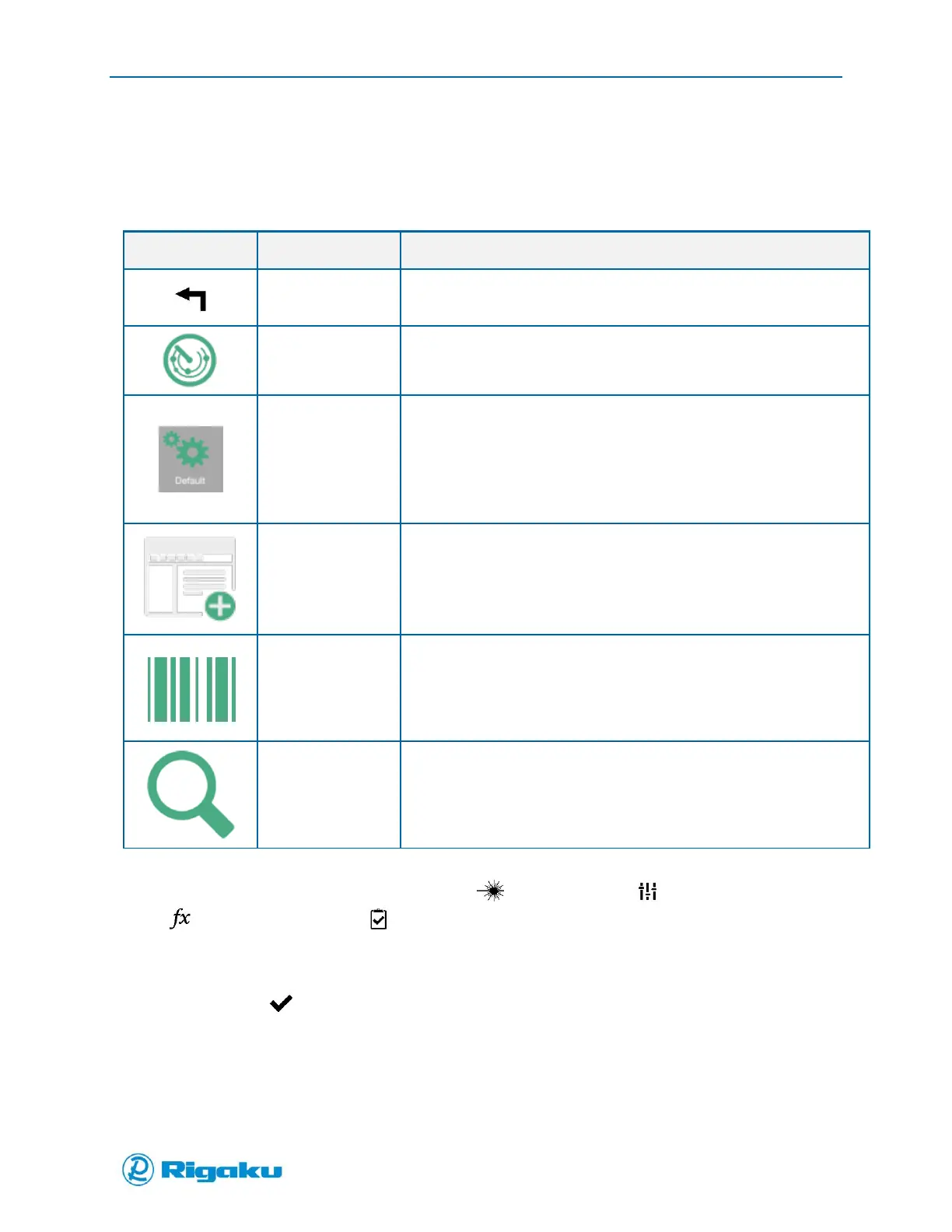
Icons common to Scan: Analyze and Applications are:
Cancels current action.
Returns to the previous screen.
Return all settings to the factory default setting
Auto Collect
Baseline Correction
Wavelet algorithm
Search Master Library
Search library to Select Material for Application Verify mode
2. Advanced users can change settings for the (Collect Settings), (Baseline Correction),
(Search Algorithm), and (Search Results) properties categories.
a. Select a property control to display the settings screen.
b. Scroll through the settings screen and select the required value.
c. Select (Enter) to change the setting.


 To Next Page