rletech.com WiNG-MGR v2 User Guide 19
2 Getting Started
2.3.3 Antenna
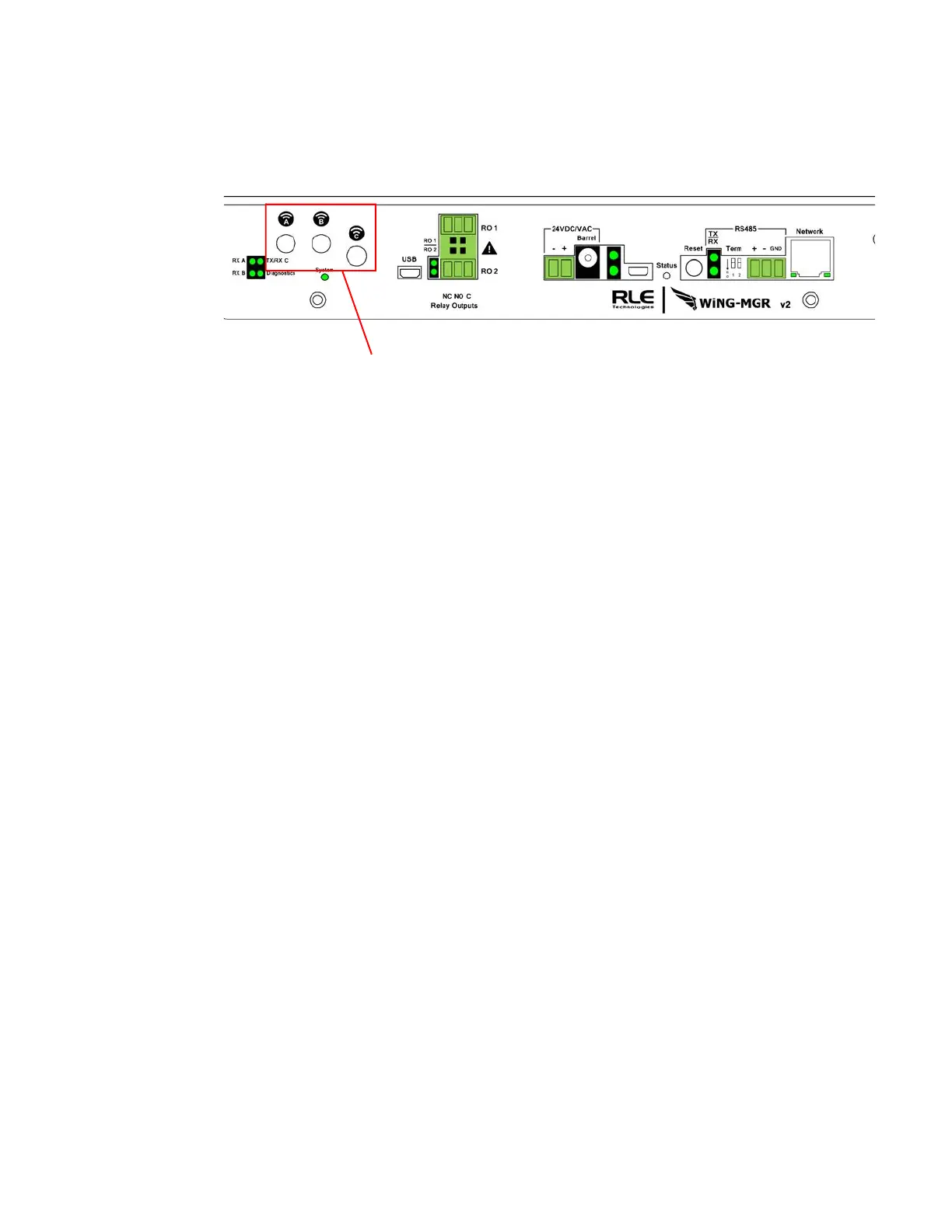
The WiNG-MGR is shipped with three 900 MHz antennas. Plug each antenna into its
appropriate jack on the back of the WiNG-MGR and tighten the connections firmly.
Figure 2.6
Antenna Connections
Once the antennas are secure, you’ll need to ensure proper antenna position. Antennas A and
B can be close together, but to avoid signal interference they both need to be as far away from
antenna C as possible. Extend the leader cables on the antennas to their fullest lengths and
secure the antennas as far away from the WiNG-MGR - and as high off the ground - as
possible.
2.4. Communication: Set the IP Address
The WiNG-MGR will not communicate over a user’s network the first time it is connected.
This is because the manufacturer programs the device with a default IP address:
10.0.0.188
,
Subnet Mask:
255.255.255.0
. This default address must be changed to an IP address that
corresponds with the user’s network before the WiNG-MGR can communicate over the
network. There are two ways to set the WiNG-MGR’s IP address: via the web browser or via
the EIA-232 interface.
2.4.1 Set the IP Address Using a Web Browser
Attention: If you have not set an IP address before, consult your IT Department for support.
NOTE The default IP address for the WiNG-MGR is 10.0.0.188
The default Subnet Mask is 255.255.255.0
There is no default user name or password.
1
Contact your IT Department to obtain an available IP address, Subnet Mask, and default
Gateway.
2 Plug an Ethernet cable into the laptop or workstation that will be used to configure the
WiNG-MGR.
3 You’ll need to change the IP address and Subnet Mask of your computer so it can
communicate with the WiNG-MGR in its factory-configured state. Before you change
anything, write down the original IP address and Subnet Mask of your computer - you’ll
need to revert back to these original settings once the WiNG-MGR is configured.
4 Change the IP address and Subnet Mask of the computer from its existing address to one
that will allow it to communicate with the WiNG-MGR, such as
10.0.0.189. It may be
Antenna Connections


 To Next Page