22 WiNG-MGR v2 User Guide 800.815.1519
2 Getting Started
2.6.1 Global Sensor Settings
Global sensor settings are configured in a couple places in the user interface. Logged sensor
data and battery alarm are set in the Admin screens - directions can be found in section 3.8.3,
“Sensors” on page 58.
Global alarm and warning parameters can be set by following the directions in section 3.8.5,
“Alarms” on page 62. If you choose to use this option, note that the settings will be applied
ONLY to the fields for which you check the checkboxes. They will be applied across all the
sensors, and will overwrite any settings you have previously configured. Don’t forget to click
the Save Changes button to apply the setting across your system.
2.6.2 Individual Sensor Configuration
If you’d prefer not to use the global settings, you can configure your sensors one at a time. Use
the directions found in section 3.2.1, “Individual Sensor Pages” on page 29 and configure the
parameters sensor by sensor. Remember to click the Save Changes button on each page to
apply the settings.
2.7. Sensor Mounting Tips
The electronics in WiNG sensors are not waterproof. WiNG sensors need to be mounted in
a safe location where they will not come into contact with water or condensation.
Sensors can be secured with magnets (included), screws, zip ties, or on a 15mm DIN rail.
Each sensor’s serial number is unique, and you will need to refer to this number throughout
the life span of the sensor. When you mount the sensor, ensure that the sensor’s serial
number is accessible.
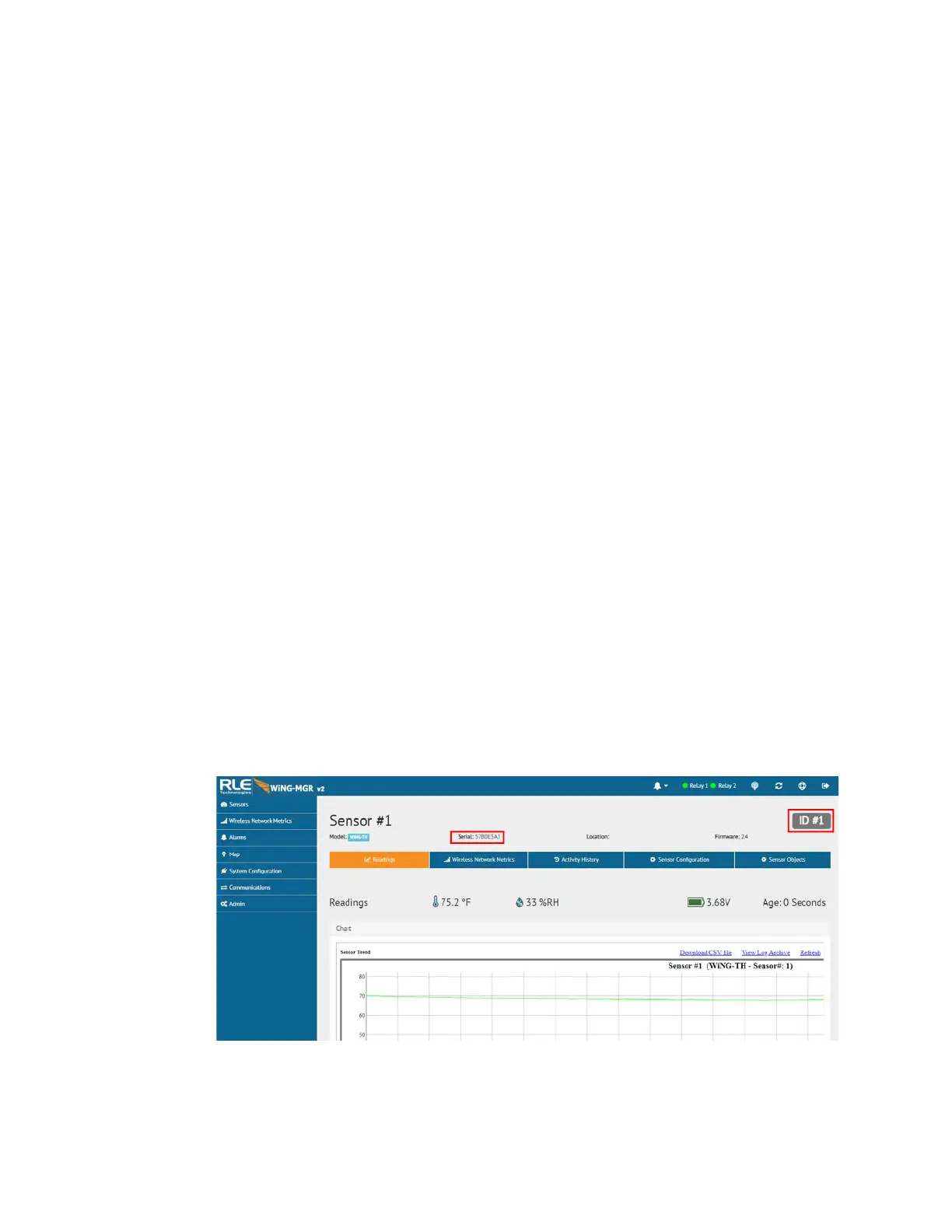
Although each sensor has a unique serial number, the WiNG-MGR will also assign each
sensor an index number. This is listed as the ID # in the upper right corner of each sensor’s
individual configuration page. If you’d like, place a label or other marking on the sensor
case to show its index number.
Figure 2.7
Sensor Serial Number and Index Number


 To Next Page