68 WiNG-MGR v2 User Guide 800.518.1519
3 Web Interface
3.8.8 Certificate
The WiNG-MGR has a default HTTPS certificate pre-installed. It will use this certificate for
HTTPS communications, but it is strongly recommended that you configure your own
certificate and private key to ensure secure communications.
Once your own certificate and private key have been configured, the unit can be rebooted
using the red button in the System Information menu to apply the changes.
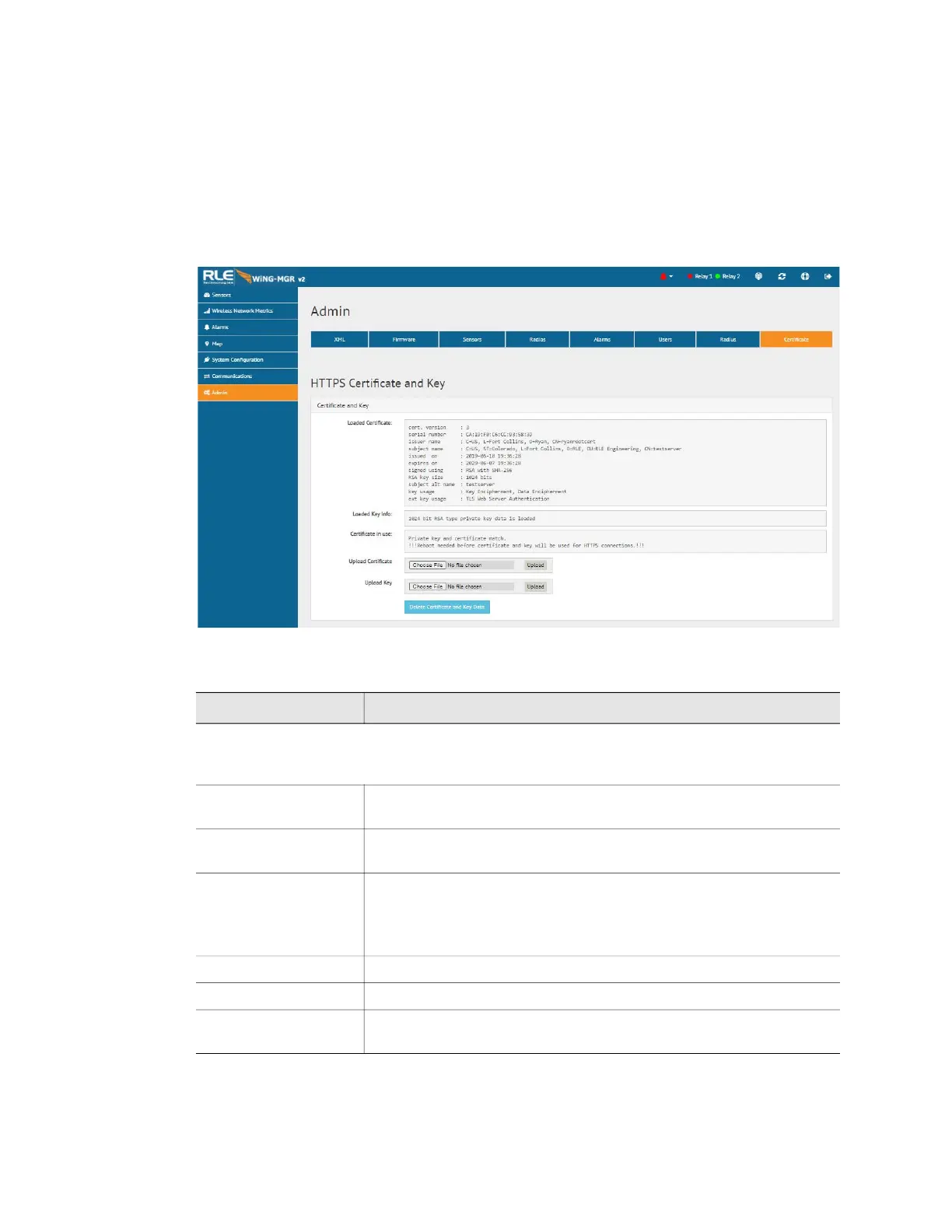
Figure 3.36
Certificate Page
Option Description
HTTPS Certificate and Key Settings- This section allows you to activate HTTPS for the
WiNG-MGR. You will need an HTTPS certificate and key to do this. Contact your IT
department for more information about your HTTPS certificate and key.
Loaded Certificate This section provides details about the certificate currently loaded
into the WiNG-MGR.
Loaded Key Info This section provides details about the data key currently loaded
into the WiNG-MGR.
Certificate in Use If a certificate is in use, it will be indicated here.
If you see the !!Reboot!! message, a certificate and key have been
uploaded, but the WiNG-MGR needs to be rebooted in order for
HTTPS to be activated.
Upload Certificate Use this field to upload the HTTPS certificate.
Upload Key Use this field to upload the HTTPS key.
Delete Certificate
and Key Data
Click this button to delete the uploaded certificate and key from the
WiNG-MGR.
Table 3.25
Certificate Configuration Options


 To Next Page