Robustel R3000 Quad User Guide
RT_UG_R3000 Quad_v.3.0.0 28 May, 2017 101 / 131
Confidential
Click button to select the correct firmware in your PC, and then click
button to update. After updating successfully, you need to click “save
and apply”, and then reboot the router to take effect.
3.31 System > APP Center
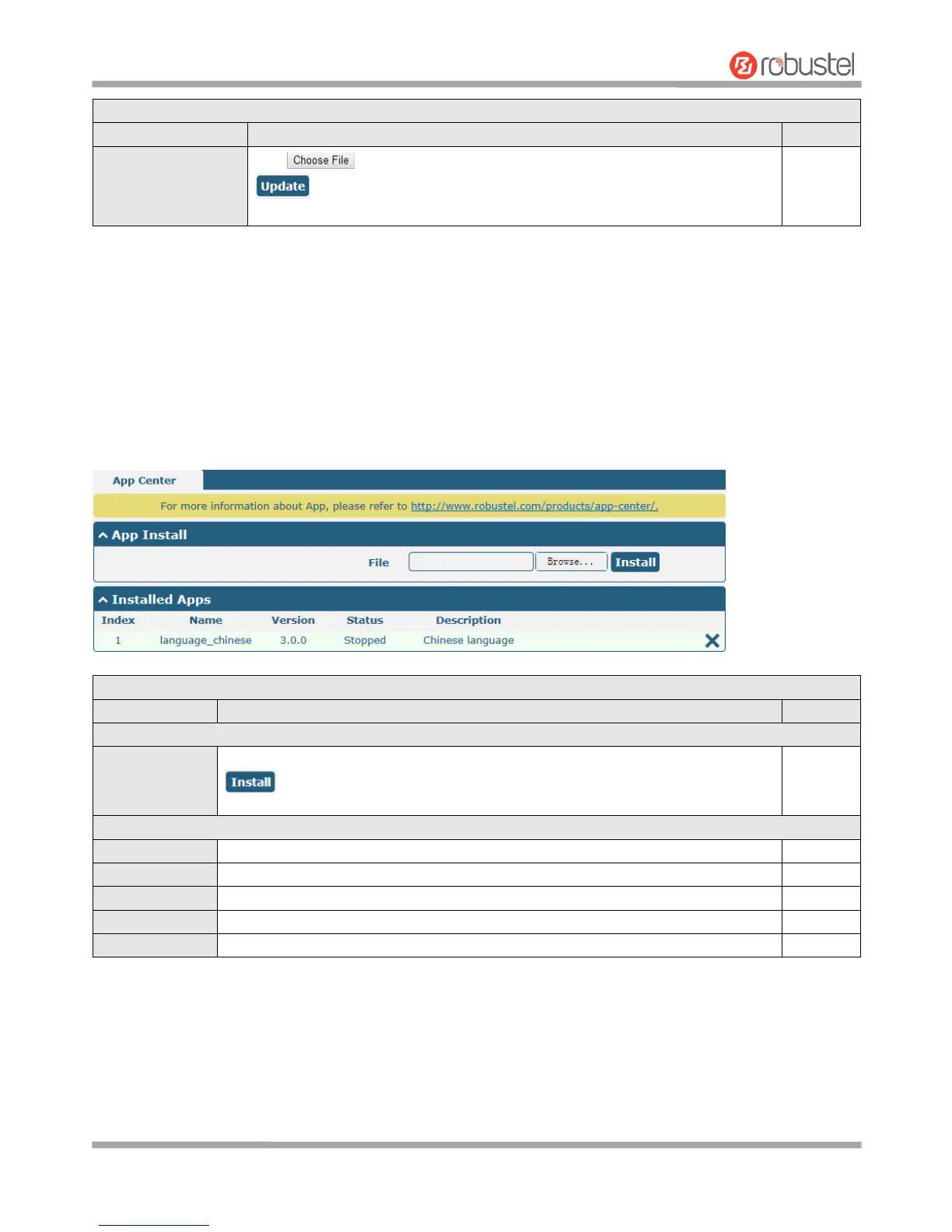
This section allows you to add some required or customized applications to the router. Import and install your
applications to the APP Center, and reboot the device according to the system prompts. Each installed application will
be displayed under the “Services” menu, while other applications related to VPN will be displayed under the “VPN”
menu.
Note: After importing the applications to the router, the page display may have a slight delay due to the browser
cache. It is recommended that you clear the browser cache first and log in the router again.
Click on “Choose File” to locate the App file from your computer, and then click
to import this file into your router.
Note: File format should be xxx.rpk, e.g. R3000 Quad-robustlink-1.0.0.rpk.
Indicate the ordinal of the list.
Show the name of the App.
Show the version of the App.
Show the status of the App.
Show the description for this App.









 To Next Page