pag. 12
ST2 User’s Manual
Introduction
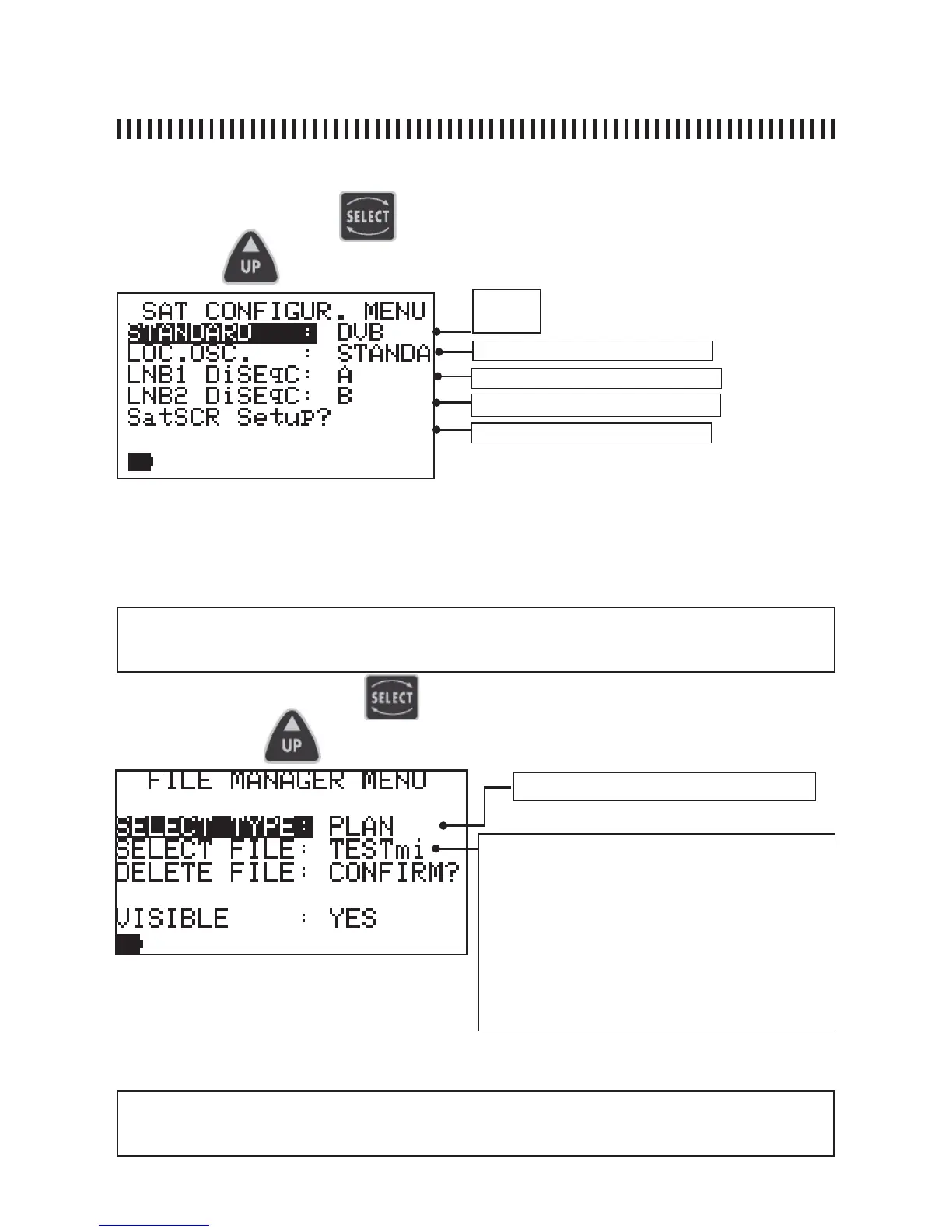
“SAT CONFIGUR.” :
and press the
key to access the “SAT CONFIGUR. MENU”:
Referring to fi g. 1.0, press the
key to choose “SAT CONFIGUR & SCR”
• DSS
• DVB
Sat SRC Menu
“FILE MANAGER” :
continue: CONFIGURATION MENU
LNB1 DiSEqC: a-b-c-d. See Par. 14.0
LNB2 DiSEqC: a-b-c-d. See Par. 14.0
and press key to access the menu
Referring to fi g. 1.0, press key
to choose the “FILE MANAGER” menu entry
File Type: • PLAN • LOGGER •AUTOSCAN
The list of fi les shown in this fi eld depends on the fi le
type selected before:
• if the fi le type is PLAN, the pre-memorised memory
plans as well as the custom made plans will be
displayed: ITALY, PLAN 3 ecc.
• if the fi le type is LOGGER, the Logger fi les will be
displayed as “LOG. 1”, “LOG. 5” etc.
• if the fi le type is AUTOSCAN, the list of all canalisations
obtained by means of an automatic TV band scan will
be displayed.
After selecting a File Type name, the Deletion has to be confi rmed by highlighting the “DELETE
FILE” command and by confi rming this selection with the UP or DOWN key.
The File Manager function allows only manual AutoTV memory plansfi le deletion from the main meter
memory. The Manual and AutoTV fi les are user’s defi ned memory plans. The AutoTV memory plans (rif.
par. 2.0) are automatic canalisation memory plants obtained by a Meter scan. The LOGGER fi les are
obtained by running the datalogger function (see Par. 13.0).
NOTE: It is not possible to delete the Factory Pre-memorised fi les which contain satellite transpon-
der list and canalisations relevant to all world wide standards. These may be removed only using a
PC and the SMART interface application programme (see Appendix A3).
NOTE: it is not possible to delete a factory satellite transponder List canalisation (es. HBIR13), the
meter will reply with the message “FAILED !”. In order to remove this kind of fi le from the PLAN list
you must use the SMART PC interface programme (see APPENDIX A3).
Standard - 0MHz (IF)


 To Next Page