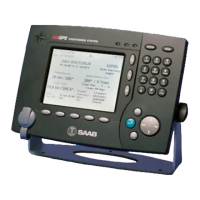
R5 SOLID AIS System
SOFTWARE UPGRADE
7000 118-200, C2 Page 53
5 SOFTWARE UPGRADE
Note: After updating the software add a sticker stating the new software version close
to the product label.
The R5 SOLID is easy upgradable through the USB host interface located behind the front
hatch. To upgrade the software in the R5 SOLID, perform the following steps:
Unzip the R5 SOLID upgrade package in the root folder of an USB memory stick.
There should now be a folder called swload in the USB root folder.
Insert the USB memory stick in the USB host interface located behind the front hatch.
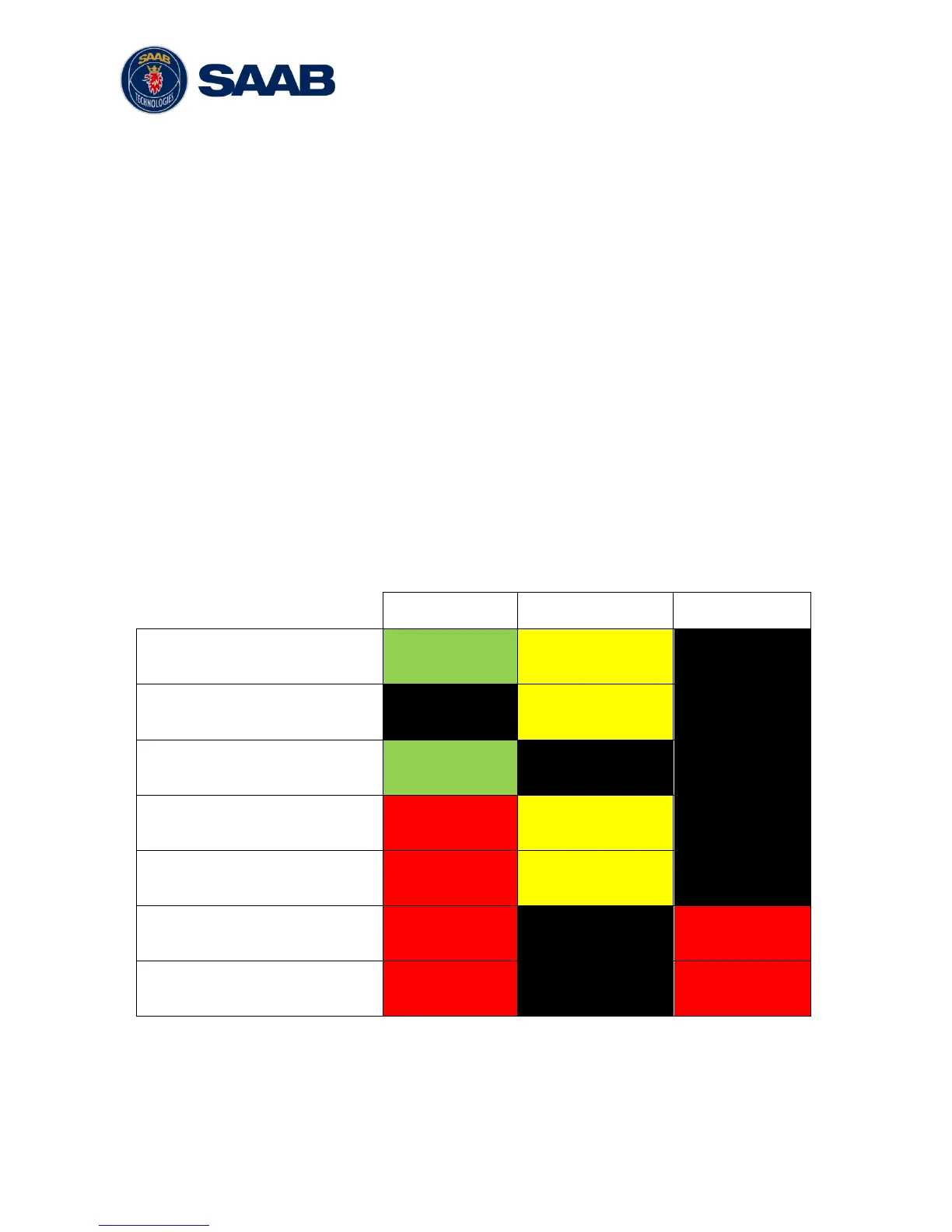
Hold down the ‘4’-button on the front of the R5 SOLID and reboot the system. The ‘4’-
button must be held down until the STATUS LED is lit green and Rx LED is lit yellow.
The software upgrade is complete when the STATUS LED is lit green. The R5 SOLID will
automatically reboot after 3 seconds. Check that correct SW has been loaded in the SW/HW
Info view which can be accessed through Main Menu
Status
SW/HW Info.
If the upgrade process fails, The STATUS LED will be lit red and one of the Rx LED or Tx
LED starts blinking. Should this happen, hold down the ‘4’-button and reboot the R5 SOLID
to try again.
The software upgrade can also be initiated from the Update Software view in the R5 SOLID.
Refer to section 4.26 “Update Software” for more information.


 To Next Page