© Safe Fleet | 2020 | All rights reserved | Part #: 700-1213 R1
DH4C Installation Guide
p. 21
DH4C Administration
To view the Search menu:
1. From the Playback Toolbar, click Search icon (B).
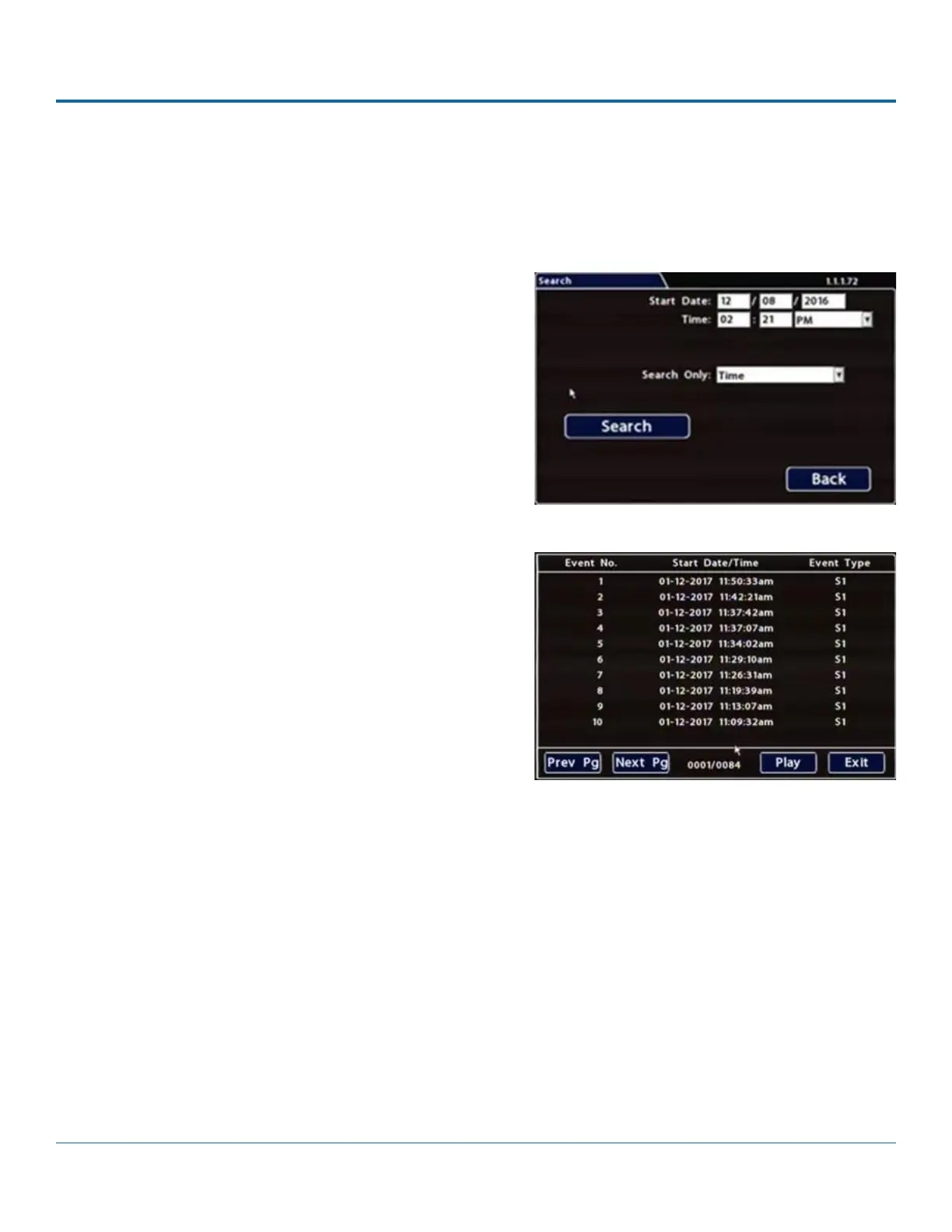
The Search tab appears (options displayed depend on the
Search Only pull-down menu selection):
2. Use the Start/End Date and Time elds to set the desired
period to search. For instructions on how to enter numbers
into the Date and Time elds, see DH4C Operation: Using On-
screen Keyboards.
3. If desired, use the Search Only pull-down and corresponding
sub-menus to specify Alarms, Signals, or System Events to
search.
4. Click Search.
• If Search Only is set to Time: Playback starts from the
specied time and date (if the video exists on the SD
card).
• If you select Alarms, Signals, or System Events,
The DVR retrieves a list of recorded video segments
containing the specied event type. Select an item from
the list, then click Play to view the video captured when
the event occurred.
Searching Video
The DVR includes a simple, powerful search feature that quickly nds recorded information by Date and Time, Alarm, Signals,
or System Events.


 To Next Page