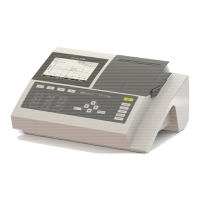
BASIC
- 26 -
7.7.
DATA EXPORT
7.7.1. On computer
Connect BASIC to the PC using ref: 70ST0561 cable and if needed, a pins converter.
FOR WINDOWS XP
• Click on «
START
», «
PROGRAM
», «
ACCESSORY
», «
COMMUNICATIONS
», and
«HYPERTERM».
• Windows open a first window called «
New connection Hyper terminal
» and a second window
called «
DESCRIPTION
OF
A
CONNECTION
».
• Choose the name and icon of this connection (bearing in mind the type of instrument which is
your source of data) then «
OK
».
• You’ll see «
DESCRIPTION
» disappear to leave space to a new window called « Connection ».
In the last windows “Connection by using” selects the COM number where the connecting
cable is plugged. Validate «
OK
».
• When «
PROPERTY
COMx » shows up, and you should feed the following information :
Bits / second: 9600
Data bit: 8
Parity: none
Stop bit: 1
Flux control: none
Then validate «
OK
».
• Select «
FILES
», «
PROPERTY
», index «
PARAMETERS
».
• Click on « ASCII Configuration ». Check that option «
ADD LINE MODIFICATION AT THE END OF
ENTERING LINES
» is activated. Click on “OK” twice.
• To save the parameters, select «
FILES
» then «
SAVE
». Windows register selected parameters
under predefined name.
• To receive result file from the instrument, click on «
TRANSFER
» then «
CAPTURE TEXT
» menu.
• Windows opens a dialog box «
CAPTURE TEXT
». Choose in which repertory you will save the
data result file also under which name, either by entering the pathway or the name with
« .
TXT
» extension, or by selecting «
FOLLOW
» icon.
• Type «Start» and your terminal will be on reception mode.
• On BASIC itself, press « BASIC-PC » button, you will see its data on the PC screen.


 To Next Page