28 | TeamConnect
Installing and connecting the TeamConnect components
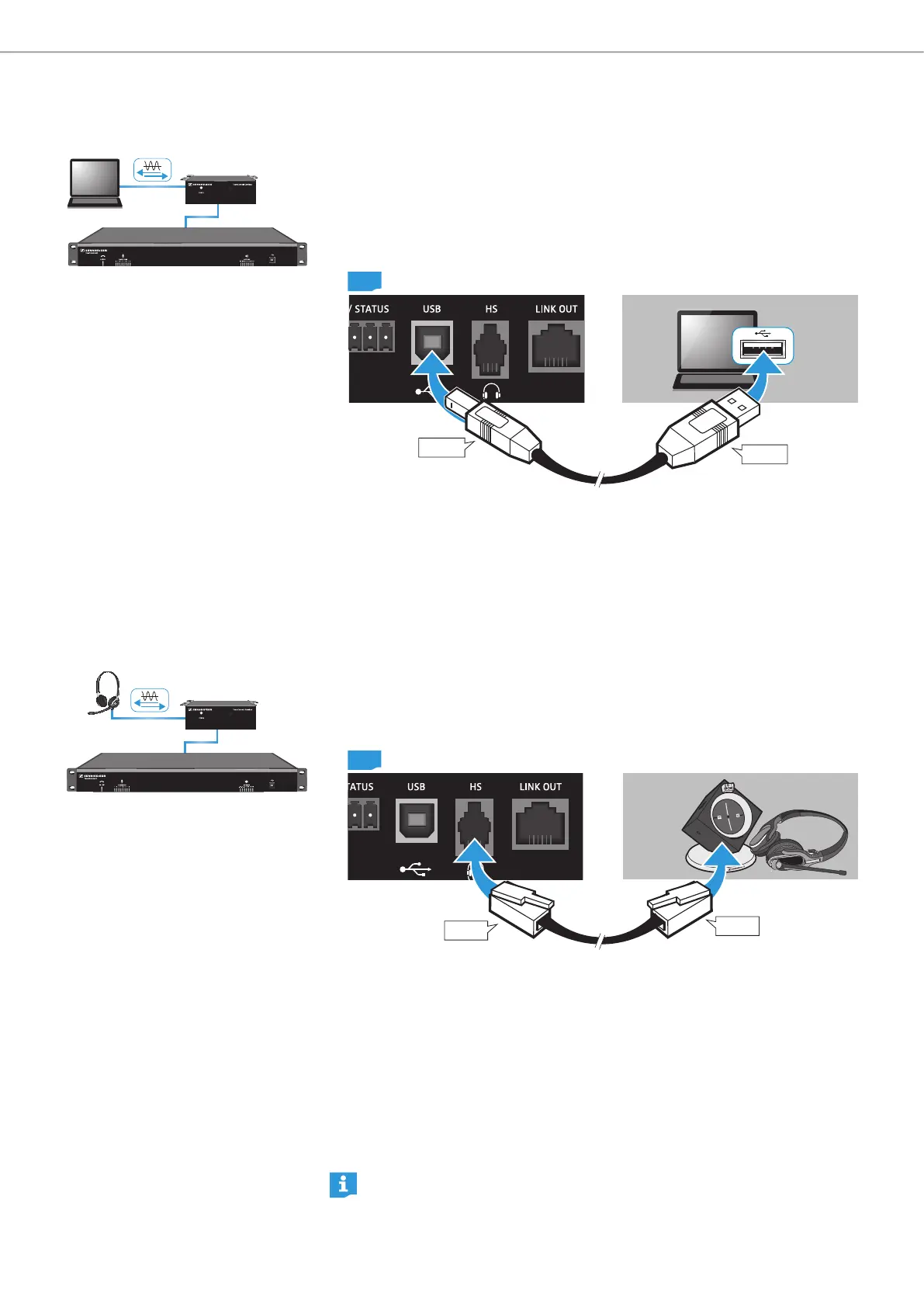
Connecting a computer
For web conferencing applications the user can use the TeamConnect system to
process the audio signals of the web conference. For that purpose the computer
must be connected to the SL TeamConnect CB1, which is installed in the meeting
room.
To connect a computer to the SL TeamConnect CB1:
CB1
Type B
Type A
X Plug the type B plug of the USB cable into the USB port E of the
SL TeamConnect CB1.
X Plug the type A plug of the USB cable into a USB port of the computer.
The SL TeamConnect CB1 is detected as a USB audio device and displayed as
“Sennheiser TeamConnect”. No additional USB driver is required.
Connecting a headset or an enterprise telephone
An additional possibility of using the SL TeamConnect CB1 is connecting a
telephone headset or an enterprise telephone.
To connect a headset to the SL TeamConnect CB1:
RJ-9
CB1
RJ-9
X Plug the RJ-9 cable of the headset into the HS RJ-9 socket F of the
SL TeamConnect CB1.
To connect an enterprise telephone to the SL TeamConnect CB1:
X Plug an RJ-9 cable into the HS RJ-9 socket F of the SL TeamConnect CB1.
X Plug the other end of the cable into the headset socket of the enterprise
telephone.
The audio signal of the enterprise telephone is processend in the TeamConnect
system. The enterprise telephone can also be used for dialling. Therefore it
must be connected to the telephone line or system.
Some headsets or enterprise telephones require further configuration of
their pin allocation. These settings are configured in the COM Settings



 To Next Page