TeamConnect | 41
The Configuration Manager software
Configuring audio processing settings
You can configure three general audio processing channels with different audio
settings (equalizer, filter, etc.) which you can apply to selected input and output
channels.
To configure the audio processing settings:
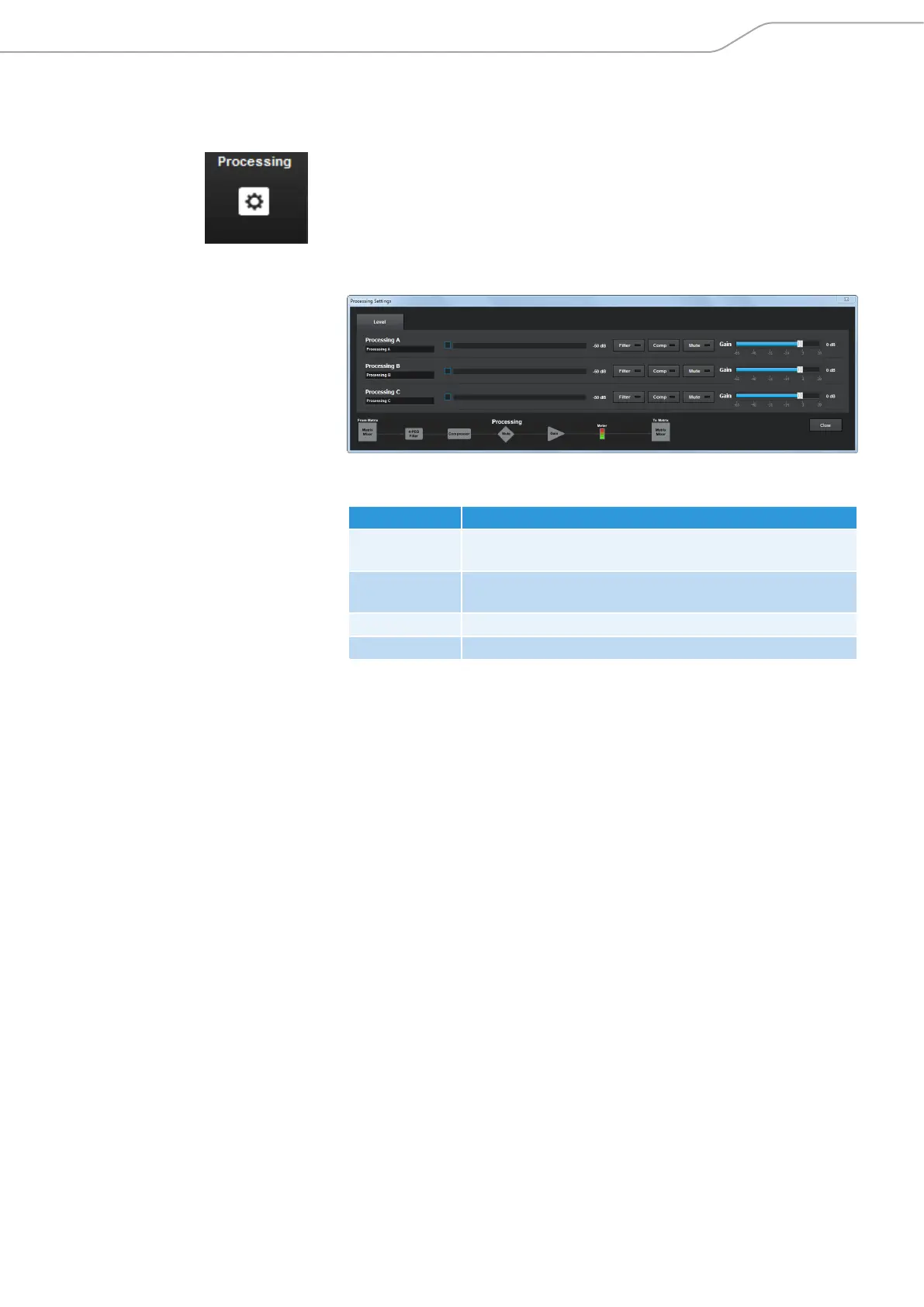
X Click on the Processing icon in the configuration screen.
The Processing Settings configuration window opens.
In the Processing Settings configuration window you can adjust the following
settings:
Option Settings
Filter Activates and configures an audio filter for the selected
processing channel.
Comp Activates and configures a compressor for the selected
processing channel.
Mute Mutes the selected processing channel.
Gain Adjusts the gain setting of the selected processing channel.
To apply the settings of the audio processing channels to input and output
channels:
X Open the Mixer Console (see page 51).
X Route the processing channels to the desired audio channels.
X Close the Mixer Console.
The audio processing settings are applied to the selected channels.



 To Next Page