34 | TeamConnect
The Configuration Manager software
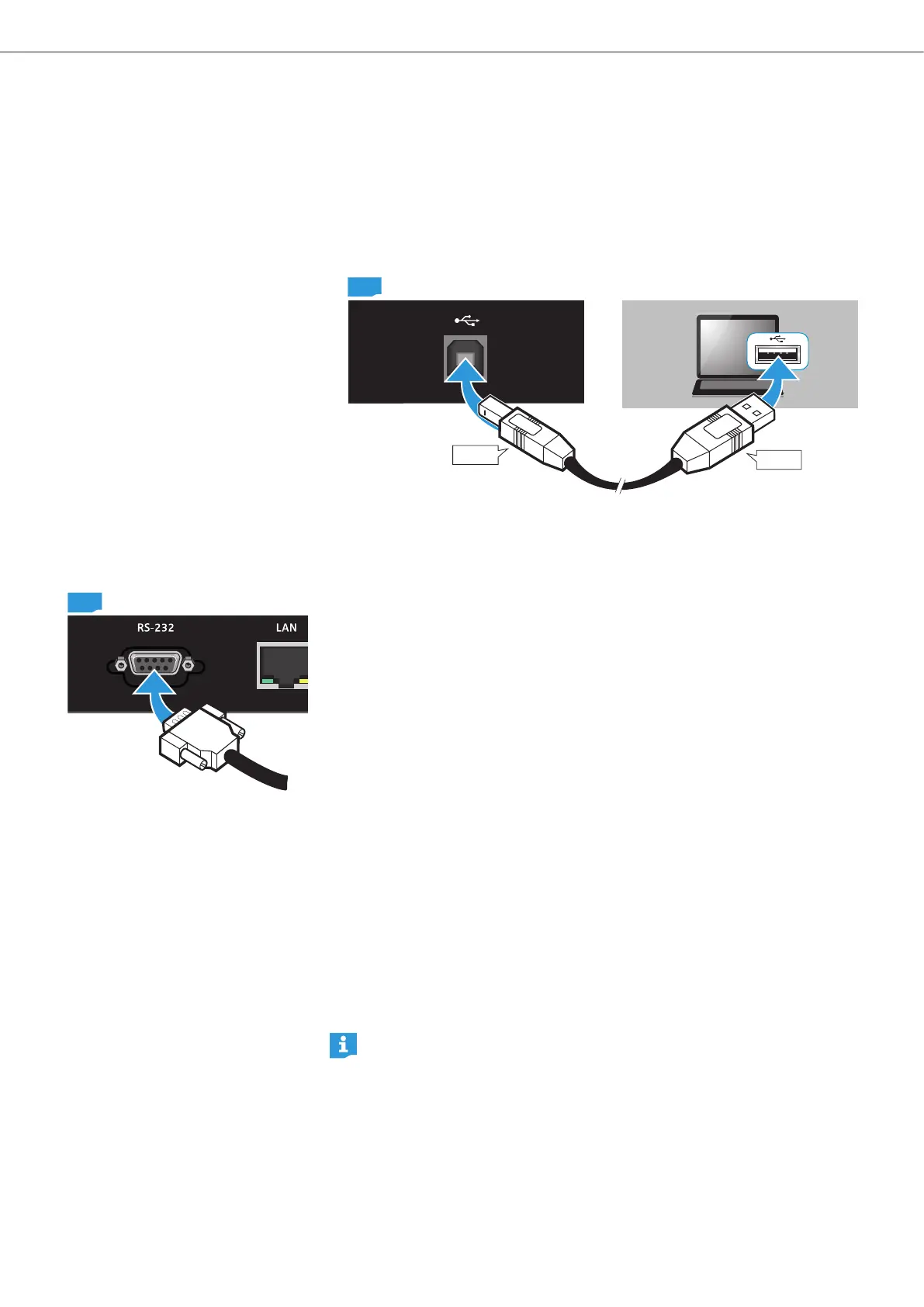
Connecting the computer to the SL TeamConnect CU1 via USB
To connect your computer to the SL TeamConnect CU1 via USB:
X Install the Configuration Manager software on your computer, so that the USB
driver for the SL TeamConnect CU1 is installed on your computer.
X Plug the type B plug of the USB cable into the USB port 4 at the front of the
SL TeamConnect CU1.
X Plug the type A plug of the USB cable into a USB port of your computer.
CU1
Type B
Type A
The SL TeamConnect CU1 is detected as a USB device on your computer
and the USB driver is installed. The SL TeamConnect CU1 is available in the
Configuration Manager software.
Connecting the computer to the SL TeamConnect CU1 via a serial cable
To connect your computer to the SL Team Connect CU1 via the RS-232 control
port:
X Install the Configuration Manager software on your computer.
X Plug an RS-232 cable into the RS-232 port 6 of the SL TeamConnect CU1.
X Plug the other end of the cable into the serial port of your computer.
The SL TeamConnect CU1 is available in the Configuration Manager software.
Connecting the computer to the SL TeamConnect CU1 via an Ethernet connec-
tion
To connect your computer to the SL TeamConnect CU1 via Ethernet:
X Connect your computer to the same network as the SL TeamConnect CU 1 (see
page 23).
X In the Configuration Manager software select the SL TeamConnect CU1.
X If prompted, enter the username and password.
The default username is Admin and the default password is Sennheiser. The
username and password can be changed in the Communication Settings
configuration window of the Configuration Manager software (see page 47).
If your computer is connected via USB or RS-232, you can immediately access
the SL TeamConnect CU1 in the Configuration Manager software. Only if
your computer is connected via Ethernet, you are prompted for a username
and password before connecting. You can only make one connection at a
time.
CU1



 To Next Page