Scanning From the Operation Panel
123
7. Scanning
3 Press or until the desired scan menu appears in the display.
Example: Press once for SC2:
4 Press .
• If the selected scan menu has been set to display the TWAIN driver
settings on your computer (page 125), adjust the settings as desired on
your computer and then click the Scan button (see page 112).
• The document is scanned. The corresponding application starts on your
computer and the image appears in that application.
Z
A
A
SCAN : SC2
Configuring Button Manager settings
Follow the steps below to configure or change the settings of any of the six
preset scan menus of Button Manager.
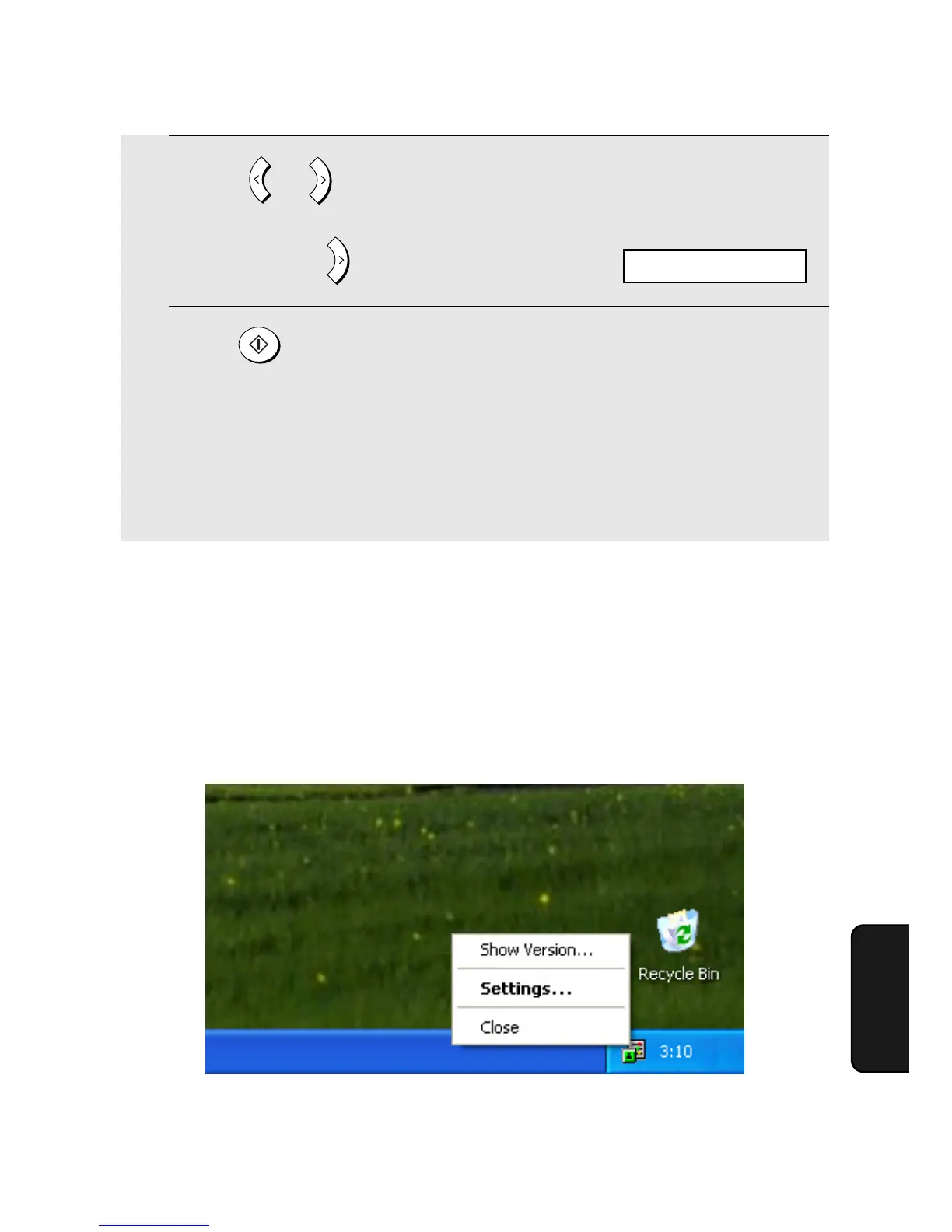
1. Right-click the Button Manager icon on the Windows taskbar and select
Settings from the pop-up menu.


 To Next Page