31
Basic adjustment settings
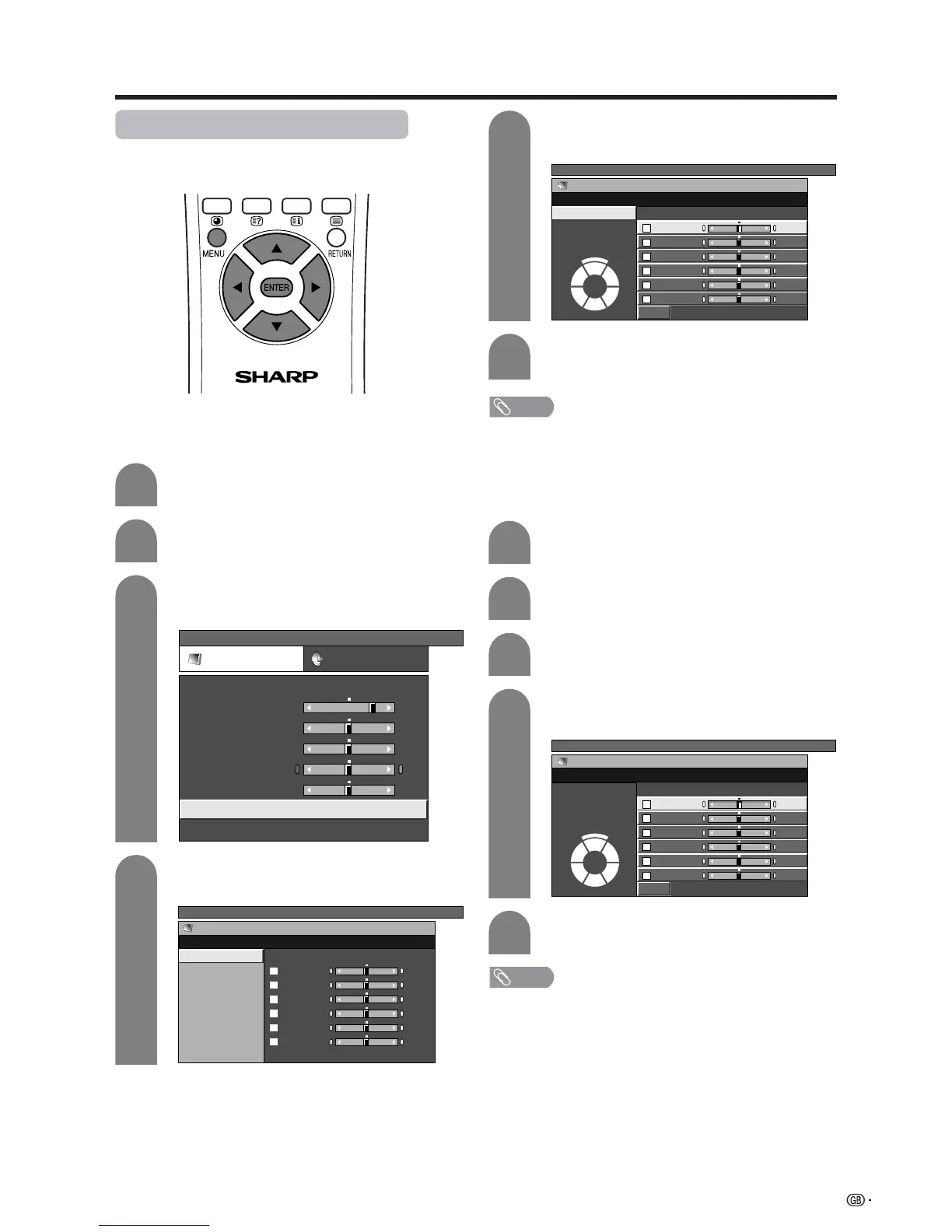
C.M.S. (Colour Management System)
Colour tone is managed using the six-colour
adjustment setting.
Press MENU and the TV MENU screen
displays.
1
2
Press c/d to select “Picture”.
• Picture menu displays.
3
Press a/b to select “Advanced”, and then
press ENTER.
TV MENU
Picture Audio
USER
Contrast
Brightness
Colour
Tint
Sharpness
Advanced
Reset
[+30]
[0]
[0]
[0]
[0]
0
–30
–30
–30
–10
+40
+30
+30
+30
+10
4
Press a/b to select “C.M.S.”, and then press
ENTER.
TV MENU
Picture
Advanced [USER]
C. M. S.
Colour Temp
Black
Monochrome
Film Mode
I/P Setting
DNR
R
Y
G
C
B
M
[ 0]
[ 0]
[ 0]
[ 0]
–30
–30
–30
–30
+30
+30
+30
+30
[ 0] –30
+30
[ 0] –30
+30
5
Press a/b to select a specific adjustment
item.
TV MENU
Picture
Advanced [USER]
C. M. S.
R
Y
G
C
B
M
Reset
[ 0]
[ 0]
[ 0]
[ 0]
–30
–30
–30
+30
–30
+30
+30
+30
[ 0] –30
+30
[ 0] –30
+30
Changing reds
closer to
magenta or yellow.
Press c/d to adjust the item to your desired
position.
6
NOTE
• For resetting all adjustment items to the factory preset
values, press a/b to select “Reset”, and then press
ENTER.
AV input mode
PC input mode
Press MENU and the PC MENU screen
displays.
Press c/d to select “Picture”.
• Picture menu displays.
Press a/b to select “C.M.S.”, and then
press ENTER.
Press a/b to select a specific adjustment
item.
Press c/d to adjust the item to your desired
position.
NOTE
• For resetting all adjustment items to the factory preset
values, press a/b to select “Reset”, and then press
ENTER.
1
2
3
4
5
PC MENU
Picture
C. M. S. [USER]
R
Y
G
C
B
M
Reset
[ 0]
[ 0]
[ 0]
[ 0]
–30
–30
–30
+30
–30
+30
+30
+30
[ 0] –30
+30
[ 0] –30
+30
Changing reds
closer to
magenta or yellow.



 To Next Page