57
Useful adjustment settings
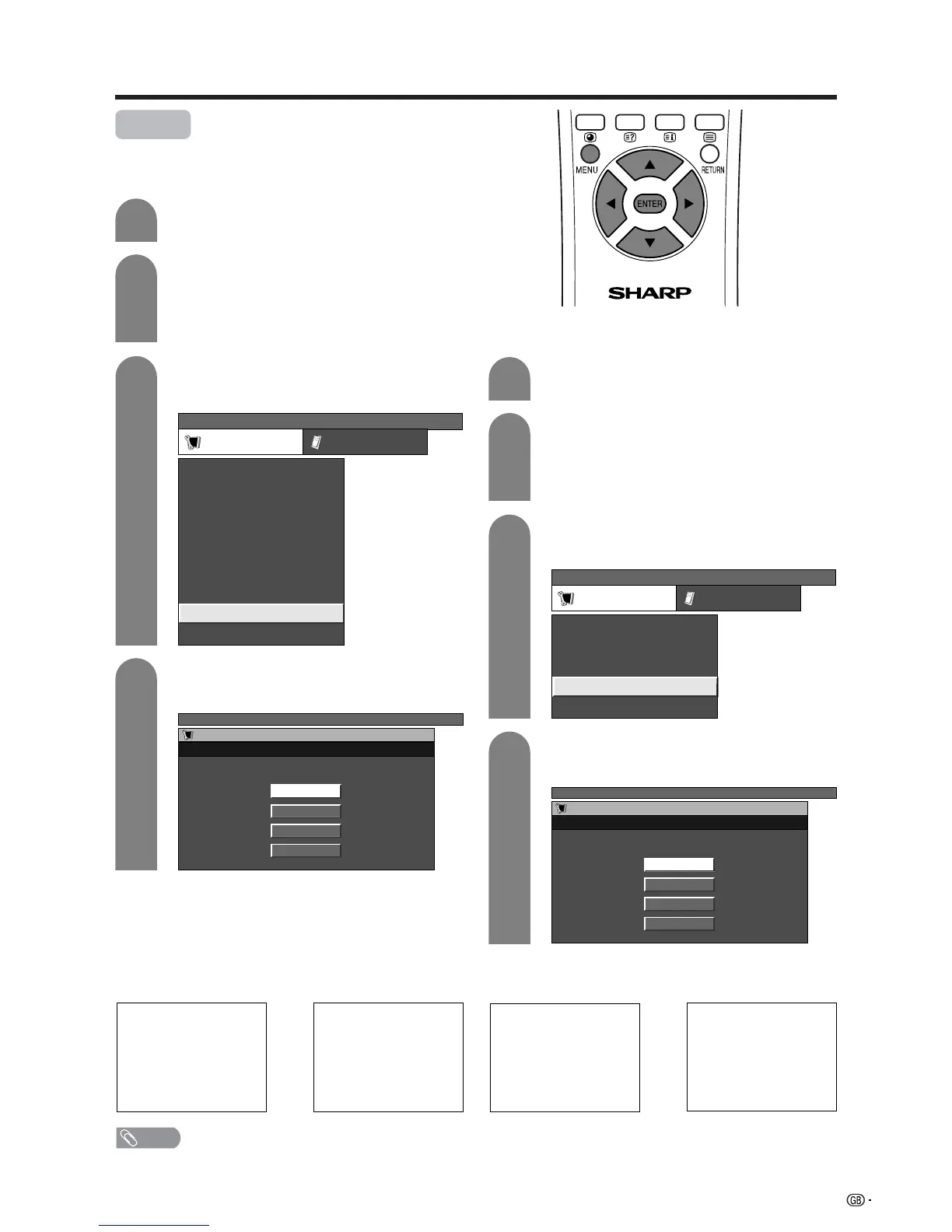
Rotate
You can set the orientation of the picture.
Press MENU and the PC MENU screen
displays.
1
2
NOTE
• If you choose “Mirror” or “Rotate”, the sound orientation also changes.
Press c/d to select “Setup”.
• If password is already set, you are asked to
enter it. Follow the same step as explained in
“Language setting for on-screen display (PC
input mode)”. (See step 2 on page 29.)
Press a/b to select “Rotate”, and then press
ENTER.
PC MENU
Setup Option
Fine Sync.
Input Signal
Auto Sync.
[English]
[Normal]
Language
Rotate
3
AV input mode
Press MENU and the TV MENU screen
displays.
1
2
Press c/d to select “Setup”.
• If password is already set, you are asked to
enter it. Follow the same steps as explained in
“Auto installation”. (See steps 2 and 3 on page
22.)
Press a/b to select “Rotate”, and then press
ENTER.
TV MENU
Setup Option
Child Lock
Auto Installation
Programme Setup
Position
WSS
4:3 Mode [Normal]
[Off]
[Mode1]Full Mode
[English]
[Normal]
Language
Rotate
3
[Normal]: normal image. [Mirror]: mirror image.
ABC
ABC
4
Press a/b to select the desired mode, and
then press ENTER.
TV MENU
Rotate
Normal
Mirror
Upside Down
Rotate
Setup
PC input mode
4
Press a/b to select the desired mode, and
then press ENTER.
PC MENU
Rotate
Normal
Mirror
Upside Down
Rotate
Setup
[Upside Down]: upside
down image.
[Rotate]: rotated image.
ABC
ABC



 To Next Page