Copyright © Shimmer 2017
Realtime Technologies Ltd Shimmer User Manual
All rights reserved Rev3p
6
the last four digits of the BT radio’s MAC address (printed on the Shimmer label). Windows will
attempt to establish a connection with the device.
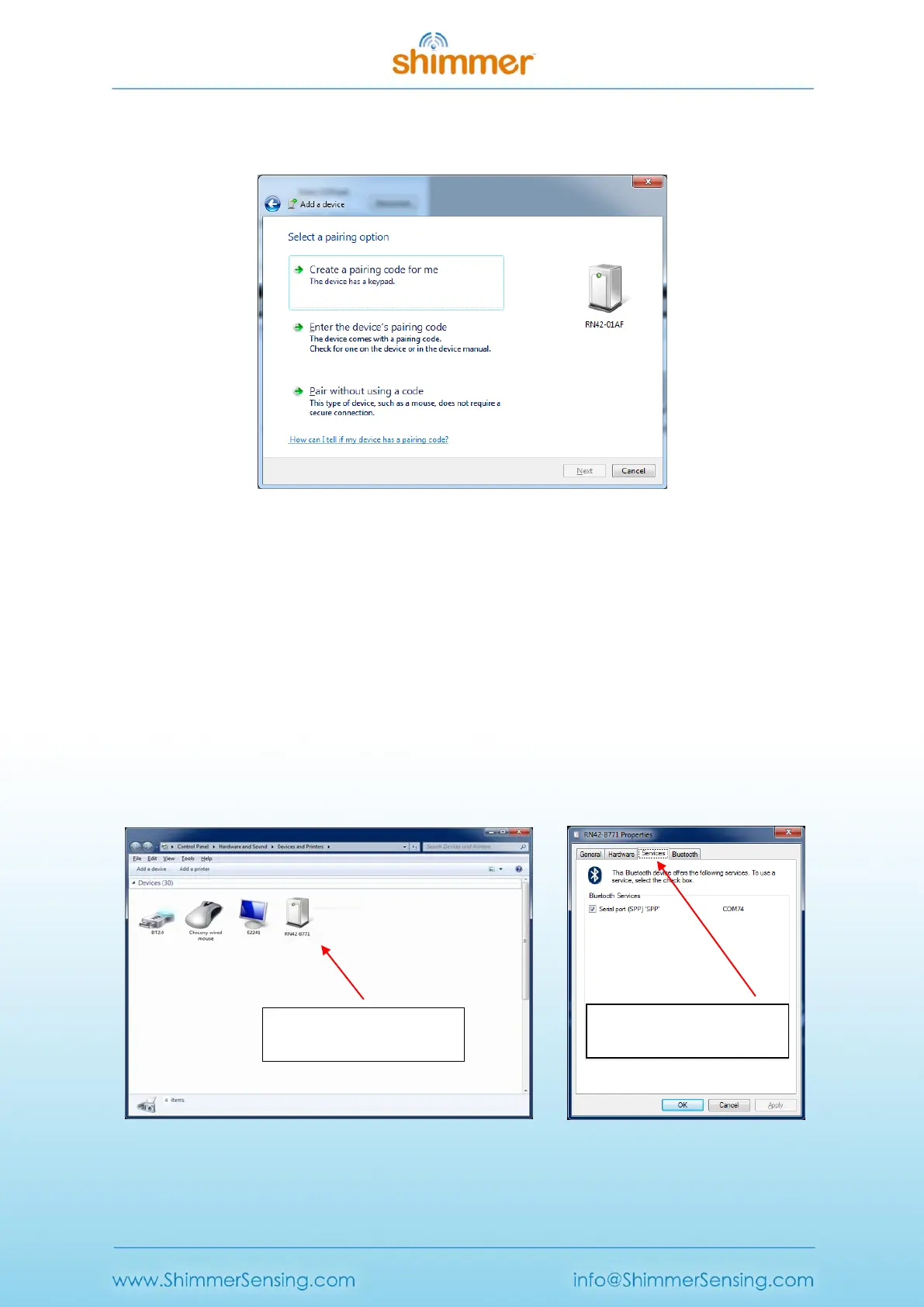
Figure 2-6 Pairing validation
To complete the pairing process, select the Enter the device’s pairing code (see Figure 2-6) option at
which point, a dialog box will appear prompting for a security code. The default code is 1234.
Verify successful Bluetooth pairing
Return to Control Panel → Hardware and Sound → Devices and Printers where the list of devices
connected with the Windows machine should now include the Shimmer that you paired (see Figure
2-7). In order to use the device with many host side Shimmer applications, it is essential to know the
COM port that the Windows machine has assigned to the Shimmer. To identify the COM port
number, right click on the Shimmer, select Properties and go to the Services tab. The COM Port
number is displayed as a Serial Port (SPP) service (e.g. COM74 in the screenshot on the right of
Figure 2-7).
Figure 2-7 Locating COM port associated with the Shimmer unit
Right click on the Shimmer
device and select Properties
Right click on the Shimmer
device and select Properties


 To Next Page