Copyright © Shimmer 2017
Realtime Technologies Ltd Shimmer User Manual
All rights reserved Rev3p
8
Run ShimmerCapture
Launch the ShimmerCapture application on a Linux OS.
Linux: The application must be run using the mono framework. The method of doing this varies and
depends on the Linux distribution and the desktop environment being used. To run from the
command line navigate to the folder containing the executable and run the mono
ShimmerCapture_Linux.exe command.
tiny2@ShimmerLive:~/Desktop$ mono ShimmerCapture_V0.2_Linux.exe
Select a Shimmer
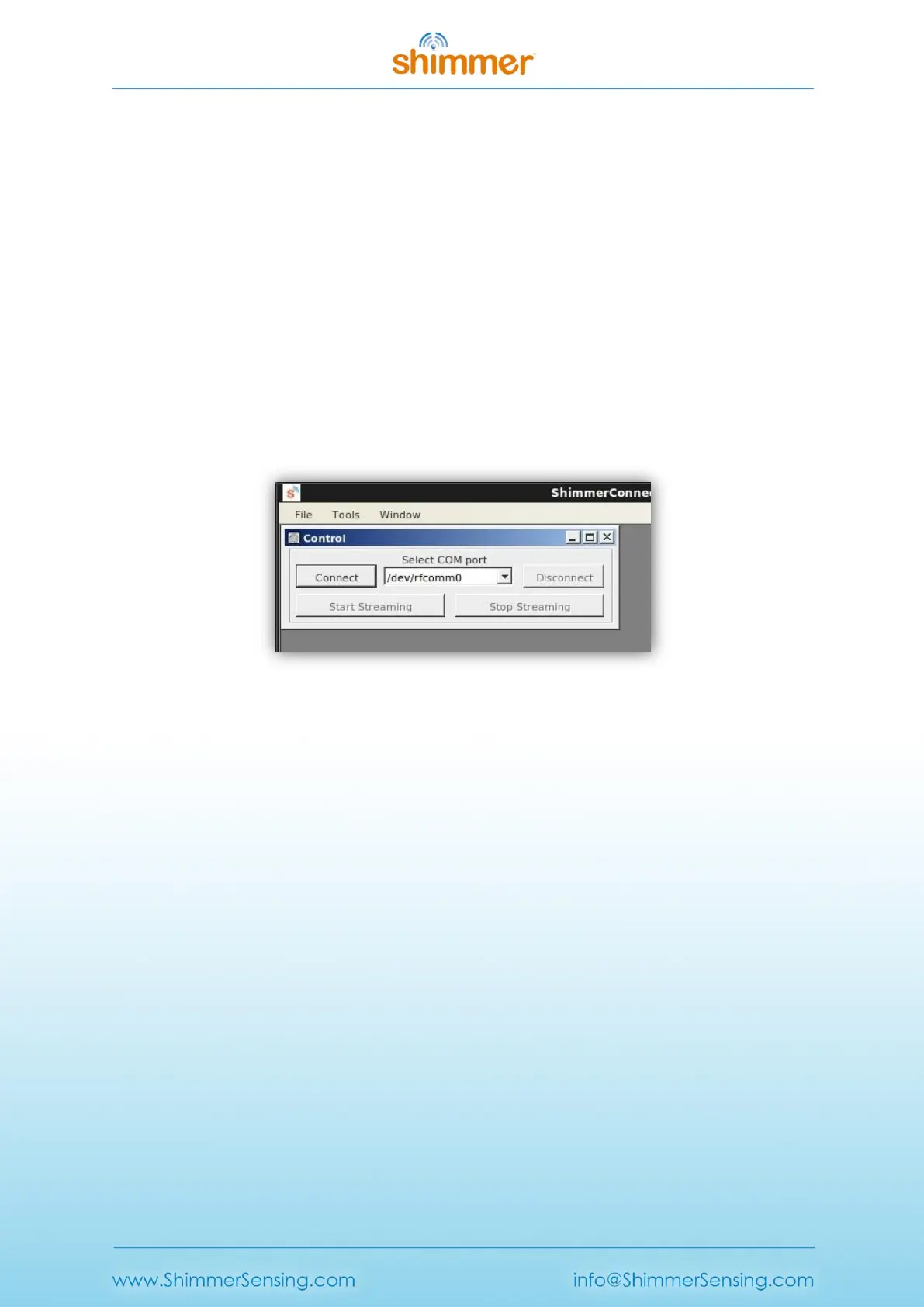
If you are running ShimmerCapture on a Linux OS, enter /dev/rfcomm<n> in the Select COM port
field as in Figure 2-8. Only /dev/rfcomm0 will be populated in the drop down menu, other values
will need to be typed in manually.
Figure 2-8 Selecting COM port in ShimmerCapture for Linux OS
Connect to a Shimmer
Ensure the Shimmer unit is powered on and press the Connect button on the ShimmerCapture
application to establish a Bluetooth connection between the Shimmer and the host side machine. As
per Figure 2-3, the blue LED on the Shimmer will remain on when a successful connection has been
made.
Note: If you have trouble connecting to a Shimmer please refer to the troubleshoot section of this
manual.
Configure the Shimmer
To configure the Shimmer, select Tools → Configure Shimmer. Here, Shimmer daughter boards can
be enabled/disabled and sensor settings like the sampling rate can be defined. In Figure 2-9 the low
noise accelerometer, wide range accelerometer and gyroscope sensors are enabled a sampling rate
of 51.2Hz.


 To Next Page