CN-Series Hardware Installation and Maintenance Guide Configuring the DNS Settings
4. Enter the static ESXi Host Management IP address, subnet mask, and a default gateway IP.
5. Press Enter to accept the changes and return to the Configure Management Network screen.
Related Topics
Task 5—Configuring IPMI for Remote Management on page 27
Connecting to IPMI and Launching the Virtual Console on page 30
Accessing VMware ESXi Through the IPMI Virtual Console on page 33
Configuring the DNS Settings
Before You Begin
• You have configured IPMI and launched the Virtual Console.
• You have logged in to VMware ESXi.
To configure the DNS settings:
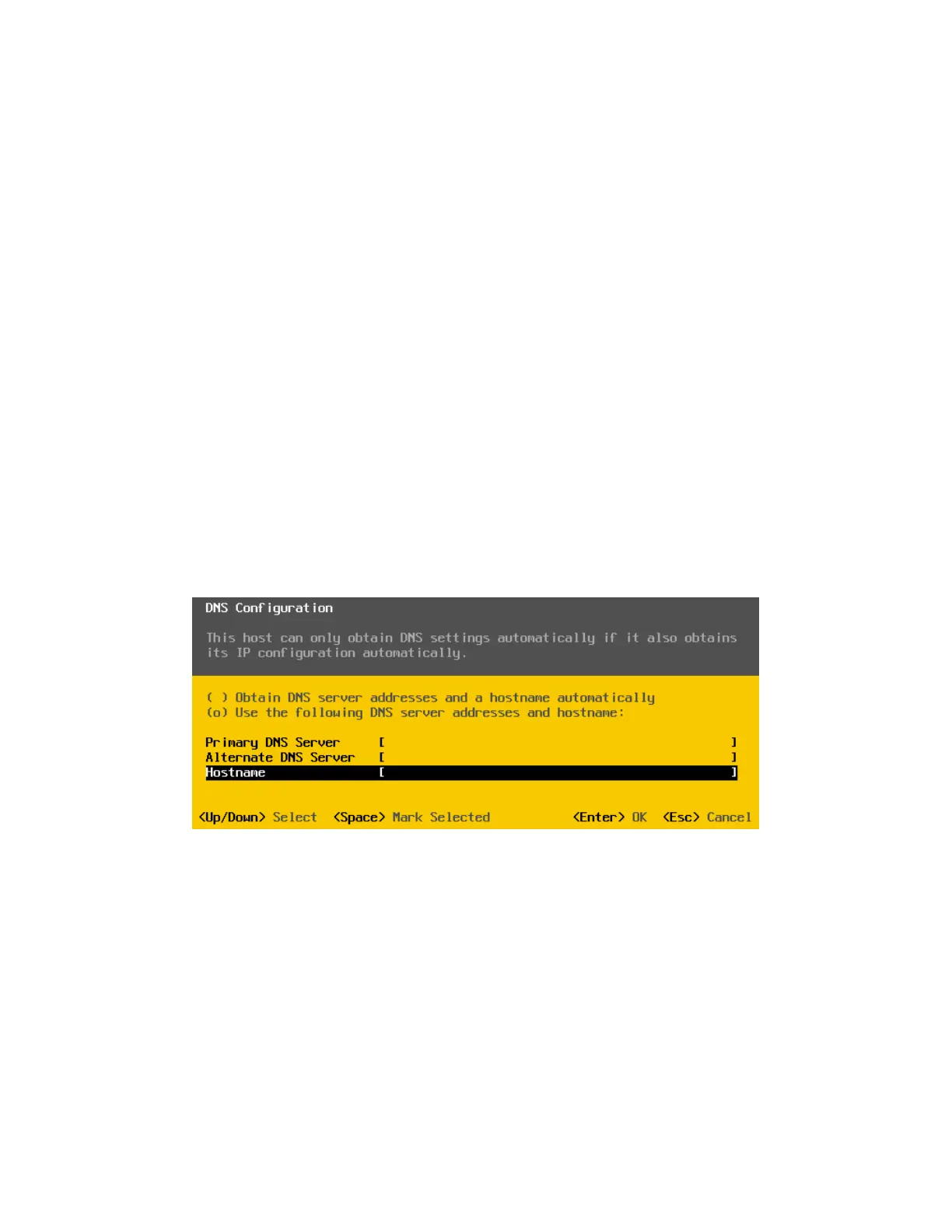
1. Select DNS Configuration in the Configure Management Network screen.
2. Press Enter to display the DNS Configuration screen.
3. Select Use the following DNS server addresses and hostname.
4. Enter your primary and alternate DNS servers and fully qualified hostname.
5. Press Enter to accept the changes and return to the Configure Management Network screen.
Related Topics
Task 5—Configuring IPMI for Remote Management on page 27
Connecting to IPMI and Launching the Virtual Console on page 30
Accessing VMware ESXi Through the IPMI Virtual Console on page 33
37


 To Next Page