CN-Series Hardware Installation and Maintenance Guide Accelerator Card Monitoring
2. Select the CN-Series system.
3. Select the Hardware Status tab.
4. Expand Power to display the power supplies.
Accelerator Card Monitoring
The LEDs on an Accelerator card indicate when there is a problem with the card. You can also view the
card status in your vSphere Client. If an Accelerator card fails, contact your service provider to have it
replaced.
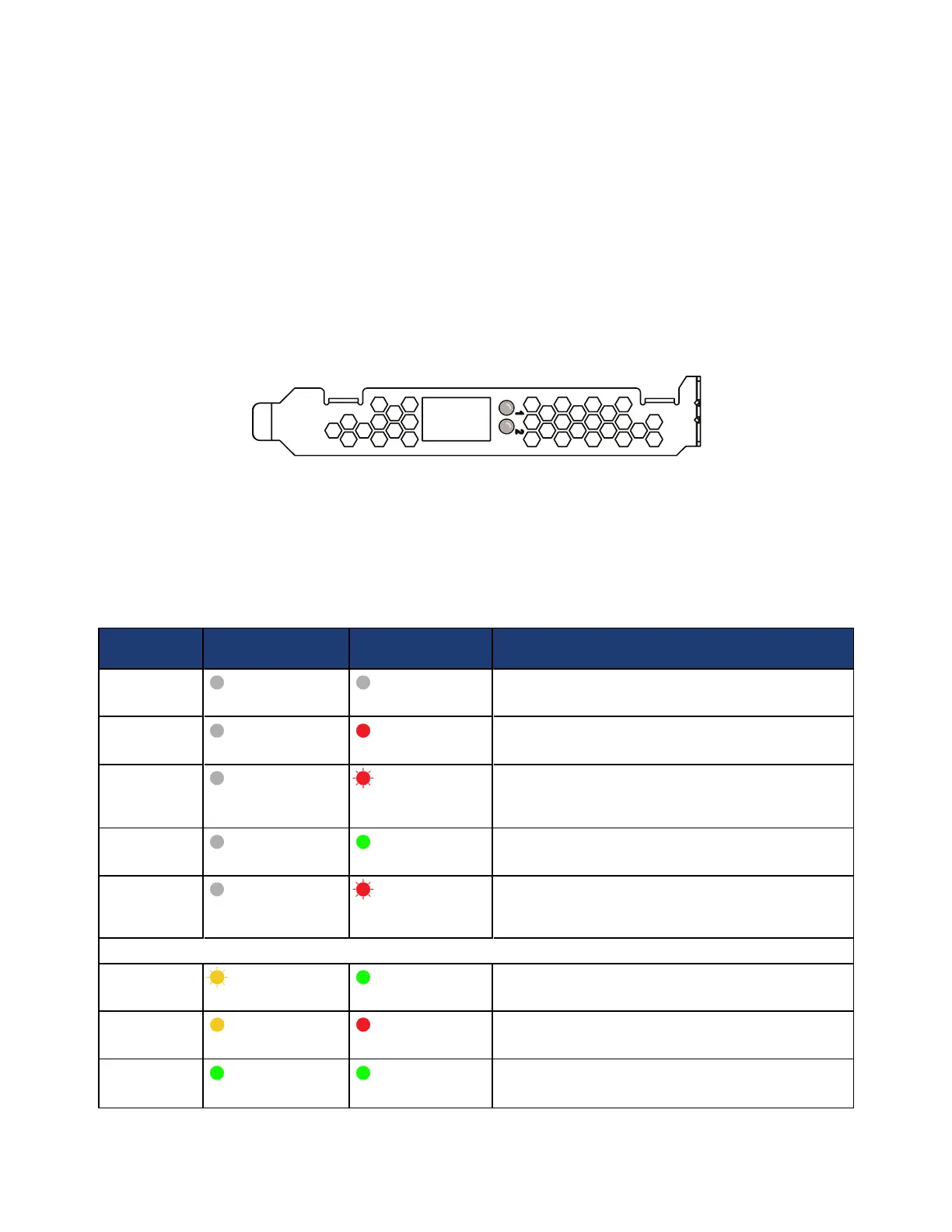
The following image shows the Accelerator card in a CN-Series system.
Each Accelerator card has two LEDs.
• LED 1 (top) glows or flashes green or yellow.
• LED 2 (bottom) glows or flashes green or red.
The following table lists the LED states.
System
State
LED 1 LED 2 Status Description
Power up
Off Off
PCIe 12V power is not present.
Power up
Off Steady red
Configuration Programmable Logic Device (CPLD)
detected power failure or CPLD is not configured.
Power up
Off Flash red
(1 on, 1 off)
Field Programmable Gate Array (FPGA) configuration
error or configuration failed.
Power up
Off Steady green
FPGA configuration is complete.
Power up
Off Flash red
(2 on, 2 off)
Accelerator card firmware is not responding to health
check.
POST
Flash yellow Steady green
Accelerator card power-on self test (POST) is
executing.
POST
Steady yellow Steady red
Accelerator card POST failure.
POST
Steady green Steady green
Normal operation (passed POST).
43


 To Next Page