CN-Series Hardware Installation and Maintenance Guide Network Interface Monitoring
Each 10GbE interface has two LEDs, the link LED (top) and the activity LED (bottom) with the following
colors and patterns:
• Neither LED is lit—No network connection.
• Activity (bottom) green and flashing—Sending or receiving network data.
• Link (top) green—Connected to the network.
Each 1GbE interface has link (left) and activity (right) LEDs with the following colors and patterns:
• Neither LED is lit—No network connection.
• Link (left) green—Connected to the network at maximum port speed.
• Link (left) amber—Connected to the network at less than maximum port speed.
• Activity (right) green and flashing—Sending or receiving network data.
Viewing Network Interface Status in the vSphere Client
You can use your vSphere Client to view the status of the network interface cards (NIC) in a CN-Series
system to ensure that the interfaces are operational.
To view network interface status:
1. In your vSphere Client, expand the datacenter that contains the CN-Series system.
2. Select the CN-Series system.
3. Select the Hardware Status tab.
4. Expand Network to display the network interfaces.
Ports Required for Network Communication
The following table describes the required bi-directional ports. These ports might need to be opened to
enable network communication.
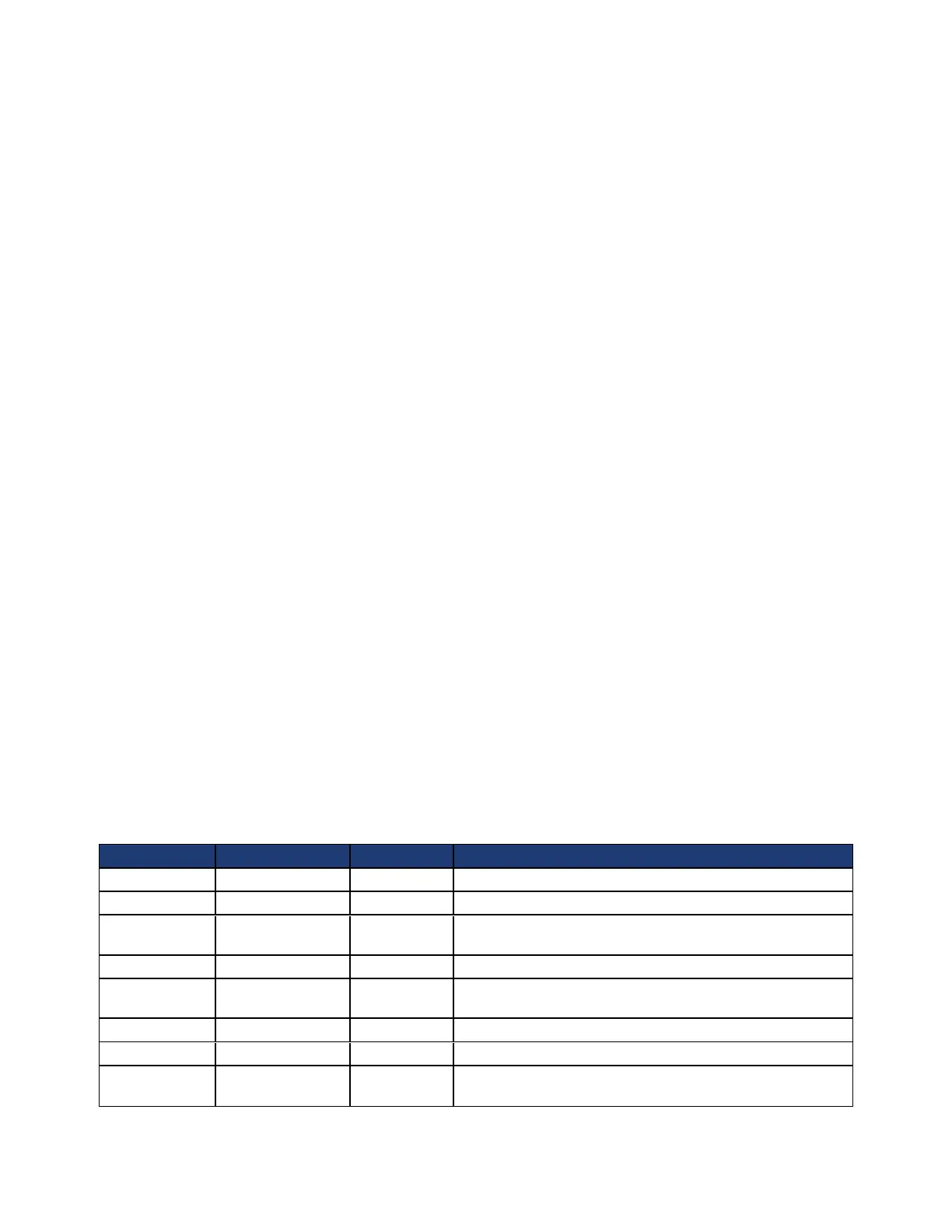
Port Network Interface Description
22 TCP All * SSH - For remote access. Management interface.
25, 443 Phone Home SMTP - Phone Home. Management interface.
80 TCP Management eth0 HTTP used for monitoring OmniCube deployment and for
Support Capture downloads.
443 TCP IPMI Used for remote system management.
5900, 5901 TCP IPMI Virtual
Console
Virtual console used for accessing and configuring VMware
ESXi.
9090 TCP Management eth0 CLI or GUI access.
9190 Management eth0 Control API, over SSL/TLS
22122 UDP
&TCP
Storage pref &
non-pref
eth0, eth1 Intra-Federation traffic. SimpliVity Arbiter. Backup to
remote datacenter.
46


 To Next Page