4
SMART Board User’s Guide
7 Turn on your Macintosh computer.
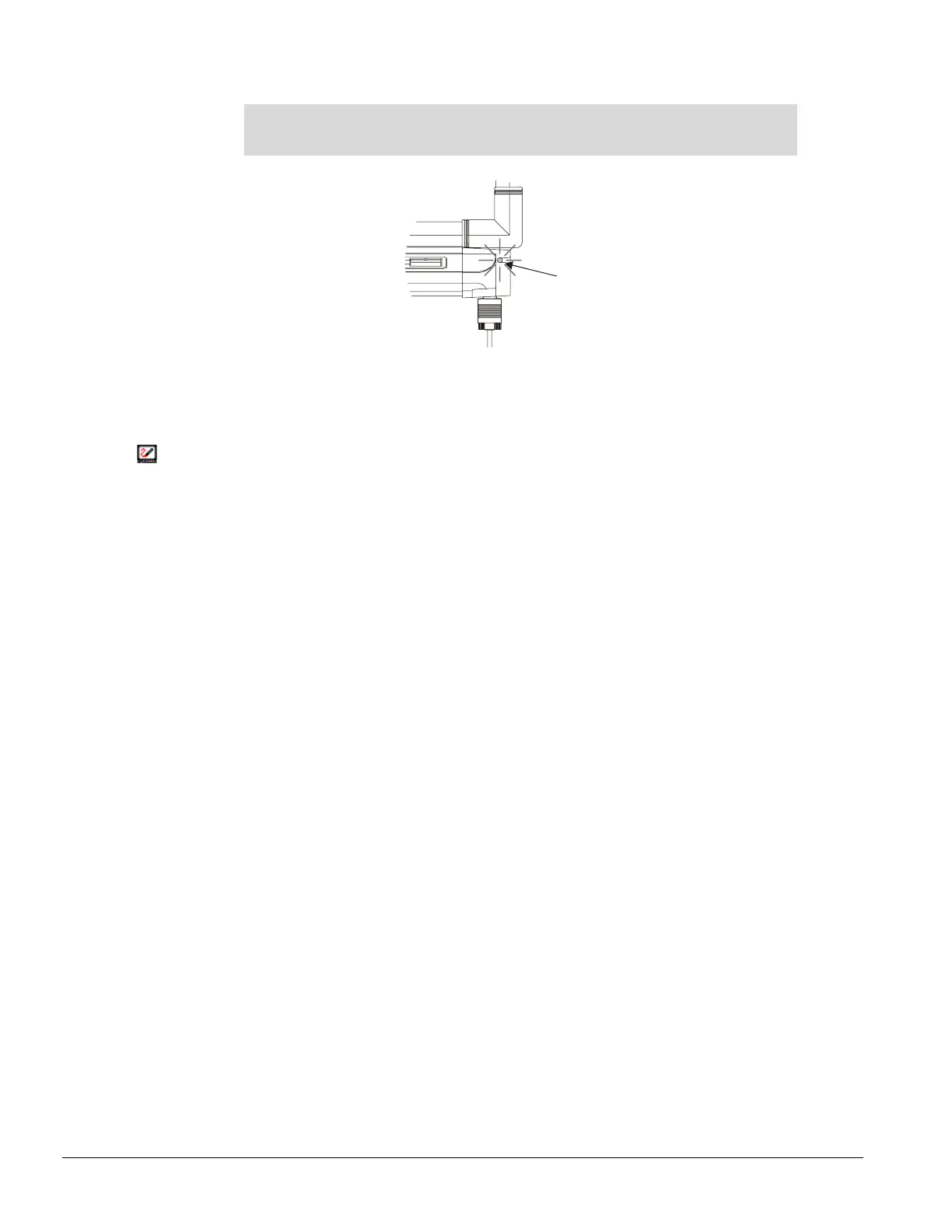
NOTE: The Ready Light on the pen tray turns red when you turn on your Macintosh
computer. This light indicates that the pen tray is receiving power from the keyboard port
or external power supply.
Ready Light
8 Insert the SMART Board software CD into your CD-ROM drive.
The installation program launches. Follow the on-screen instructions.
9 When the installation is complete, the Ready Light on the pen tray turns from red to green,
indicating that the interactive whiteboard is now touch sensitive.
10 Press the SMART Board icon and select Control Panel.
11 On the Boards tab, press the Select button.
The Pick a Port dialog box appears.
12 If you know which port the interactive whiteboard is connected to, select it from the Port List and
press OK.
OR
If you’re unsure of the correct port, press the Auto Detect button. SMART Board software
searches the ports for an attached interactive whiteboard.
13 Press the Orient button to more accurately map the location of each interactive whiteboard contact
(see page 7 for more information).
14 Press the targets in the order specified.



 To Next Page