8
SMART Board User’s Guide
Which Orientation Level Should You Choose?
You can choose from three orientation levels: Quick (nine points), Standard (20 points) and Fine (80
points). Note that the default nine-point orientation produces an excellent level of tracking precision.
• A Quick orientation requires only nine presses to complete and is well suited for most purposes.
If you accidentally move or jostle the front projection interactive whiteboard during a presentation,
use the Quick orientation to re-orient quickly and with minimal interruption.
• A Standard orientation requires 20 presses and provides a slightly higher level of accuracy that’s
suitable for most high resolution systems
• A Fine orientation involves pressing on 80 individual crosses. While this orientation is the most
time-consuming to complete, it’s recommended for higher-resolution systems that may require
more precise tracking.
To orient the interactive screen with extreme precision (Standard or Fine orientation)
1 Press the SMART Board icon and select Control Panel.
2 Press the Advanced button on the Boards tab.
The Edit Advanced Settings dialog box appears.
3 Press the Pick the Orientation Precision tab.
4 Press the orientation option that you prefer.
5 Press Apply, and then press Next.
6 Press the Orient button.
7 Press your finger squarely and firmly in the center of each red cross as it appears.
When you’ve pressed the final red cross, the orientation screen disappears.
If you choose to orient with more points than the default nine-point orientation, this higher-level
orientation screen becomes the new default (i.e., the higher-level screen appears when you next
select Orient. To restore the nine-point default, return to the Pick the Orientation Precision tab
(steps 2 and 3 above) and select Quick (9 points).
Adjusting the Front Projected Image
If you have a front projection SMART Board interactive whiteboard, you must make a few final adjustments
to the projector to ensure a focused image that fits within the interactive whiteboard bezel (frame) at the
top and bottom. You should have a margin of approximately 3/8" on both the right and left sides.
NOTE: This 3/8" margin is an optimal measurement. Alignment can vary: in some
instances, the image can fill the entire screen; in others, the margin can be greater than
3/8", but look perfectly satisfactory if it’s even on all sides.
For both front and rear projection interactive whiteboards, you can fix many projector-related problems
right at the projector itself, just by shifting the projector to the right or left, tilting it or using the zoom lens to
sharpen the focus or expand and contract the image. You can also solve many keystone problems by
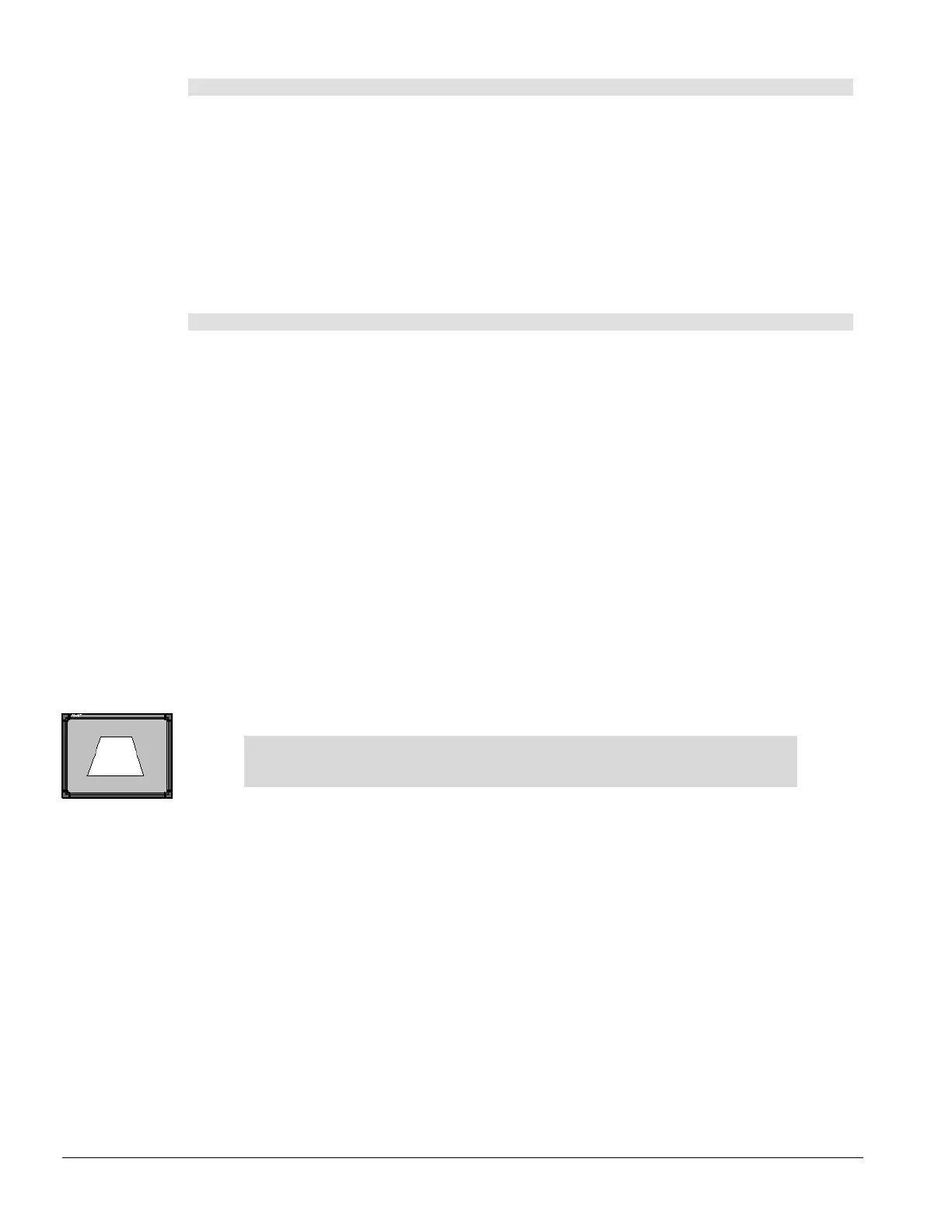
raising or lowering the front or back of the projector until the sides of the image are parallel to the bezel.
You’ll need to fix a few special problems at the software level by adjusting computer or projector settings,
as described in this section of the guide.
A Keystone
Image



 To Next Page