SMART Board User’s Guide
13
Using the Floating Tools
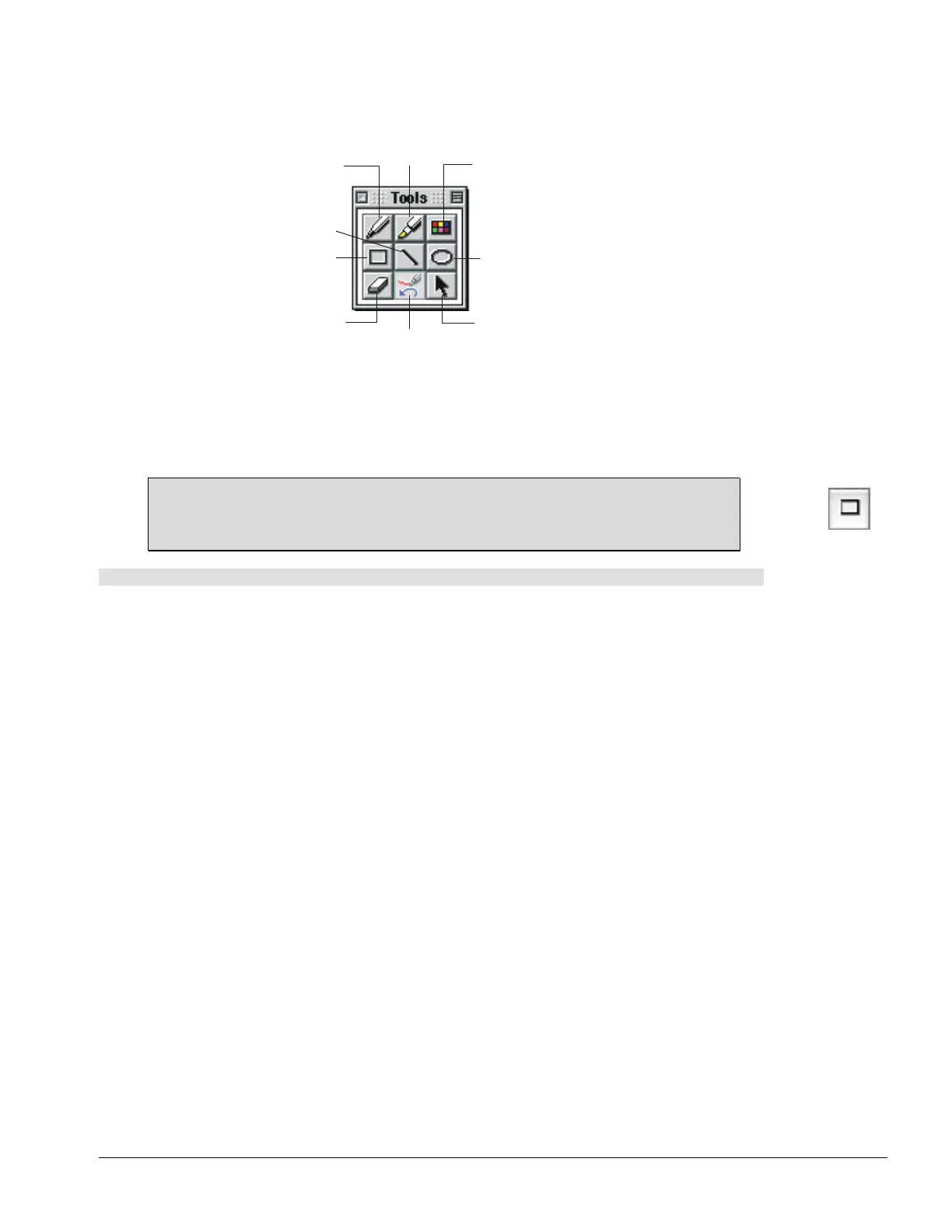
The Floating Tools palette is a portable, customizable palette of tools that floats over all applications. With
this palette, you can perform a wide variety of operations.
Pen
Highlighter
Eraser
Rectangle
Circle
Line
Restore/Clear
Annotations
Left Mouse
Configure Tools
The Floating Tools
With the Floating Tools open, you have access to the same configurable styluses and eraser as the pen
tray tools – in virtual rather than physical form. Press the Pen button, for example, and your next contact
with the interactive whiteboard produces electronic ink; press the Eraser button and your next contact
removes electronic ink, just like the equivalent tools in the physical pen tray.
TIP
The Rectangle button on the Floating Tools palette is ideal for highlighting large areas of
data on the interactive screen.
To open and quit the Floating Tools
1 Press the SMART Board icon and select Floating Tools.
2 Drag the Floating Tools to another screen location.
3 Press the Close button to close them.



 To Next Page