16
SMART Board User’s Guide
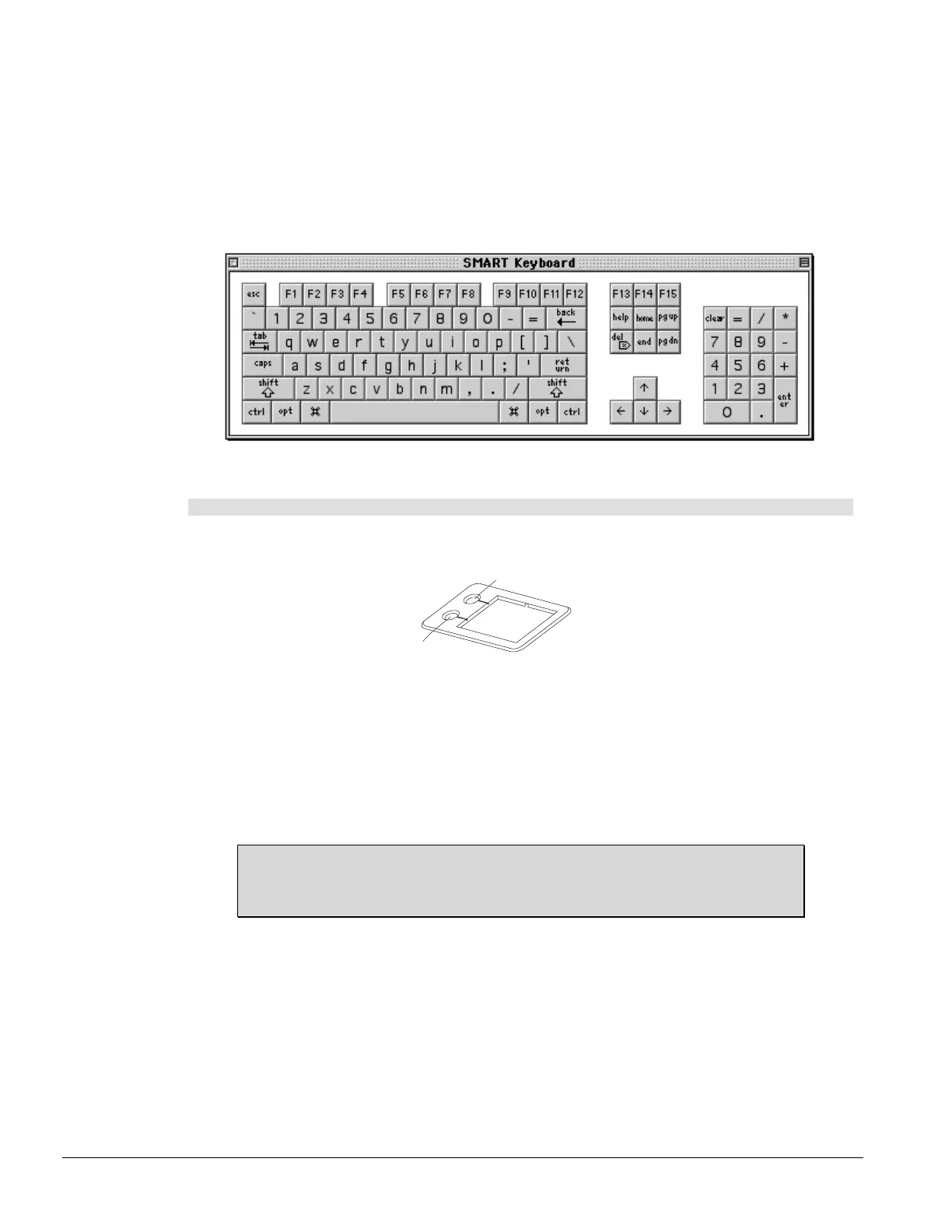
Using the SMART Keyboard
Your SMART interactive product is a great tool for presenting information, allowing you to both control your
applications by touch and write over top of those applications with a pen tray stylus.
However, many situations require a keyboard. For example, if you want to rename a file you’re saving,
you’ll need to type the new name in the Save As dialog box. The SMART Keyboard is a quick and easy
way to type into a dialog box (or into any application) right at the screen, without moving to a physical
keyboard.
SMART Keyboard
To use the SMART Keyboard
1 Press the Keyboard button in the pen tray.
OR
Press the SMART Board icon and select SMART Keyboard.
The SMART Keyboard appears.
2 Place the cursor at the point where you want to enter text in the active application or dialog box.
3 Press the keyboard keys as you would normally type.
The text appears at the cursor insertion point.
TIP
You can drag the keyboard (by its title bar) to any screen location. To try ten-fingered
typing, move the keyboard to a relatively high location.
Keyboard
Right-Click



 To Next Page