SMART Board User’s Guide
1
Setting Up Your SMART Board 500 Series Interactive
Whiteboard
It’s easy to set up your SMART Board interactive whiteboard. Just follow the steps below, and your
interactive whiteboard will become touch sensitive as soon as you install SMART Board software. Open,
minimize or close applications, scroll through files, open your browser – all just by touching the screen.
To activate your pen tray so you can write over projected applications, just open the SMART Board tools.
These program components of SMART Board software let you use a stylus to write over any application
displayed on the screen.
NOTE: If you have a Rear Projection SMART Board interactive whiteboard, Sympodium
lectern, or a SMART Board for Plasma Displays model, refer to the guides that came
with your product for the complete setup instructions.
Your first task is to connect your computer to the interactive whiteboard. Use the SMART USB adapter, or
if you have an older Mac (without a USB port), use the provided serial cable and serial cable adapter.
Macintosh Computer USB Adapter Setup
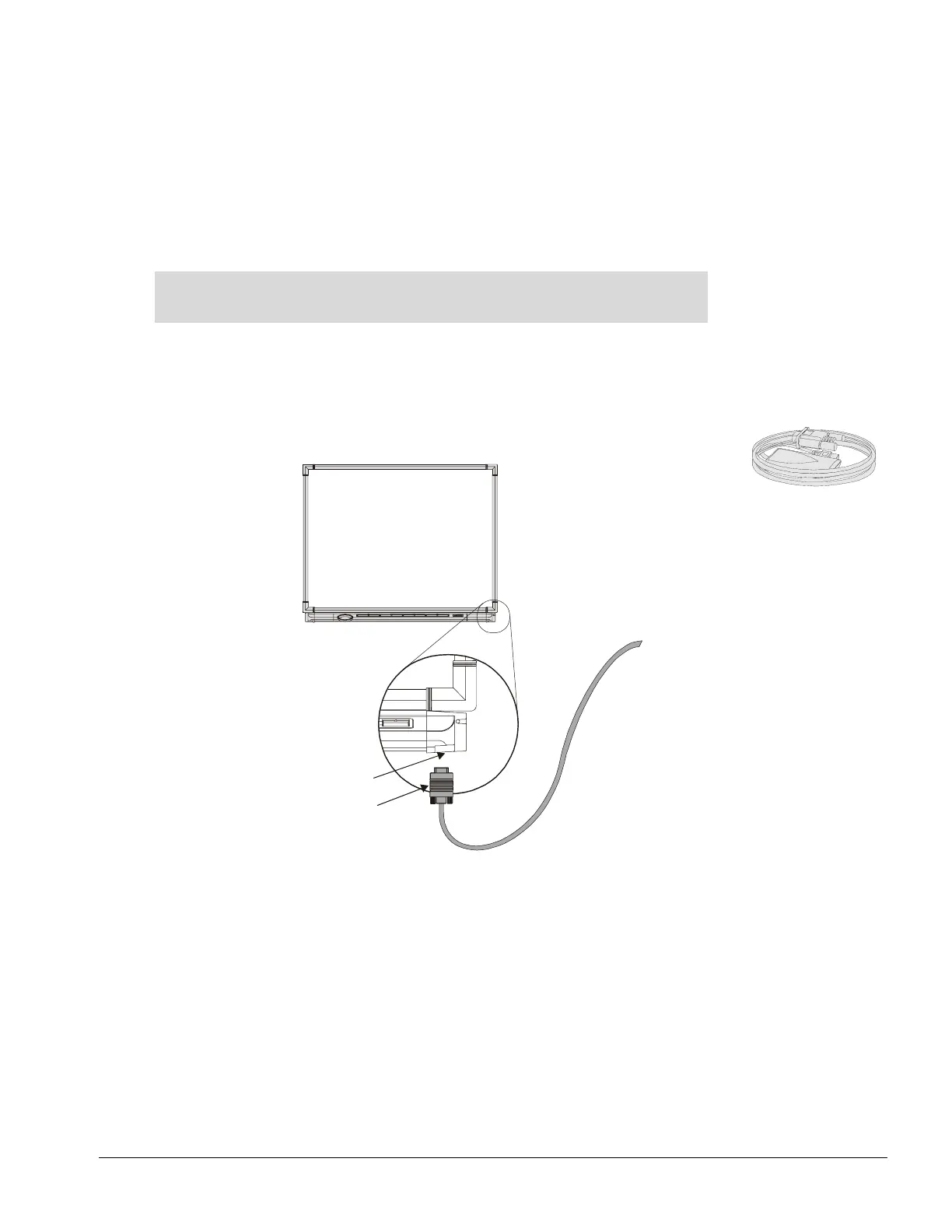
1 Connect the DB9 end of the USB adapter to the nine-pin serial port on the underside of the interactive
whiteboard.
Serial Port (Underneath
the Interactive Whiteboard)
DB9 end of USB Adapter
NOTE: If the USB adapter might be subject to accidental disconnection or strain, protect the serial
port on the interactive whiteboard as follows:
• Leaving it somewhat slack at the serial port connection, attach the cable to the wall or a floor-
stand leg with a strain-release device or electrical tape, ensuring that any subsequent force
on the cable will be absorbed at that point rather than at the serial port connection. With a
floor stand, attach the cable to the bottom of the leg for greater stability if the cable is pulled.
• If you must run a cable over the floor, lay the cable in a flat, straight line, and secure it to the
floor with colored tape or a cable management strip
USB Adapter



 To Next Page