SMART Board User’s Guide
33
Using PowerPoint Software with SMART Board
Software
The SMART Board tools have been optimized for use with PowerPoint software.
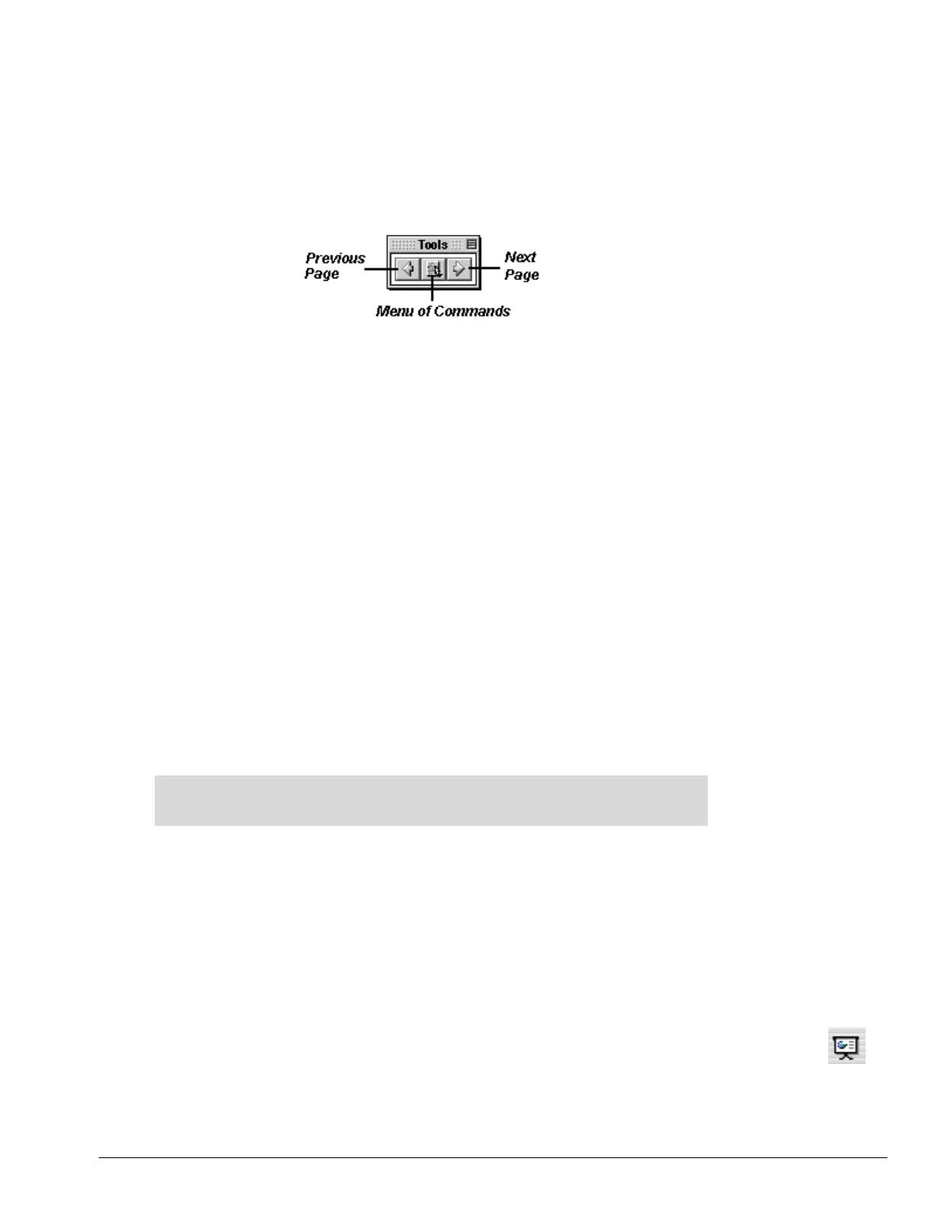
Whenever you’re in Slide Show mode and you lift a pen tray stylus or select a Floating Tool, you’ll see a
three-button toolbar.
The two arrow buttons allow you to navigate backwards and forwards through a PowerPoint presentation;
the middle button provides access to a menu of commands. Alternatively, you can use the navigational
touch shortcuts.
When you run PowerPoint software in Slide Show view, you can annotate over your slides with any of the
pen tray styluses or the Floating Tools. To save these annotations, use the menu option of saving your
annotations and slide to Notebook software, as long as you have Notebook software open. You can also
click in the top right corner of your interactive screen to access the Screen Capture tools. If you prefer, you
can just move on to the next slide and the annotations you made over the first slide will disappear.
Menu commands include:
• Save Annotations and Slide to Notebook software
• Print Annotations and Slide with Notebook software
• PowerPoint Menu
• Restore Annotations
• Clear Annotations
• End Show
Using the PowerPoint Shortcuts
• To advance your presentation by one slide, double-press anywhere on the screen. Note that
you don’t need to press in the same spot twice, as long as your double-press is right-
oriented: Press once on the screen, and then press again anywhere to the right of the first
press.
NOTE: If you prefer to advance the slide with a single press, open the SMART Board
Control Panel, select the Aware tab, and finally select the Double-press to advance to
the next slide check box to clear it.
• To reverse your presentation by one slide, use a left-oriented double-press: press once,
move your finger slightly to the left, and then press again.
• To access the screen capture tools, click in the top right corner of your interactive
whiteboard. The drop-down menu appears for you to select a tool.
Saving Annotations Made in PowerPoint Software
Any annotations you make over a PowerPoint presentation can be saved into Notebook software. There,
you can manipulate them and save them.
1 Open SMART Notebook.
2 Open a PowerPoint presentation (not in read-only mode) and press the Slide Show button.
3 Pick up a pen tray stylus and write on any slide.
4 Press the Menu button in the middle of the PowerPoint toolbar.



 To Next Page