SMART Board User’s Guide
15
Erasing What You’ve Written
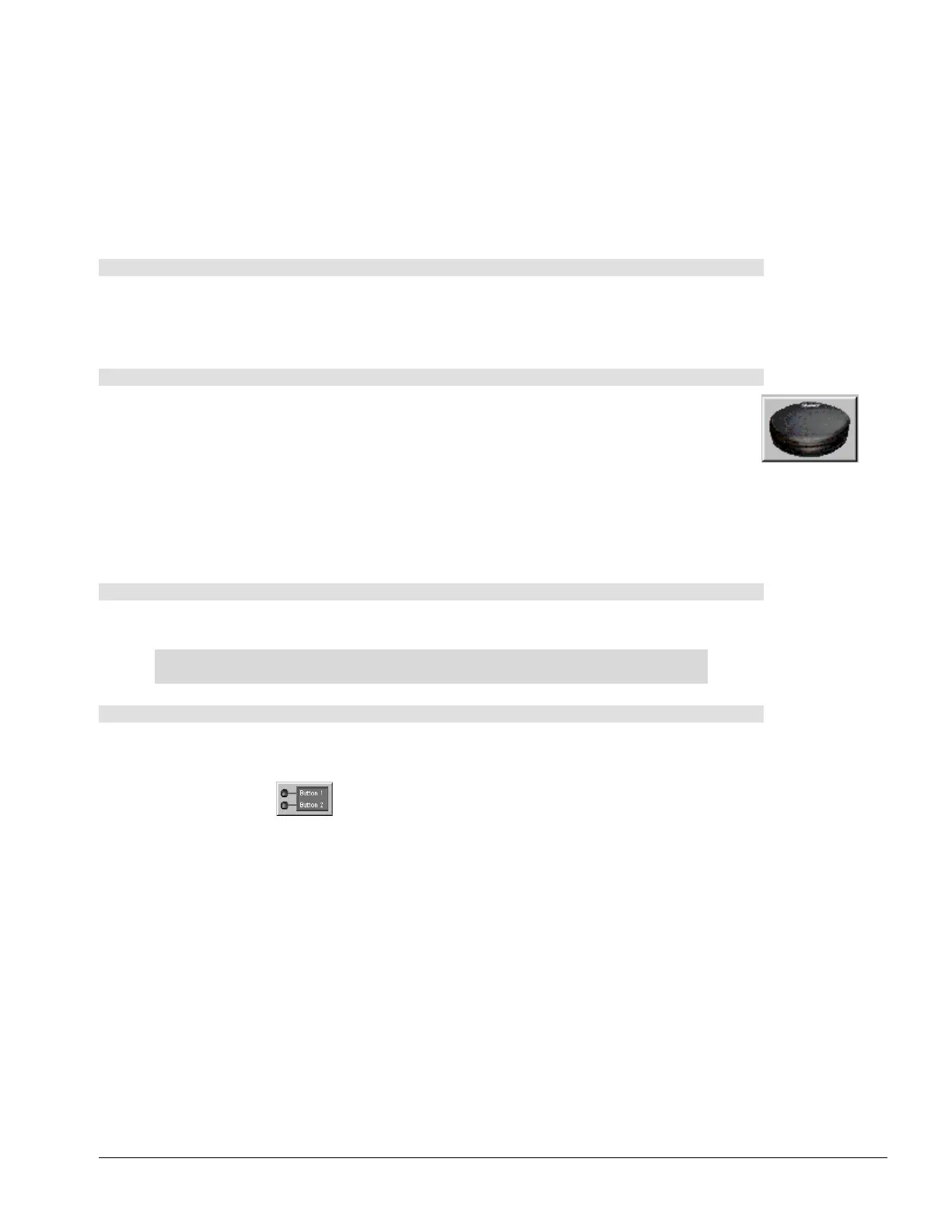
What could be easier or more natural than picking up the round eraser in the pen tray, brushing it against
the interactive whiteboard and erasing what you’ve written? You can customize the eraser by changing its
size to the size of your fingertip (10 pixels), which allows you to pick up the eraser with one hand and erase
a very small, precise area of the screen with your finger. If you like, you can also inscribe a circle on the
screen with the eraser and then tap once inside that circle to erase all the annotations inside it.
If you’d prefer to remove all annotations at once, you can configure one of the pen tray buttons so that it
clears all annotations when pressed. Alternatively, you can press the Clear Annotations button in the
Floating Tools palette.
To erase freehand annotations with the pen tray eraser
1 Pick up the eraser from the pen tray.
2 Touch the interactive whiteboard with the eraser, your finger or any other object.
The electronic ink on the screen disappears wherever contact is made.
To resize the eraser to fingertip size
1 Press the SMART Board icon and open Control Panel.
2 Press the Pen Tray tab.
3 Press the Eraser button.
4 Press the Specify Size option.
5 In the Specify Size box, type or select 10.
6 Press OK.
7 Pick up the eraser and erase a small area of the screen with your finger.
“Circle-and-Tap” Erasing Method
If you’re working outside of Notebook software, encircle the area you want to erase with the edge of the
round pen tray eraser. Then tap once inside that circle to erase all the annotations within it.
NOTE: This method of erasing only works with freehand annotations created with the
pen tray styluses or pen buttons in the Floating Tools.
To reconfigure a pen tray button to clear the screen
1 Press the SMART Board icon and select Control Panel.
2 Press the Pen Tray tab.
3 Press the Buttons
button.
4 Under Projected Mode, select Clear Screen from the list for either button.
5 Press OK to activate the new selection.
In the future, you can press the pen tray button you just configured to clear the screen.



 To Next Page