SMART Board User’s Guide
37
Appendix A: Using an Interactive Whiteboard without a
Projector
WARNING: If you own a SMART Board interactive whiteboard with the OptiPro
surface
disregard this section. The OptiPro surface is optimized for use with a projector and
should not be marked with dry-erase ink
Also, this section doesn’t apply to users of Rear Projection SMART Board interactive
whiteboards, SMART Board for Plasma Displays interactive overlays or Sympodium
interactive lecterns.
In non-projected (whiteboard mode), you can write on the screen with dry-erase markers just as you would
on an ordinary whiteboard. However, unlike an ordinary whiteboard, what you write is simultaneously
displayed on your computer screen in the pen color you selected. You can save this electronic version of
your writing in Notebook software, and then work with it, save it, and print it.
We recommend that you purchase a set of high-quality, dry-erase markers in black, blue, red and green
and place each pen in the matching colored slot of the pen tray.
Setting Up the SMART Pen Tray for Non-Projected Use
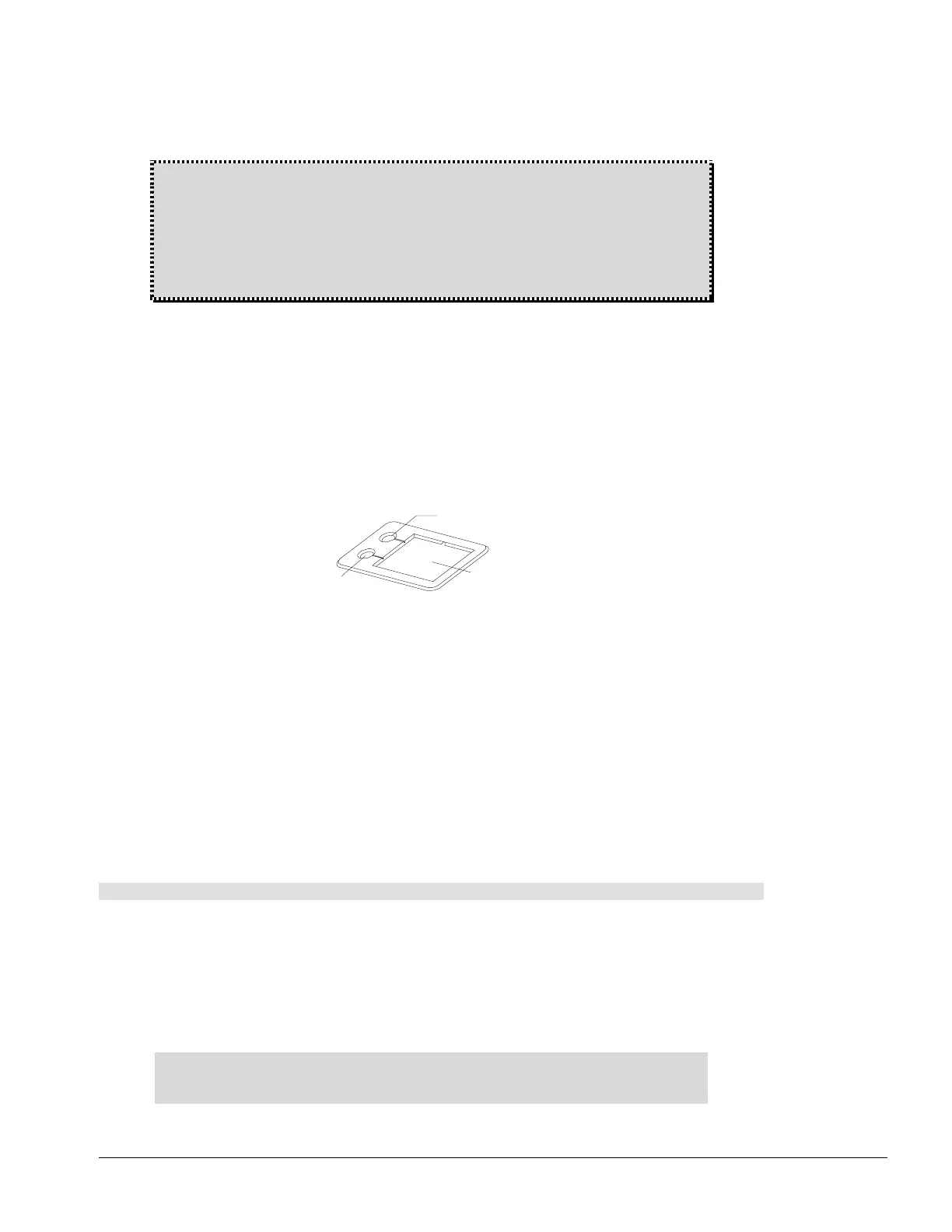
When you set up your SMART pen tray, remove the Projection button label from the label recess, turn it
over to reveal the Whiteboard Mode button label.
This label matches the default settings of the software in non-projected mode. Remember that you can still
change these default settings in the software.
The upper pen tray button is the New Page button, which is a very important button for non-projected
interactive whiteboard use. Pressing this button opens a new page in the current Notebook file for
receiving fresh notes. The bottom button is the Print button, which sends your current page of notes to the
default printer.
Configuring SMART Board Software for Non-Projected Use
If you’re using an interactive whiteboard without a projector, verify that SMART Board software is set for
non-projected (whiteboard) use in the SMART Board Control Panel. Otherwise, when you write anywhere
outside a board-aware application workspace (such as Notebook software) with dry-erase ink, you may
accidentally activate menu commands or other program elements.
When you initially install SMART Board software, the default setting is projected mode. However, you can
easily change that setting.
To change the SMART Board software to non-projected mode
1 Click the SMART Board icon and select Control Panel.
The SMART Board Control Panel opens.
2 In the Boards tab, click the Non-Projected (Whiteboard Mode) option.
3 Click OK.
The SMART Board driver is now ready to function without a projector, and will effectively capture
your dry-erase ink in electronic form.
NOTE: You don’t need to orient the interactive whiteboard in non-projected mode. When
the computer interprets your annotations, it automatically scales the entire screen to an
image size equal to the writing area of the application in which you’re working.
New Page
Print
Button
Label



 To Next Page