38
SMART Board User’s Guide
Working with Your Notes in Non-Projected Mode
Open Notebook software. As soon as you begin writing on the interactive whiteboard in non-projected
mode, you can see your annotation on the connected computer screen.
As well, you can use the Scale to Fit view. This view enables you to see and use the entire canvas area at
one time. It has the effect of shrinking the canvas height and width while maintaining the correct aspect
ratio. This perspective can be used in either Normal or Full Screen view.
Because it has the effect of contracting the entire workspace to fit the dimensions of your particular display,
this feature is especially recommended for using Notebook software in a SMART Board in non-projected
mode. Scale to Fit is also very useful for compensating for resolution differences in displays.
For example, if a presentation created on a system with a 1024 x 768 pixel display is shown on a system
with a lower resolution display, such as 640 x 480 pixel display, some of the presentation may be lost in
Normal view. Scale to Fit view contracts the display to accommodate the entire workspace, making
differences in display resolutions inconsequential.
If you don’t want to keep your annotations in a Notebook file, simply erase the dry-ink markings on the
interactive whiteboard. This erases the electronic ink on the computer as well.
After you fill the interactive whiteboard screen with notes, you can save them as a page of a Notebook file.
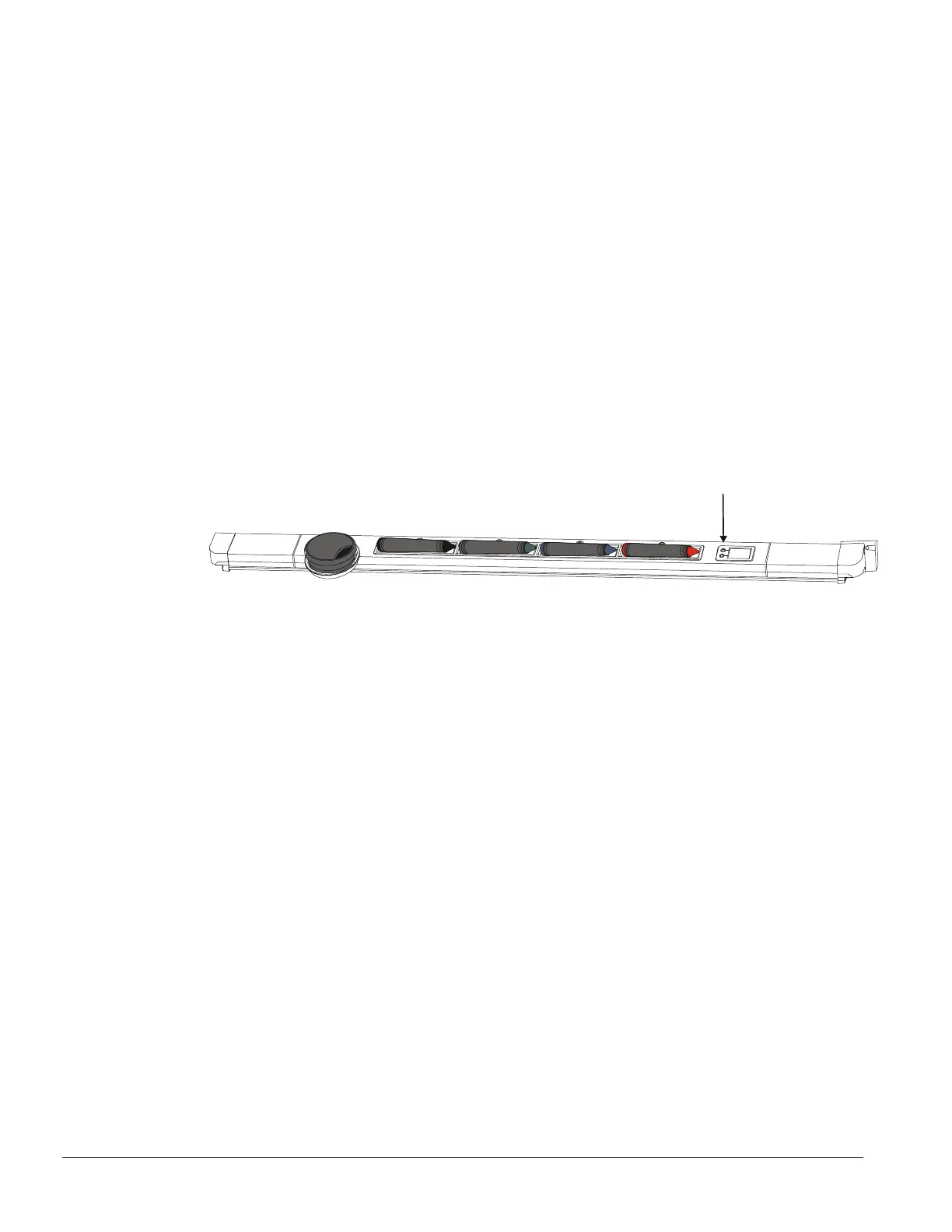
Press the top (New Page) button on the pen tray or the Insert Blank Page button in Notebook software.
This action captures your notes on the current page and inserts a new page, ready to accept fresh notes.
With this blank page open, erase your whiteboard notes and create new ones. Don’t forget to save your
Notebook file when you finish.
New Page button
Before You Erase, Press the New Page Button



 To Next Page