SMART Board User’s Guide
39
Appendix B: Using Multiple Interactive Whiteboards
You can operate up to eight SMART Board interactive whiteboards simultaneously from the same
computer, provided you can connect multiple monitors to your Macintosh computer. None, all, or some of
the multiple interactive whiteboards can be operated in projection mode. You also have the option of
displaying different applications on the screen or an identical computer desktop on every screen.
Displaying Applications on Multiple Interactive Whiteboards
Basically, there are two ways in which you can display applications from a single desktop on multiple
Boards:
• display one or more application on each screen
• split an application across multiple screens
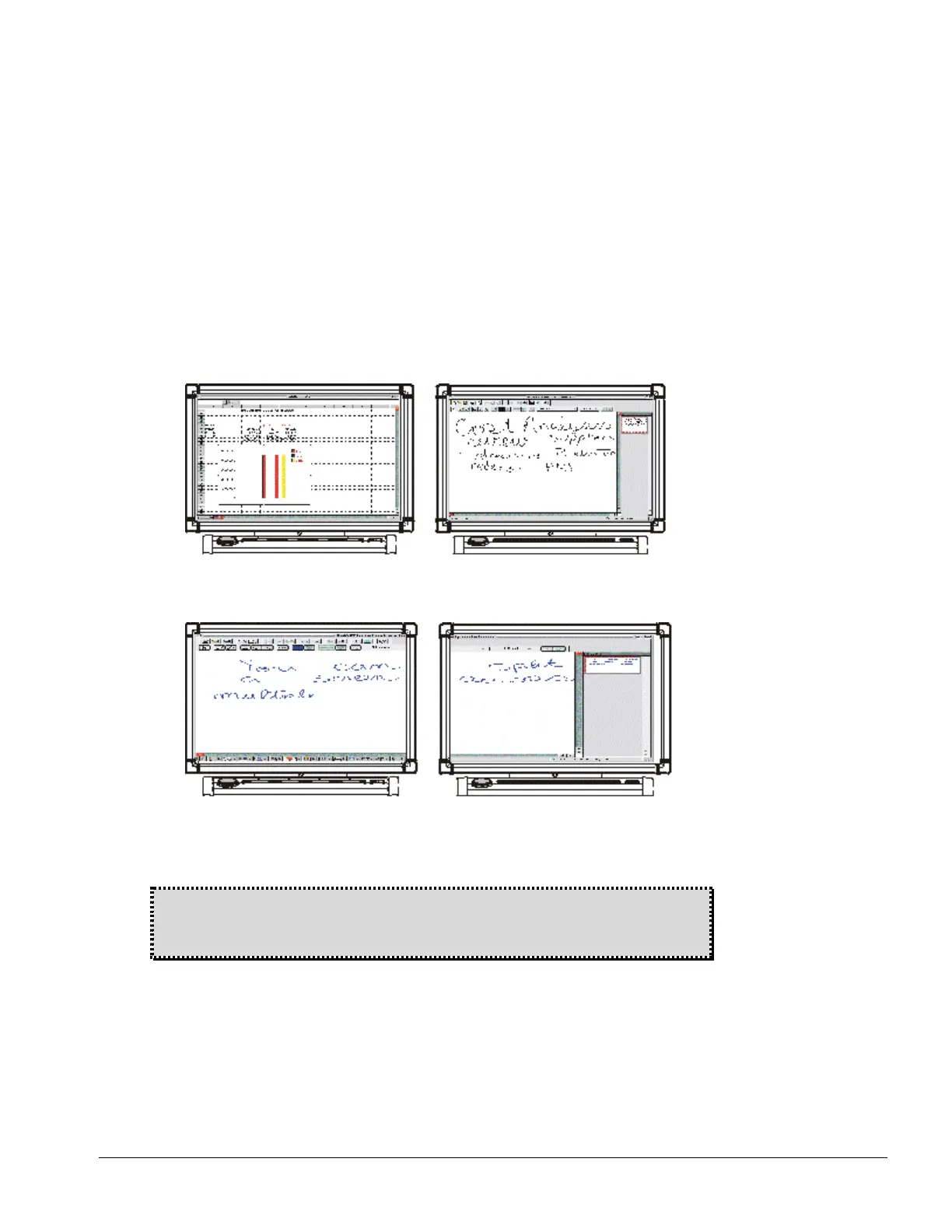
Suppose you're reviewing a spreadsheet and want to keep notes. You could display Appleworks Spread
Sheet on one screen and Notebook software on another.
Or, maybe you have complicated information that would benefit from a larger display area. In that case,
you could split the window across multiple screens.
You could even have separate applications open on some of the screens and a desktop split over others.
SMART Board software works the same way when you’re using it with multiple SMART Board interactive
whiteboard. However, you can only write on one screen at a time.
WARNING: Button bars and dialog boxes are sometimes displayed on a different screen
than the application to which they pertain. If you're unable to perform an action, make
sure a button bar or dialog box for that application isn't open on a different screen.



 To Next Page