SMART Board User’s Guide
11
Writing, Capturing and Erasing
You can write on the screen or erase your annotations using the styluses and eraser in the pen tray, the
various tools available in the Floating Tools, or a combination of both. Once you’ve annotated on the
screen, you can easily capture those notes using various methods.
This section describes how to:
• create annotations by writing over top of applications projected on your interactive whiteboard
using the pen tray tools or their software counterpart − the Floating Tools
• configure the pen tray tools (page 12)
• use the Floating Tools (page 13)
• configure the Floating Tools (page 14)
• capture what you write into Notebook software (page 14)
• erase what you’ve written on the interactive screen (page 15)
Writing with Pen Tray Styluses over Applications
To write over an application, select one of the four colored styluses from the pen tray, and then write on the
screen. If you’re using regular dry-erase markers, leave the caps on, as you’re writing in virtual, electronic
ink rather than physical ink.
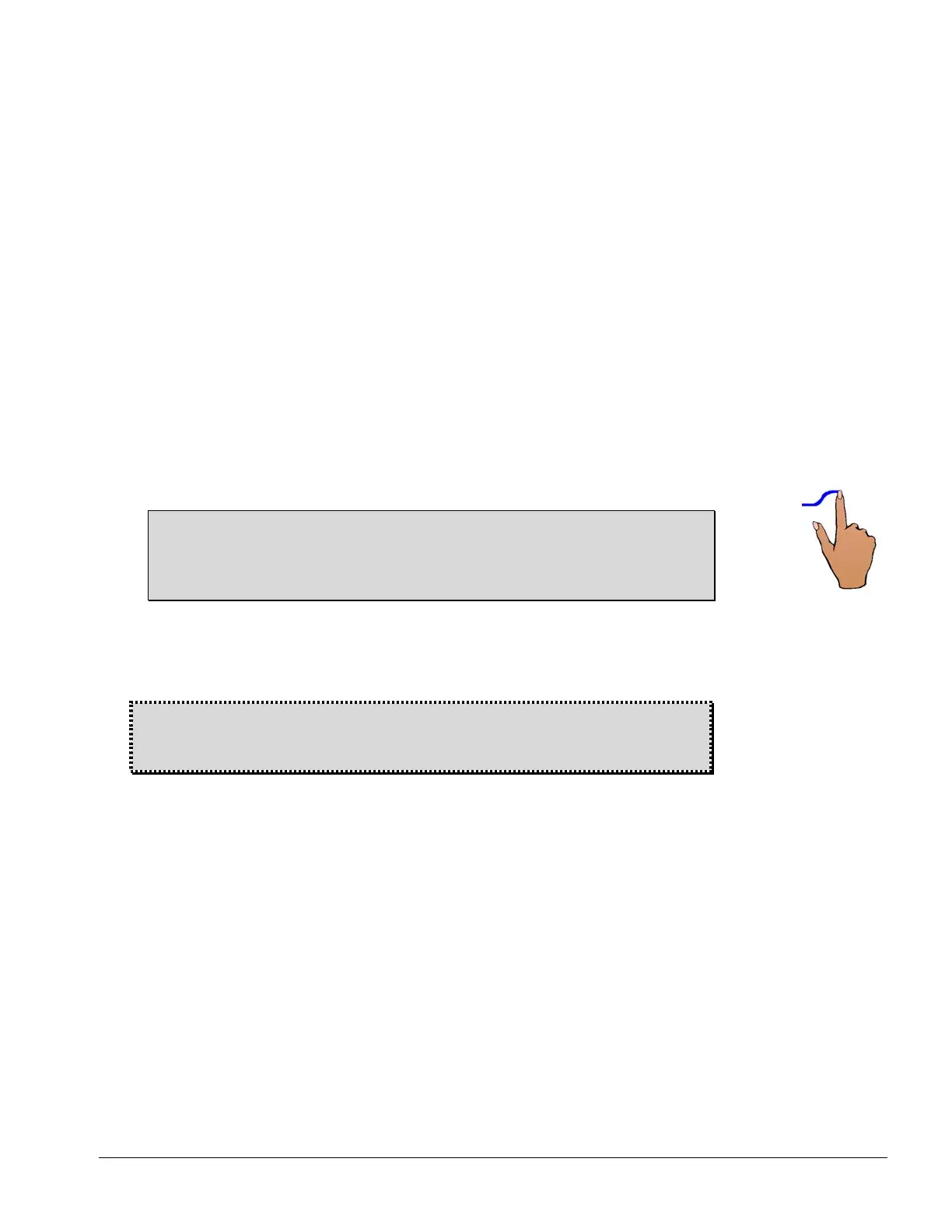
TIP
You can write on the screen or erase annotations with your finger. To do this, just pick
up a stylus or the eraser from the pen tray and touch the screen with your other hand to
produce the behavior of the lifted tool.
To write in a different color, place the stylus you first used back in its slot and select another. Since the
color recognition comes from the slots in the pen tray rather than the styluses themselves, ensure that
each stylus is returned to its proper slot (the slot with the corresponding color) when you finish using it.
WARNING: If you touch the interactive whiteboard after you’ve replaced the stylus in the
pen tray, the annotations you made will disappear. While this is an easy way to clear the
screen, you must be careful not to delete annotations via accidental screen contact.



 To Next Page