40
SMART Board User’s Guide
To display applications on multiple screens
1 Orient each interactive whiteboard by pressing the SMART Board icon in the menu bar, selecting
Control Panel and pressing the Orient button.
The Pick the Orientation Precision dialog box appears.
2 Select the level of orientation and then click OK.
3 Perform the orientation process on each SMART Board interactive whiteboard.
To move to the next screen, press the space bar.
4 To move an application to another screen, open the application and ensure it isn’t maximized.
(You can't move an application that's maximized.)
5 With one hand, select the application on one screen.
6 Press a finger of your other hand on the adjacent screen.
7 Release your finger from the first screen.
The application disappears from the first screen and reappears on the second.
Displaying Identical Desktops on Multiple Whiteboards
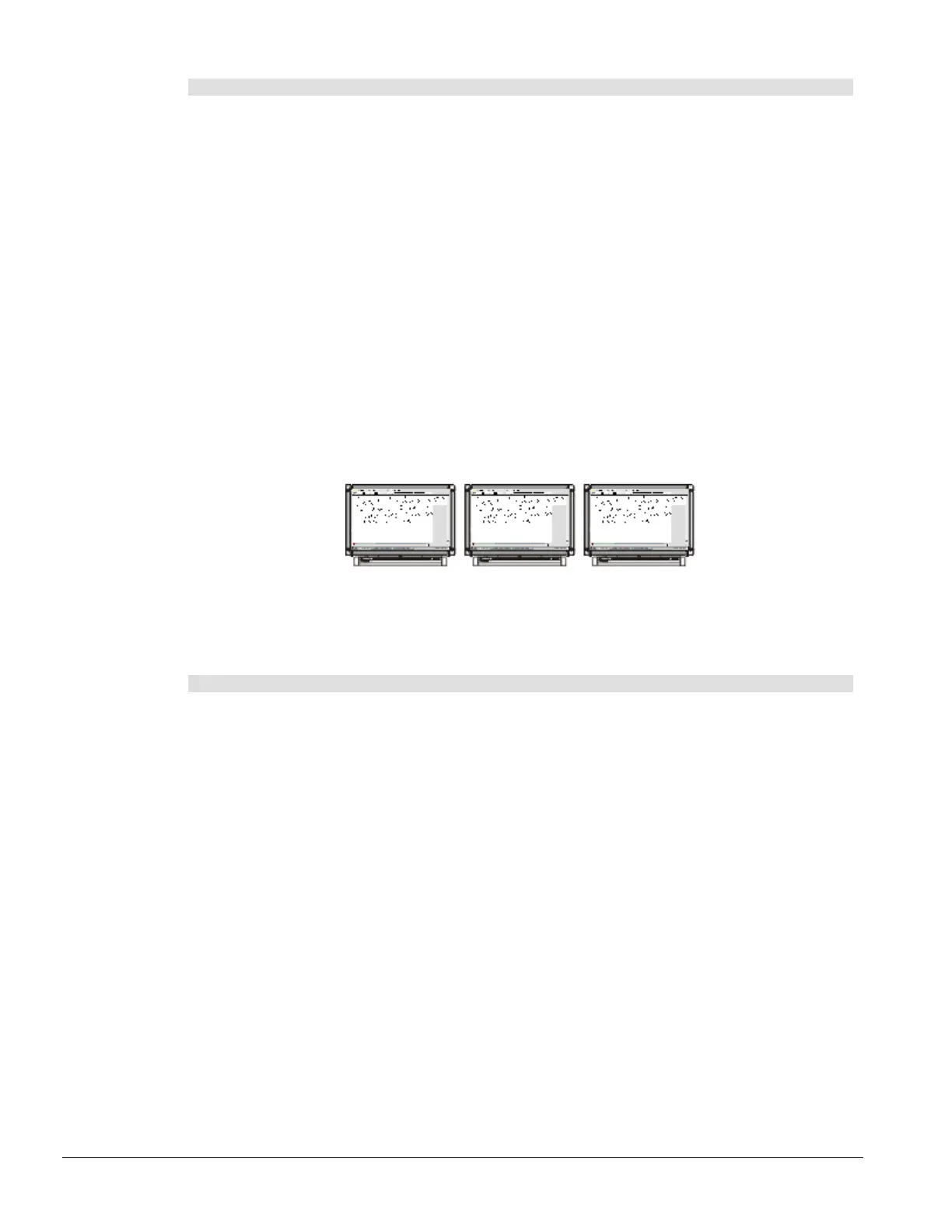
It's particularly useful to display the same desktop on multiple SMART Board interactive whiteboards when
you're delivering a presentation in a large lecture hall or meeting room. By using multiple screens, you can
display the same information at different locations in the room.
To set up multiple screens that display identical computer desktops, you'll need to either connect the
projectors to each other in a daisy-chain pattern or install a video-distribution amplifier between the
projectors and the computer.
If you require assistance in setting up a multiple interactive whiteboard scenario, call Technical Support.
To split an application across multiple screens
1 Press the SMART Board icon in the menu bar and select Control Panel.
The SMART Board Control Panel appears, listing configured interactive whiteboards.
If a COM port was not automatically configured for any of the interactive whiteboards, configure
the port yourself. To do this, press the Select button in the SMART Board Control Panel and
follow the on-screen instructions. All of the SMART Board interactive whiteboards have the same
desktop, so you can use any screen to do this.
2 Orient each SMART Board interactive whiteboard.
Although whatever you do will be displayed on all of the screens, the orientation is only saved to
the SMART Board interactive whiteboard on which you actually selected orientation points. You
can orient the screens in any order, as long as you remember to orient each one.
3 Open the application and ensure it isn’t maximized. (You can't move an application that's
maximized.)
4 Drag the edge of an application past the interactive whiteboard’s frame.
The application's edge moves to the adjacent screen, where you can position it as you like.



 To Next Page