6
SMART Board User’s Guide
The components of the SMART Board tools are briefly described below.
Notebook Software
Use Notebook software to create, organize, save and print notes from your workstation or a SMART Board
interactive whiteboard.
Notebook software includes many object-creation tools for creating a variety of annotations within your
Notebook files, and you can also import graphics and text from any other application.
Before a meeting or presentation, you can use the tools available in Notebook software to create a multi-
page Notebook file, and you can then open that file on the SMART Board interactive whiteboard during the
meeting. As the meeting participants provide comments and make suggestions, capture their input using
the styluses, and navigate between each page in your Notebook file by touching the screen.
Notebook software is much more than just an electronic flip chart for displaying presentations or capturing
notes from a brainstorming session. When you use the Screen Capture tools, Notebook software also
serves as a receptacle for anything you write on the SMART Board interactive whiteboard over any
application. When you perform a capture, the image is automatically placed on a new page of the current
Notebook file.
SMART Keyboard
The SMART interactive products are great tools for presenting information to others, because you can
control applications by touching the screen, and you can write over top of a program to make or emphasize
a point.
However, a keyboard is often a necessary tool. For example, you may want to rename a file by typing a
new name into the Save As dialog box. With the SMART Keyboard, you can do that right at the screen,
without moving to an attached keyboard. The on-screen keyboard is also useful for logging on at the
screen.
Floating Tools
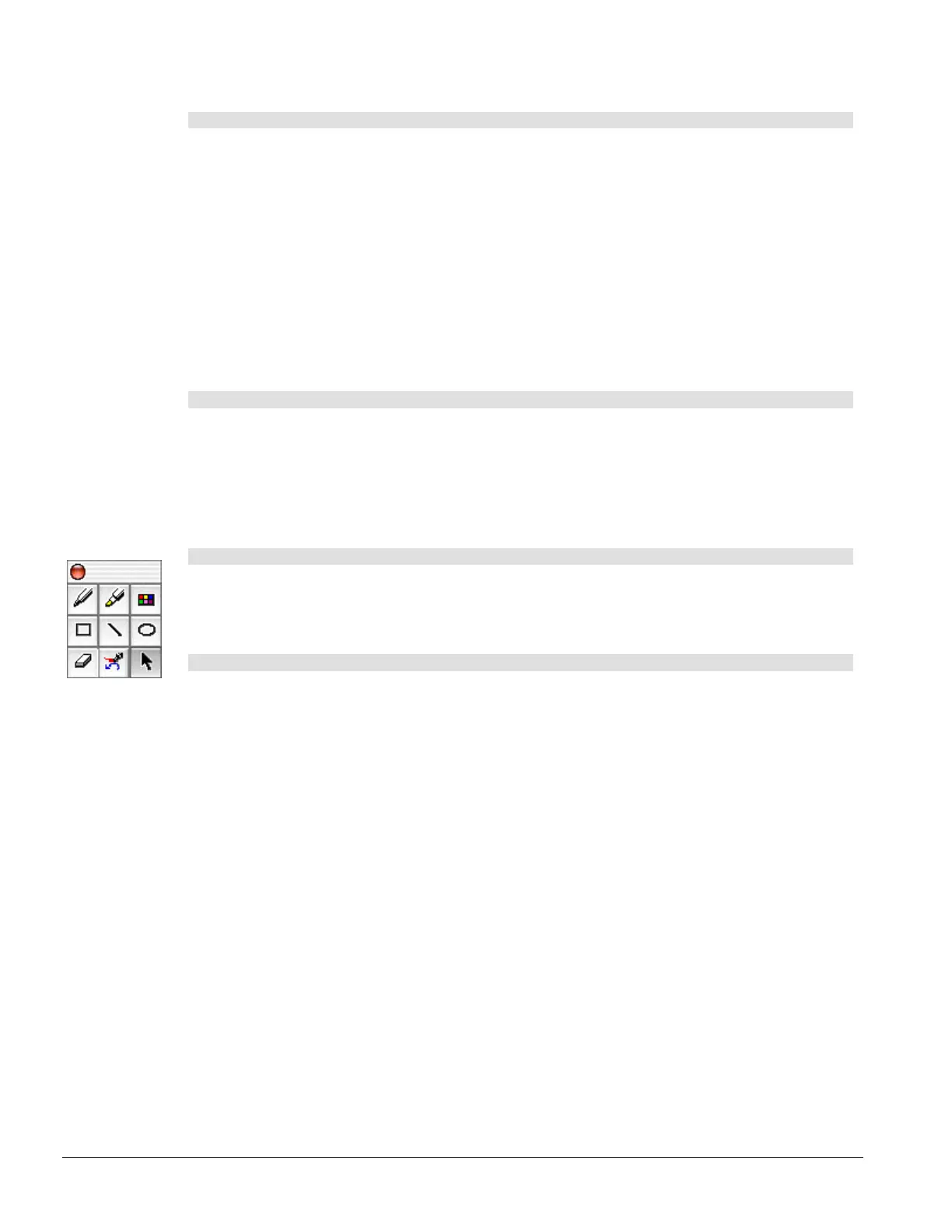
The Floating Tools component is a versatile palette of buttons that float over any open application on your
SMART Board interactive whiteboard. This palette offers you a wide range of functionality. These tools act
as software counterparts to the pen tray tools (a virtual stylus, highlighter and eraser). The Floating Tools
palette also includes tools for creating geometric shapes and restoring cleared annotations.
SMART Board Control Panel
The SMART Board Control Panel is a tabbed interface for configuring functions of SMART Board software
and the pen tray tools.
Use the Boards tab to:
• view status information for connected hardware
• orient your interactive whiteboard
• access advanced settings
• configure the interactive whiteboard for projected or non-projected use
• control the connection between the serially connected SMART hardware and your computer
• run a status log for diagnostic purposes
• configure your system for multiple interactive whiteboards, and then orient each unit
Use the Pen Tray tab to:
• customize the pen tray tools to accommodate your individual preferences or to revert to the
default settings
Use the Aware tab to:
• set your preferences for using PowerPoint software



 To Next Page