Special Tools menu options Description
l
Scroll on
l
×2
l
×3
l
×4
Zooms in on the displayed images and enables you to move the
zoomed area with the up, down, left and right arrow buttons on
the control panel
The SD Card view’s Special Tools menu includes the same tools as the Camera view’s Special
Tools menu, except that the SD Card view doesn’t have the Picture in Picture (PiP) feature.
l For information on how to use the Highlight feature, see Using the highlight feature on page 32.
l For information on how to use the Mask feature, see Using image masks on page 34.
l For information on how to use the Scroll feature, see Using the scroll feature on page 34.
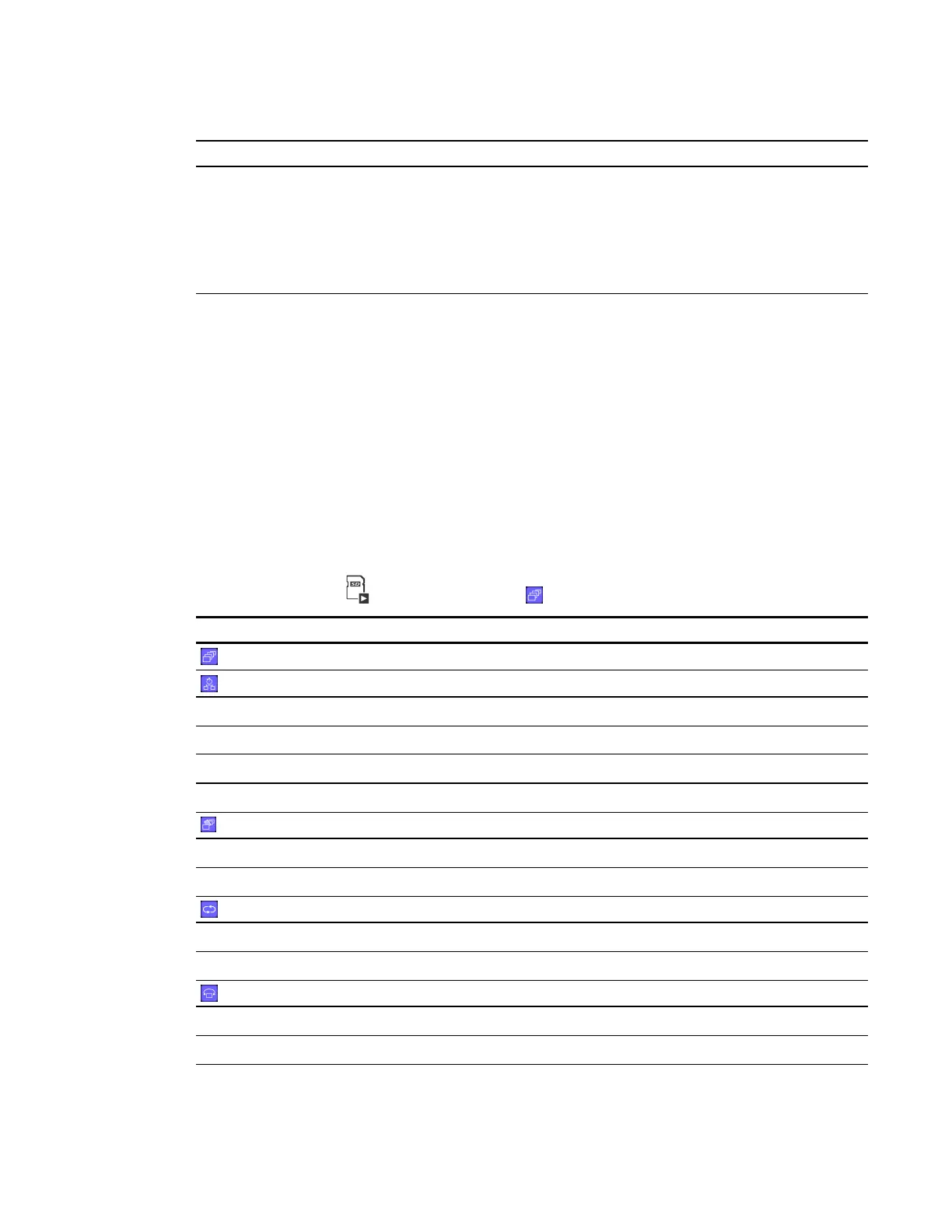
Slideshow Settings on-screen display menu
g To access the Slideshow Settings menu
Select SD Card view > Menu > Slideshow .
Slideshow menu options Description
Start Slideshow
Starts a slideshow of images
Interval
l
5 sec Sets image interval to 5 seconds
l
10 sec Sets image interval to 10 seconds
l
15 sec Sets image interval to 15 seconds
l
30 sec Sets image interval to 30 seconds
Select
l
All Selects all images for slideshow
l
Lock Sets so only locked images display in a slideshow
Repeat
l
Off Turns off slideshow repeat
l
On Turns on slideshow repeat
Order
l
Forward Sets slideshow order to forward
l
Backward Sets slideshow order to backward
C H A P T E R 6
Using your SMARTDocumentCamera in SD Card view
46



 To Next Page