12
DVR4400 DVD+VCR
Cable Box/Satellite Receiver Connections
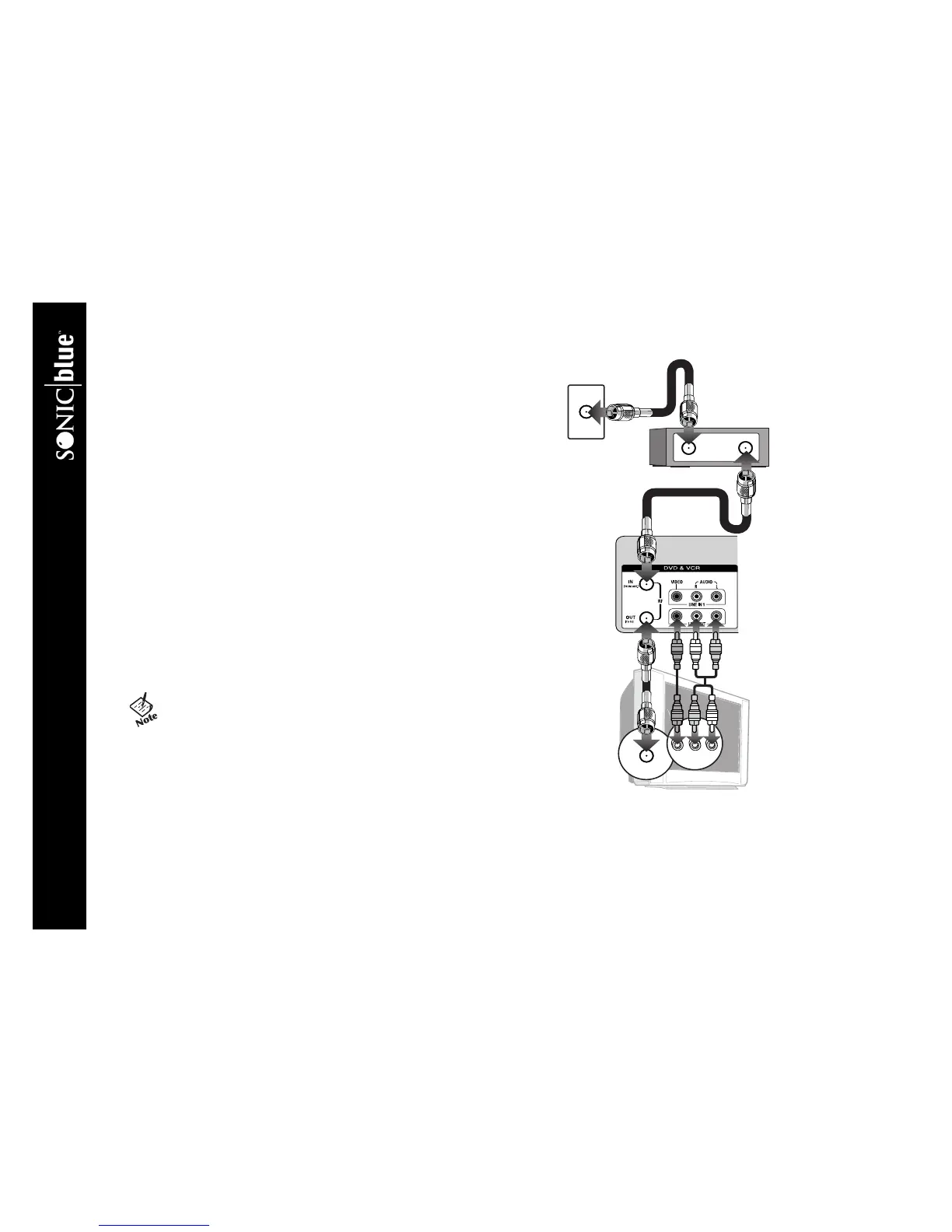
Follow these steps to connect a cable box or satellite receiver to your
DVD+VCR:
1 Connect incoming cable to cable box Connect a coaxial cable
from your cable TV or satellite jack to the input jack on your cable box/satel-
lite receiver.
2 Connect cable box to DVD+VCR Connect a second coaxial cable
from the output jack on the cable box/satellite receiver to the IN (FROM
ANT.) jack on the back panel of the DVD+VCR.
3 Connect DVD+VCR to TV Connect an additional coaxial cable from
the OUT (TO TV) jack on the back panel of the DVD+VCR to the antenna in
jack on your television.
OR
Connect the supplied audio/video cable from the LINE OUT jacks on the
DVD+VCR back panel to the line in jacks on your television.
4 Power on DVD+VCR, TV & cable box Plug the DVD+VCR power
cord into a standard 120V/60Hz wall outlet, and turn on your television,
DVD+VCR and cable box/satellite receiver.
5 Select Channel 3 or Line Tune your television to channel 3, or to the
TV’s Line/Aux input.
• The Language/Langue/Idioma menu should appear on your
television screen. Please proceed with Auto Setup on page 15.
• Use your cable box/satellite receiver to select channels.
If you are not getting a good picture, try changing the RF Out-
put to channel 4; see page 17.
• This method of connecting a cable box allows you to record
scrambled channels, but you will not be able to watch a second
channel while a recording is in progress. If you want to record
from basic cable and watch scrambled channels simultaneously,
see Alternative Cable Box Connection on the next page.
Incoming Signal
Cable Box/
Satellite Receiver
Telev i sion
DVD+VCR


 To Next Page