41
:: MP3 Playback
MP3 is a popular music format which allows you to compress music files up to
1/12 of their original size while retaining near CD quality sound. Your DVD-
VCR can playback MP3 files burned onto a CD-R/RW disc.
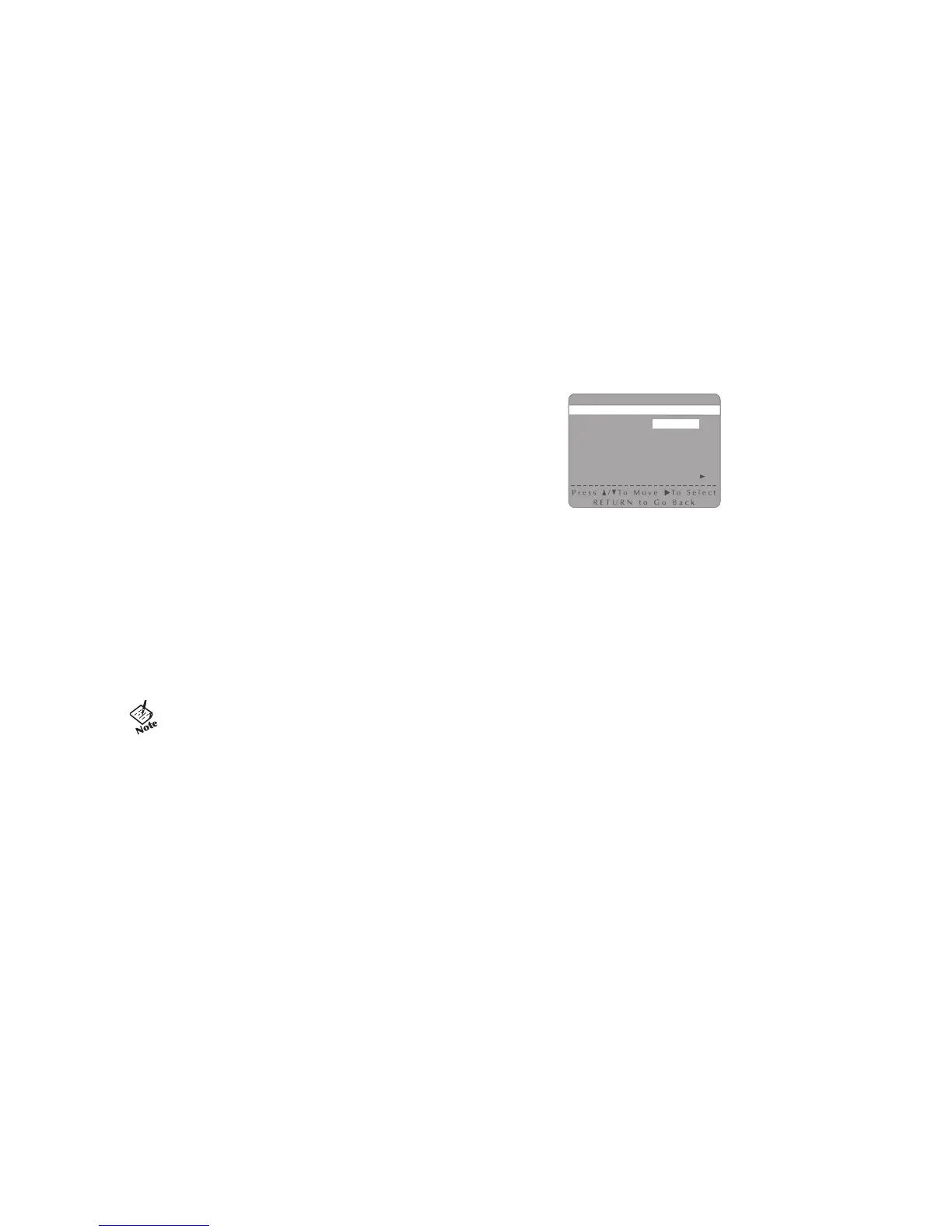
1 Insert a CD-R/RW disc with MP3 files into the DVD deck. The MP3 main
menu will appear after a few seconds and the first song on the disc will begin
playing.
2 Press
Y/B to select the folder on the CD-R/RW which contains the MP3 files
you want to hear, then press SETUP/ENTER to select.
• If there are more than 8 folders on the disc, press RETURN to view
additional folders.
• If there are no folders on the CD-R/RW, skip to Step 3.
3 Press
Y/B to select the desired MP3 file.
• If there are more than 8 MP3 files in the selected folder, push
A/" to
view additional MP3 files.
• File names are truncated to eight characters: the first six characters of
the song, plus an asterisk (*), then a number.
• Press RETURN to back up and select another folder.
4 Press SETUP/ENTER to play the selected song.
• While the song is playing, press
Y/B to browse through other folders.
5 Press STOP
J to stop playback.
• To ensure proper playback of discs burned from MP3 files,
make sure the files have been recorded at a bit rate of at least
128 kbps.
• If there are any gaps (blank data) on multi-session discs, you
may experience playback problems.
• On discs that are recorded with a Variable Bit Rate(VBR), e.g.
from 32 to 320 kbps, the sound may cut in and out.
MP3
Music C1
song 1
1 song 1
2 song 2
3 song 3
4 song 4
5 song 5
6 song 6
7 song 7
8 song 8


 To Next Page