14
DVR4400 DVD+VCR
Other Audio/Video
Connections
Follow these steps to connect an external audio/video
device, such as a camcorder or video game, to your
DVD+VCR. The DVD+VCR will automatically detect
when a device is plugged into the front line input; see
“Automatic Input Switching” below.
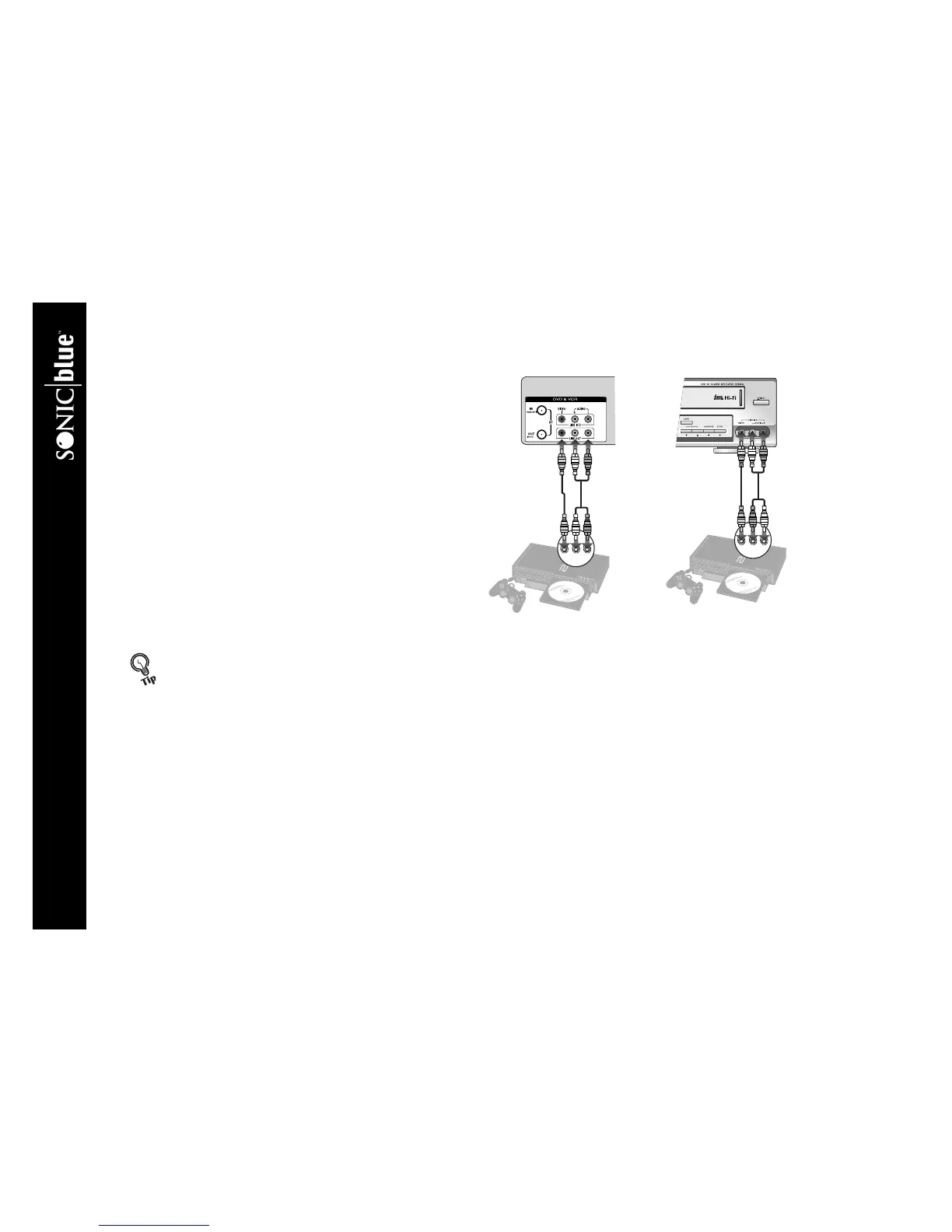
1 Connect device to DVD+VCR Connect
audio/video cables from the line outputs of your
device to the line inputs on the rear (Line 1) or front
(Line 2) of the DVD+VCR.
2 Choose from the following options:
To View Device Press TV VIEW until Line 1
or Line 2 appears on your television screen.
To Record from Device Press TV VIEW
until Line 1 or Line 2 appears on your television
screen, then press REC
F on the VCR deck.
To Timer Record from Device Select Line
1 or Line 2 as your Record Source in the Timer
Record menus; see page 39.
Automatic Input Switching will automatically change your TV’s
view to match whatever media you are using. For example, if you
play a DVD, the DVD+VCR will switch to DVD view. Likewise, if
you play a videotape, the player will switch to VCR view. It will
even detect if you plug an external device, such as a camcorder,
into the front line inputs. The DVD+VCR will detect that the
device has been plugged in and switch to Line 2 automatically.
External Audio/Video Device(s)
DVD+VCR (Line In 1) DVD+VCR (Line In 2)


 To Next Page