29
Connections Getting
Started
SetupBasic
Operations
Advanced
Features
Help
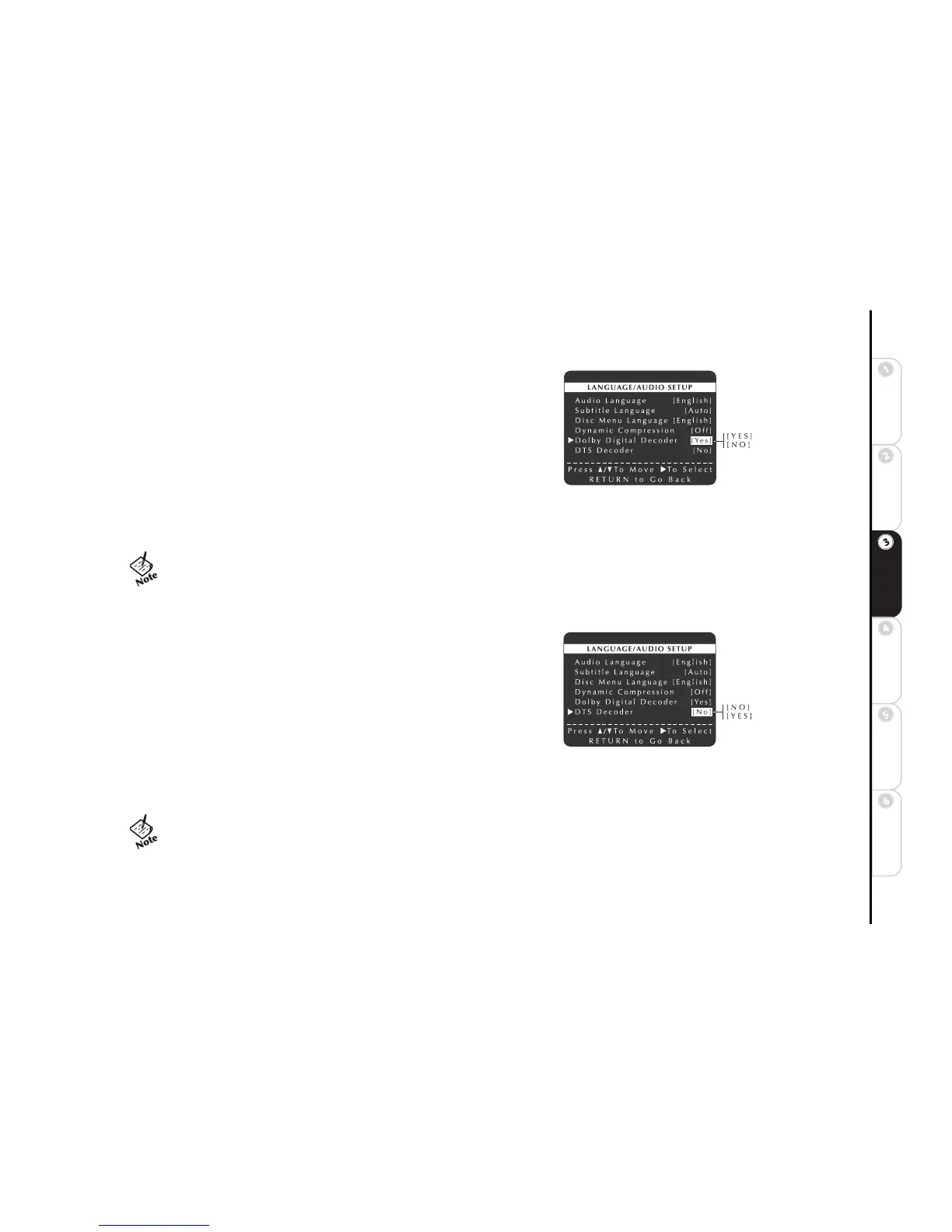
Dolby Digital Decoder
If you have connected the DVD+VCR to an audio/video receiver equipped with
a Dolby Digital Decoder, you must enable this feature in the menu system to
enjoy Dolby Digital surround sound.
1 Press SETUP/ENTER.
• Make sure the DVD deck is stopped before pressing SETUP/ENTER.
You will not be able to enter the DVD Setup menu if a DVD is playing.
2 Press
Y/B and " to select DVD Setup Menu.
3 Press
Y/B and " to select Language/Audio Setup.
4 Press
Y/B and " to select and set Dolby Digital Decoder as follows:
YES Indicates that your audio/video receiver is equipped with a Dolby Digital Decoder.
NO Indicates that your audio/video receiver is NOT equipped with a Dolby Digital Decoder.
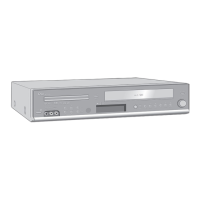
DTS Decoder
If you have connected the DVD+VCR to an audio/video receiver equipped with
a DTS Decoder, you must enable this feature in the menu system to enjoy DTS
surround sound.
1 Press SETUP/ENTER.
• Make sure the DVD deck is stopped before pressing SETUP/ENTER.
You will not be able to enter the DVD Setup menu if a DVD is playing.
2 Press
Y/B and " to select DVD Setup Menu.
3 Press
Y/B and " to select Language/Audio Setup.
4 Press
Y/B and " to select and set DTS Decoder as follows:
NO Indicates that your audio/video receiver is NOT equipped with a DTS Decoder.
YES Indicates that your audio/video receiver is equipped with a DTS Decoder.
• To prevent damage to your speakers, do not select YES, unless
you have connected a Dolby Digital-equipped audio/video
receiver to the Digital Audio Output (coaxial) on the
DVD+VCR back panel.
• To prevent damage to your speakers, do not select YES unless
you have connected a DTS -equipped audio/video receiver to
the Digital Audio Output (coaxial) on the DVD+VCR back
panel.


 To Next Page