SONOSAX SX-R4
+
User interface V1.2 Page
24
of 26
6.1.3 Set the SX-R4+ as WiFi client
The SX-R4+ can join an existing WiFi network as "client". However, as the SX-R4+ can not browse through available
WiFi network, its interface must be manually configured to join a network.
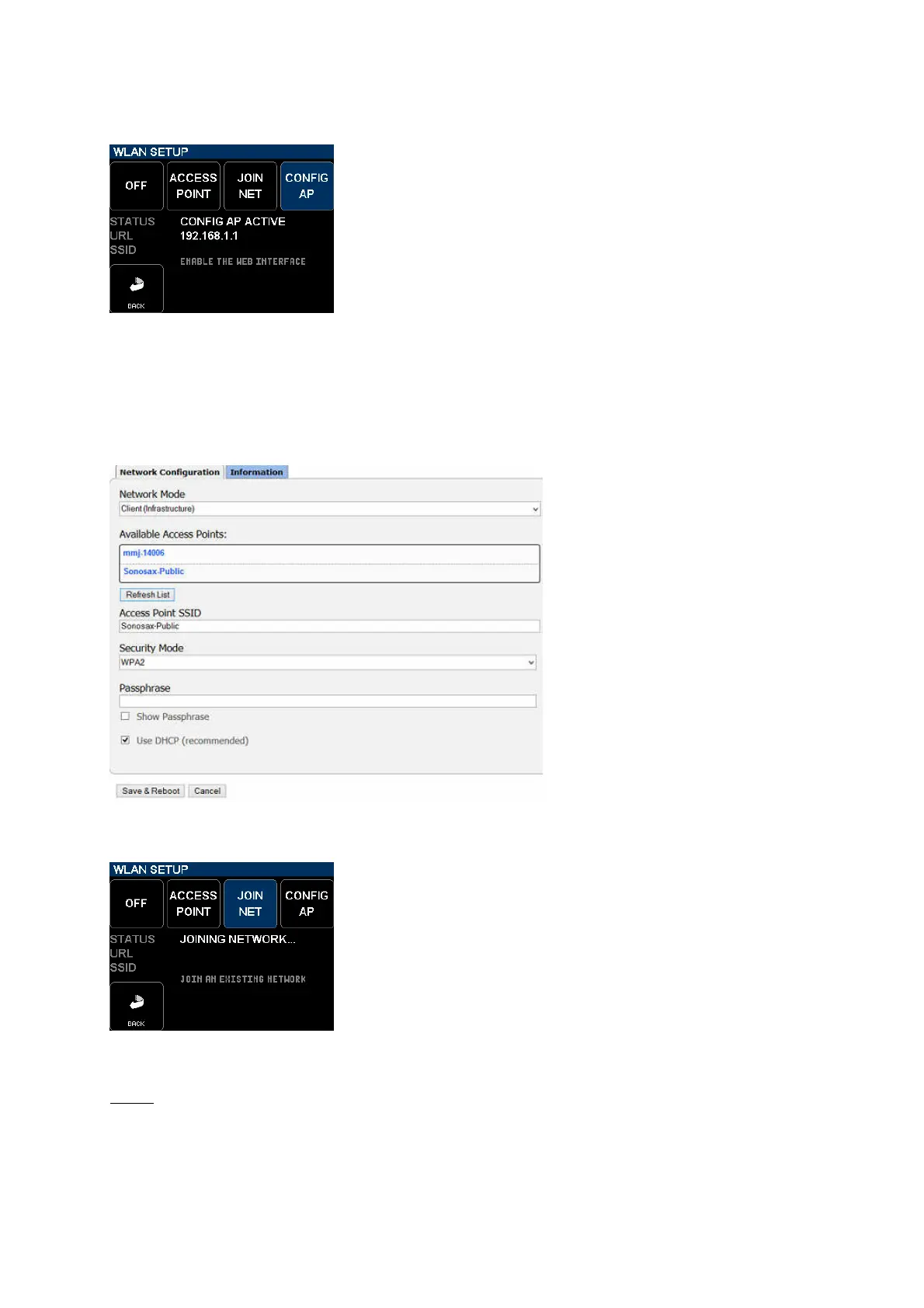
Press on the [CONFIG AP] key to turns the WiFi interface on; message is posted
confirming that the access point configuration page is active.
A network configuration page is broadcasted by the SX-R4+ and must be loaded
in the web browser of the tablet to configure the WiFi module of the SX-R4+.
Connect your tablet to the WiFi configuration page of the SX-R4+ as follow :
• open the WiFi manager of the tablet; all available WiFi network will be listed
• locate and select the SX-R4+ network named [SX-R4+_ _SNxxxxxx]
• confirm with "connect" to join your SX-R4+
• open the web browser of the tablet and type directly on the URL bar: 192.168.1.1
• wait a few seconds until the "WiFly Module Configuration" page appears on the web browser
- Select "Client infrastructure
- Click on the "Refresh List" button to list
available network
- Chose the WiFi network to by accessed by
the SX-R4+ in the available list
- The selected SSID appears in this field
- Select the security mode as define by the
existing network
- Eventually type the password to access the
chosen WiFi network
- Confirm with "Save & Reboot
Once the WiFi module of the SX-R4+ is configured as client, press on the [JOIN] button the join the chosen network.
NOTE: When the WiFi interface is turned On, a WiFi icon is flashing on the upper right corner on the main screen,
once the WiFi communication is established the WiFi icon is posted steadily


 To Next Page