32 Contacts M600i
This is the Internet version of the user guide. © Print only for private use.
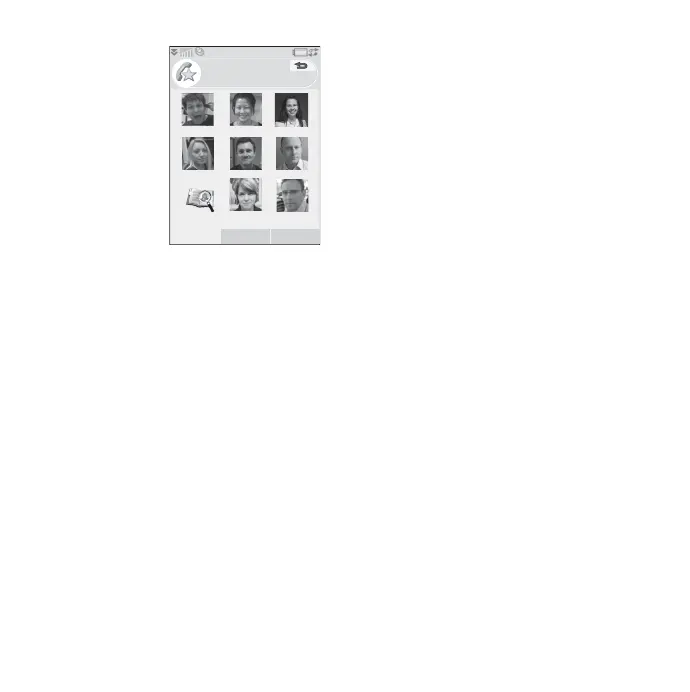
Creating a speed contact
This function
allows you to speed
up your dialing.
Select
More > View
folder > Speed
contacts
. Select the
contact you want to
create. Choose a
contact from the
list. Select
Save.
Note: Copyright
protection may prevent images from
displaying in Speed contacts. See Protected
files on page 54.
Adding a voice dial command
If you have stored a voice command, use Voice
dialing to make a call by simply saying the
contact’s name.
Adding a DTMF tone sequence
You can add a DTMF tone sequence to a
contact’s phone number or store it in a separate
field. Always start the sequence with a
p and
end it with a space. To send tones during a call,
open the corresponding Contacts entry, then
select the desired tone sequence.
See Controlling tone-based services on
page 23.
Managing Contacts
Creating a contact group
To create a contact group, select More > New
group
. Select the contacts you want to include
in the group by marking them, then selecting
Done. Enter the name of the group, then select
Save.
Copying or deleting a contact
To copy a contact from one folder to another,
highlight the contact, then select
More > Add
to >
desired folder. To delete a contact,
highlight it, then select
More > Delete.
Sending an entry
Scroll to the desired contact, then select the
More > Send as > sending option to send the
contact’s information to another contact.
Copying to and from an SIM card
You can copy contacts from your SIM card to
Contacts and vice versa:
To copy from Contacts to your SIM card
1. Mark the desired entries in Contacts.
2. Select
More > Add to > SIM.
To copy from your SIM card to Contacts
1. Select
More > View folder > SIM to open
the SIM card.
2. Mark the desired entries.
Bob
Shu
Anna
Marcel
Lars
Karen
Empty
Nadja
Peter
1
23
45
6
7
8
9
Speed contacts
Add More





 To Next Page