8 Getting to Know Your Phone M600i
This is the Internet version of the user guide. © Print only for private use.
synchronization function. See
Synchronization and Backup on page 59.
• Beam phonebook entries from another
phone using, for example, Bluetooth®
wireless technology. See Connecting to
Other Devices on page 57.
The Screen
The screen is touch-sensitive. Use either the
stylus or your fingertips to select items. The
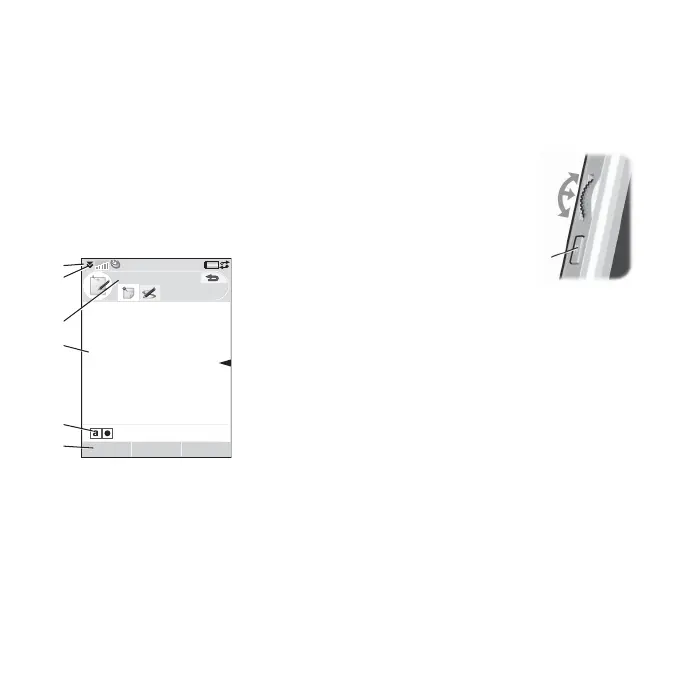
figure below illustrates a typical screen
display, with icons and menus:
A. Status bar, containing status icons
B. Status bar menu
C. Application title bar
D. Application window
E. Button bar
F. Touch options bar
Navigation
To navigate menus and select items, you can
use the Jog Dial, Back button, stylus, keyboard
navigation keys, touch options, and even your
fingers.
Jog Dial
Rotate the Jog Dial to
scroll up and down lists,
adjust the sound volume,
or move through a
multimedia message.
Press the Jog Dial to
select a highlighted item.
Back button
Use the back button on the side of the phone as
follows:
• Press – return to the previous screen or
menu, or cancel the current dialog box.
• Press and hold – return to Standby view or
lock and unlock the keyboard when in
standby view.
Stylus
Tap the screen with the stylus to navigate and
select items or view multimedia images.
Notes
EditSave More
B
A
C
D
E
F
Up
Inwards
Down
Back
button





 To Next Page