M600i Web 35
This is the Internet version of the user guide. © Print only for private use.
Web
The integrated Opera 8 browser is your
phone's entryway to the Internet. It supports
both frames and JavaScript®.
You can easily switch from portrait to
landscape view and change from normal to full
screen. The browser can also fit the page
contents to the screen width.
You can save pages to view them offline.
Opera has separate download managers for
files that need secure download and all other
files. The secure downloads manager is
especially useful for downloading commercial
media.
You can set up the browser to block pop-ups.
The browser provides secure links to
encrypted Web sites. The icon on the
browser's context bar indicates when a secure
connection has been established.
Note: Before you can access the Internet using
this Web application, you must set up your
Internet accounts (see Setting Up Accounts on
page 61).
The browser can remember the usernames and
passwords you use to log into various Web
sites, saving you time when you access those
sites.
Working with Pages
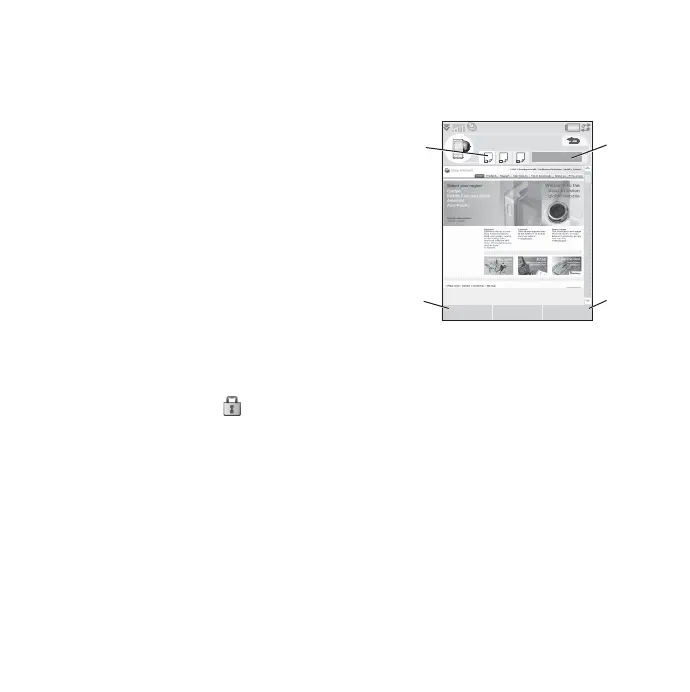
Select Multimedia > Web to open the browser.
• The Sony Ericsson home page is shown if
no other page has been set remotely.
A. Page icons are shown in the context bar.
The icons change appearance when the
page has finished loading.
– Tap to change page.
– Tap and hold for an options menu for
the selected page. Select
Close page to
close the page.
B. Select
New to open a new Web page. Back
and Stop also displayed when
appropriate.
C. Select
More to access menu options.
D. Progress bar, indicating the progress of
page loading.
C
D
Web
A
B
New More





 To Next Page