M600i RSS Feeds 39
This is the Internet version of the user guide. © Print only for private use.
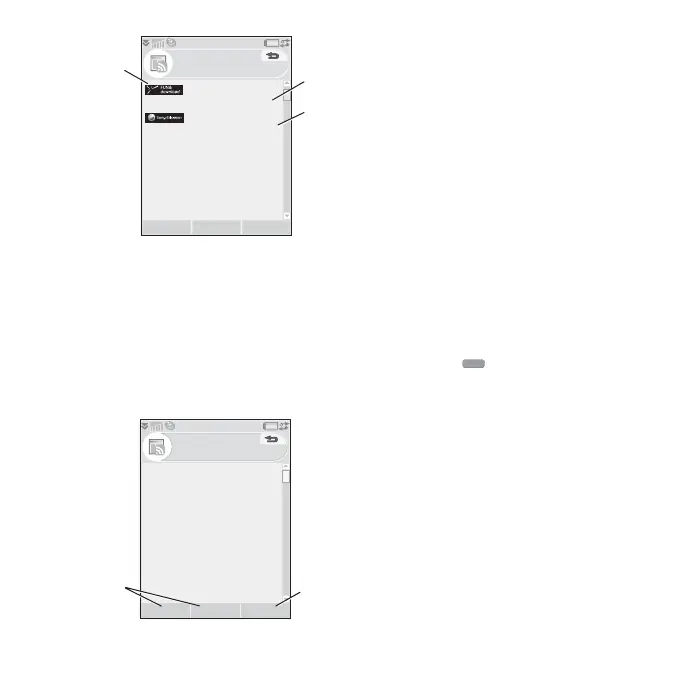
A. Title of RSS feed and time of last update.
B. Indicates the number of unread feeds.
C. Bold indicates feeds with new news items.
Select the RSS feed you are interested in to
display its list of news items. Then select a
news item headline to display the full headline
and description.
A. Go back or forward between news items.
B. Display more details about the news story
in the Web browser by selecting
More >
Read more
.
Updating Feeds
You can update feeds manually or by
scheduling updates. When displaying the
feeds list, select
Update to update all feeds at
the same time.
If you are reading a feed's list of news items,
you can select
Update to update that feed.
To schedule updates, select
More > Settings >
Schedule updates
. You can choose to update
the feeds by time of day or time interval.
When feeds are updated automatically, the
status bar icon appears. Tapping the status
bar icon launches the RSS application.
Settings
Select More > Settings > RSS options to
access the following:
•
Save items for – sets how long items
should be saved for.
•
Internet account – sets the Internet
connection to use.
Tip Set the Internet account to the same
connection as the Web browser.
RSS feeds
Update Open More
C
B
Sony Ericsson News
13:33
(10)
(8)
FUN&downloads
13:34
RSS feeds
FUN & downloads
Software and services
Expand your capabilities with
software and services for
your Sony Ericsson mobile
phone.
Transform your personal
communication.
B
Previous Next More
RSS





 To Next Page